


 Contact Support
 Sign In
Clearing the state in your browser ensures that old or cached SSL state data is removed, allowing your browser to load the most recent certificate. After installing or renewing an SSL certificate on your Hosted.com® website, you may encounter issues such as browsers showing a “Not Secure” warning or failing to load the updated certificate.
VIDEO: How to Install an SSL Certificate on Your Website
TABLE OF CONTENTS
What is the SSL State?
The SSL state refers to the cached information your browser stores about secure connections to websites. This includes SSL certificates and encryption keys used to establish HTTPS connections. While caching helps speed up connections, it can occasionally cause browsers to display outdated SSL information, leading to security warnings or connection errors.
Why Clear the SSL State?
Clearing the state is particularly helpful when:
- You have recently installed, renewed, or updated an SSL certificate on your Hosted.com® account.
- Your browser continues to show a “Not Secure” warning, although the SSL certificate is valid.
- You are troubleshooting HTTPS or mixed content errors on your website.
How to Clear the SSL State
How to Clear State for Google Chrome (Windows):
1. Open Chrome and click the three-dot menu in the upper-right corner.
2. Go to Settings, then Privacy and Security, and next Security.
3. Scroll down and click Manage Certificates.
4. In the window that opens, click Clear SSL State.
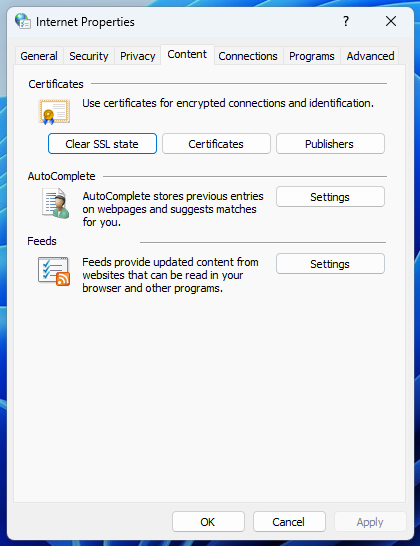
5. Close and reopen your browser for the changes to take effect.
How to Clear State for Mozilla Firefox
1. Open Firefox and click the menu button, then select Settings and next, Privacy & Security.
2. Scroll to Certificates and click View Certificates.
3. Click Servers followed by Delete or Clear SSL State (depending on your version).
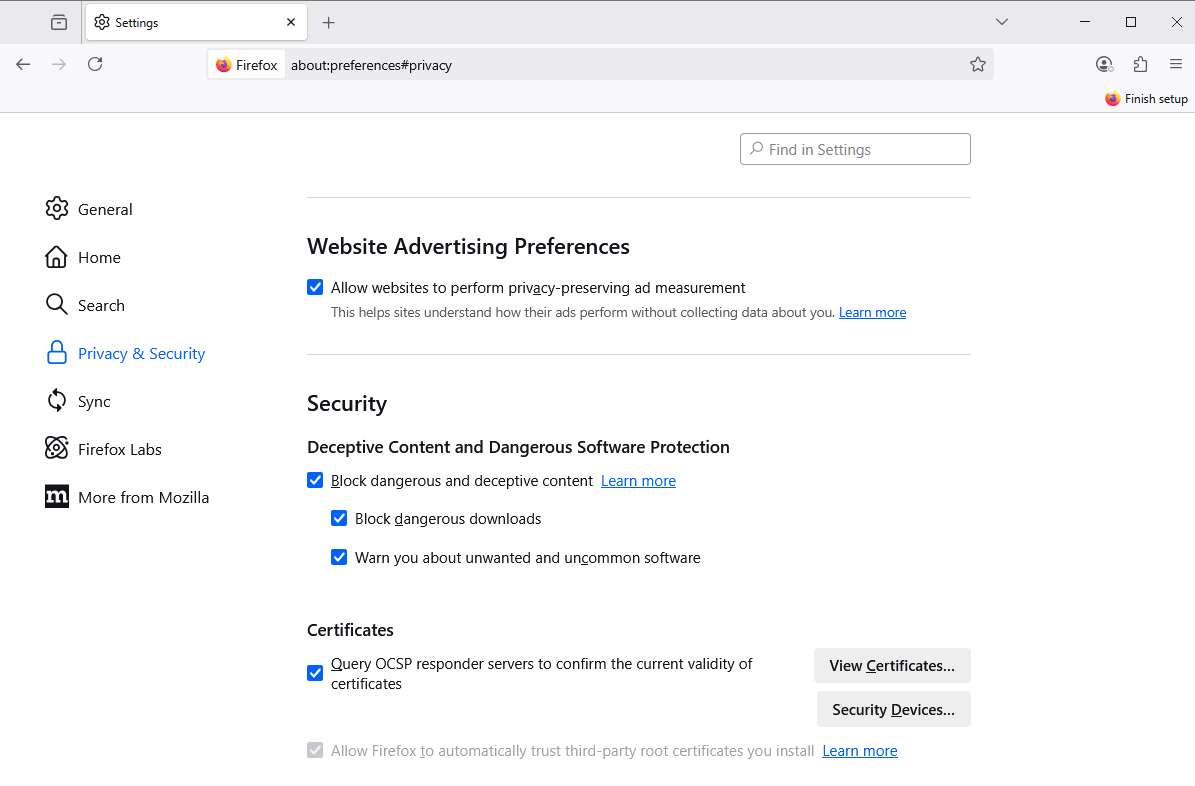
4. Restart Firefox to apply the changes
How to Clear State for Microsoft Edge
1. Open Edge and click the three-dot menu to access Settings followed by Privacy, Search, and Services.
2. Scroll down and click Security and then, Manage Certificates.
3. Click Clear SSL State.
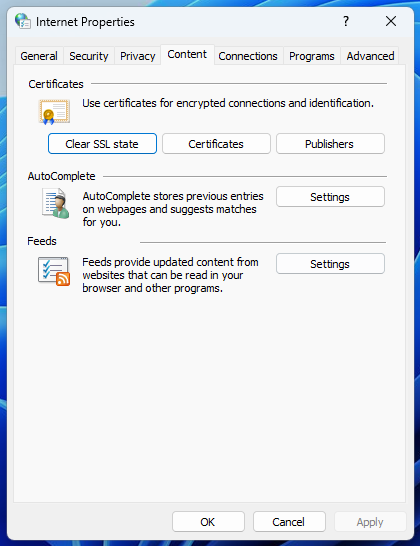
4. Restart Edge to reload the updated SSL certificates.
Additional Information
- Browser Cache vs SSL State: Clearing the SSL state specifically targets cached SSL certificates. If you still find errors, you can also clear your browser cache.
- Multiple Browsers: If your website is accessed on multiple browsers, repeat the process in each browser to ensure all cached SSL data is cleared.
- Device-Specific Issues: Some devices (e.g. mobile phones or tablets) may also cache SSL information. Restarting the device often clears cached SSL data.
- Hosted.com® SSL Certificates: Ensure your SSL certificate is properly installed in cPanel under SSL/TLS Manager before you clear the state.
- Troubleshooting: When problems persist after clearing the state, verify that your SSL certificate is active and matches your domain, and check for mixed content errors in your website files.
- Security Tip: Regularly check SSL certificate expiration dates to avoid connection errors and maintain website security.



