


 Contact Support
 Sign In
SSL bit encryption measures the strength of the encryption that protects data transferred between your website and your visitors. It’s a key part of what makes online connections secure, ensuring that sensitive information such as passwords and payment details can’t be intercepted or read by unauthorized parties.
When a visitor connects to your website through HTTPS, the SSL certificate encrypts the communication using a cryptographic key. The bit size (such as 128-bit or 256-bit) represents the complexity of that encryption. The larger the bit size, the more secure the connection.
Hosted.com® uses 256-bit encryption with 2048-bit RSA keys, the same standard trusted by banks and government agencies. This level of security makes it nearly impossible for hackers to break through and guarantees that your website’s data remains protected at all times.
TABLE OF CONTENTS
Why SSL Bit Encryption Strength Matters
Hosted.com® automatically offers strong encryption across every hosting plan to keep your data private and secure. With Hosted.com®, your website always operates on industry-leading encryption standards, providing you and your visitors with complete peace of mind.
Here’s why it’s so important:
- 256-bit encryption offers one of the highest levels of security available today.
- 2048-bit RSA keys ensure your server’s identity is verified and can’t be impersonated.
- TLS 1.3 enables faster, more efficient encrypted communication with less processing power.
- Automatic updates: The Hosted.com® AutoSSL system manages installation and renewal, so your protection never lapses.
- Compliance: Strong encryption helps your business meet standards like PCI DSS, GDPR, and CCPA for online safety.
Additional Information
Login to Hosted.com® Account
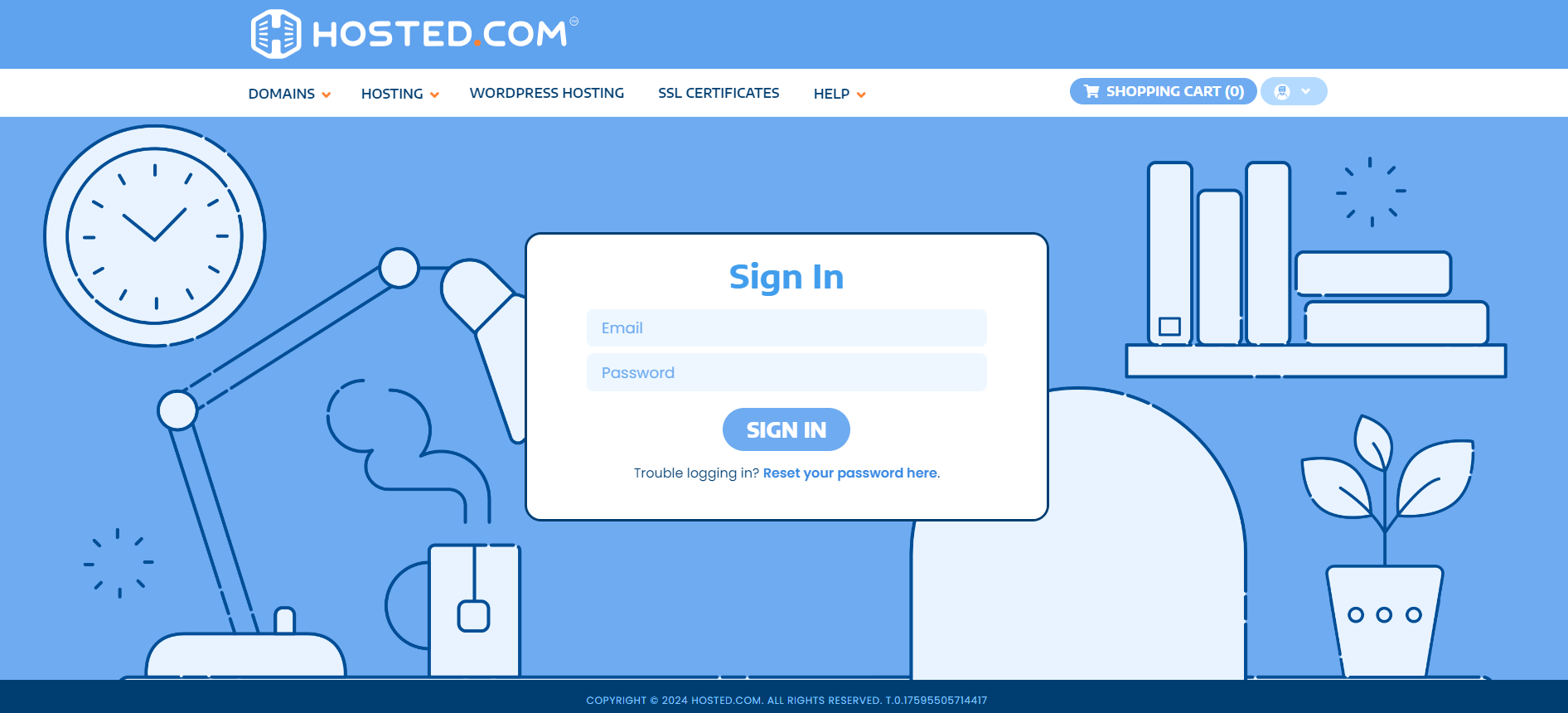
1. Go to the Hosted.com® website Account Login page.
2. Enter your Email and Password and click the Sign In button.
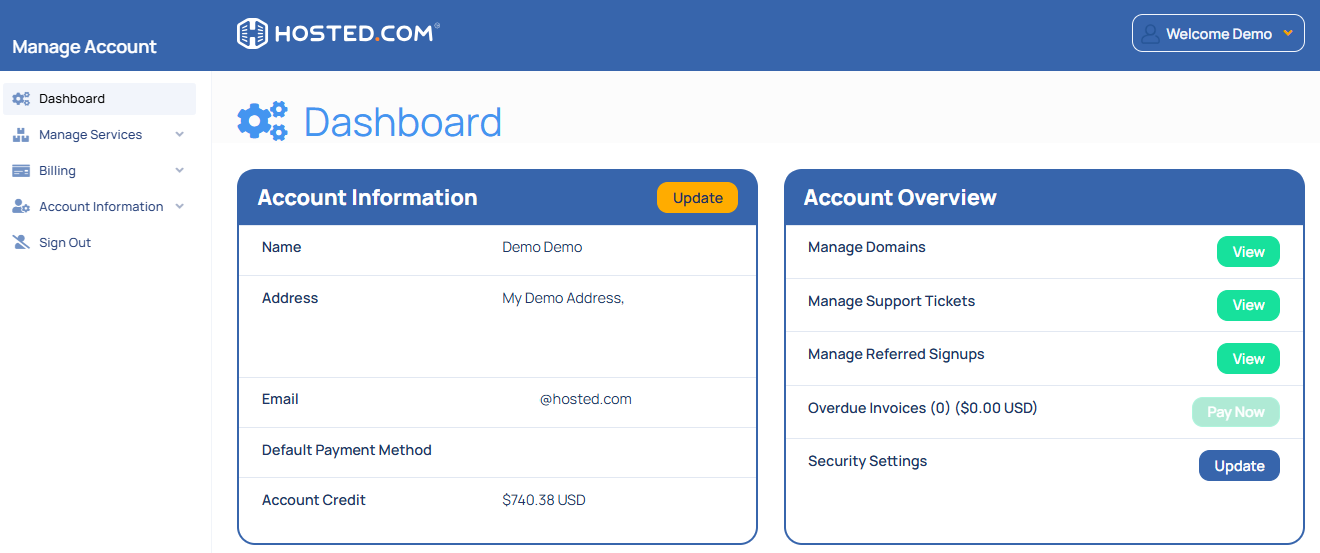
3. You will see the Hosted.com® Dashboard, displaying the Manage Account menu on the left and your Account Information, Account Overview and Open Support Tickets on the right.
Login to cPanel from your Hosted.com® Dashboard
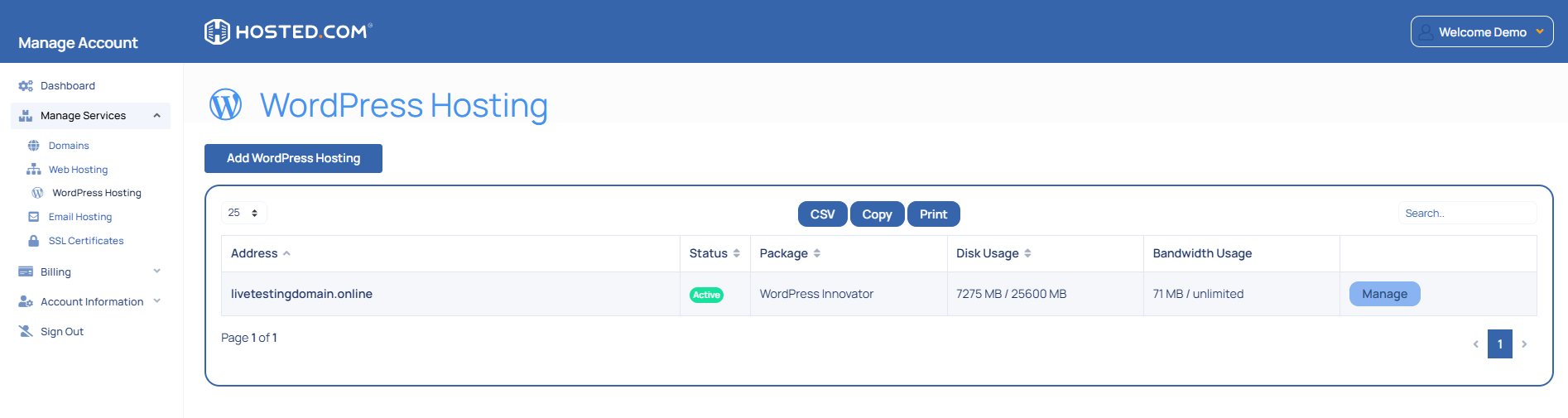
4. Click on Manage Services to view the sub-dropdown menu and select the hosting package for the domain you want to work with – in our example we are using WordPress Hosting.
5. Click the Manage button to the right of the domain name you want to access.
6. The display will now show Product Information, Quick Manage, Resource Usage and Site Statistics for that domain name.
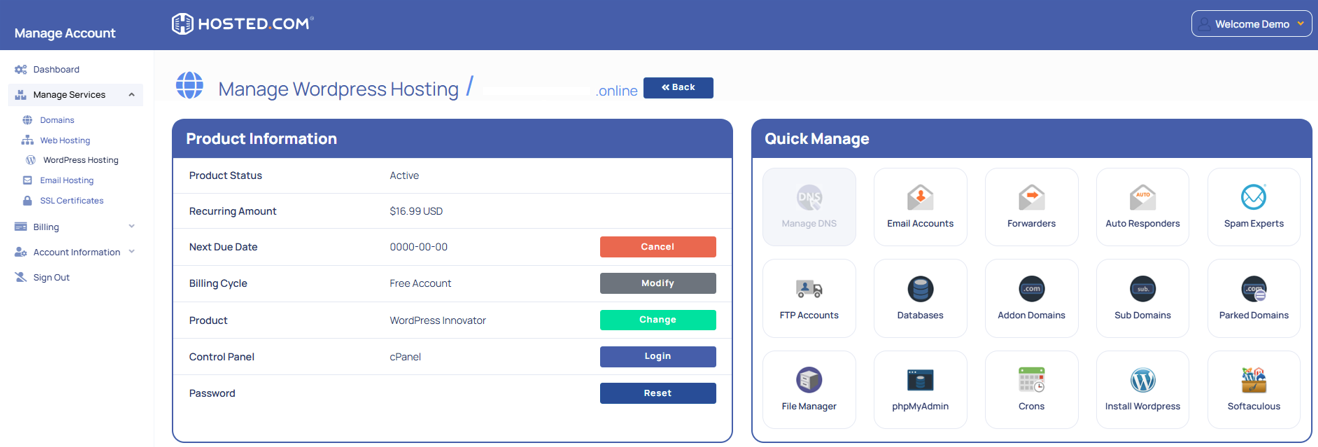
7. Under Product Information, scroll down to Control Panel, which will display cPanel to the right, and click on the Login button.
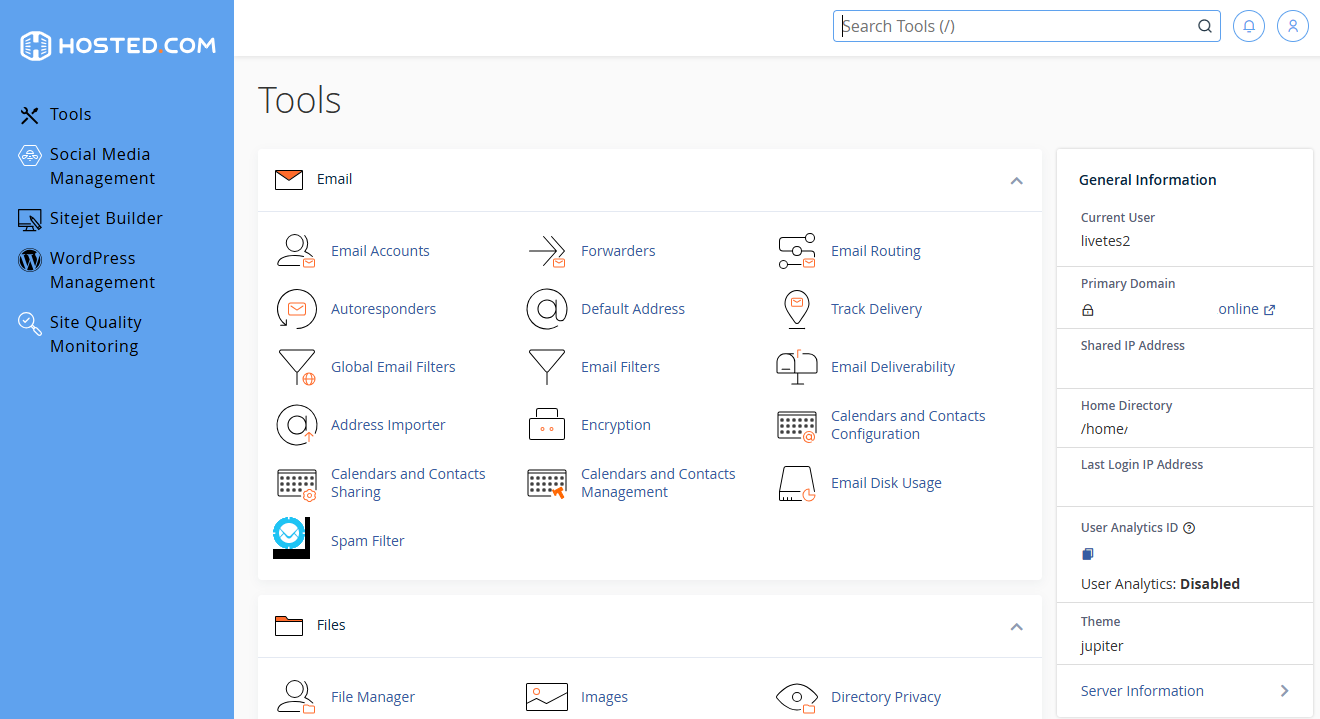
8. The cPanel Dashboard will now be displayed.



