


 Contact Support
 Sign In
DNS templates are useful when you manage multiple domains and want them to share the same DNS configuration. Instead of adding records manually to each domain, you can create a DNS and apply it to new or existing domains. This helps ensure consistency, saves time, and reduces errors in DNS management.
TABLE OF CONTENTS
What is a DNS Template?
A DNS template is a pre-defined set of DNS records (A, MX, TXT, CNAME, etc.) that can be applied automatically to one or more domains. For example, if you always use the same mail servers or have specific subdomains you want active, a template ensures that these are configured from the start.
How to Create a DNS Template in cPanel
1. Access your Hosted.com® dashboard and open Manage Services.
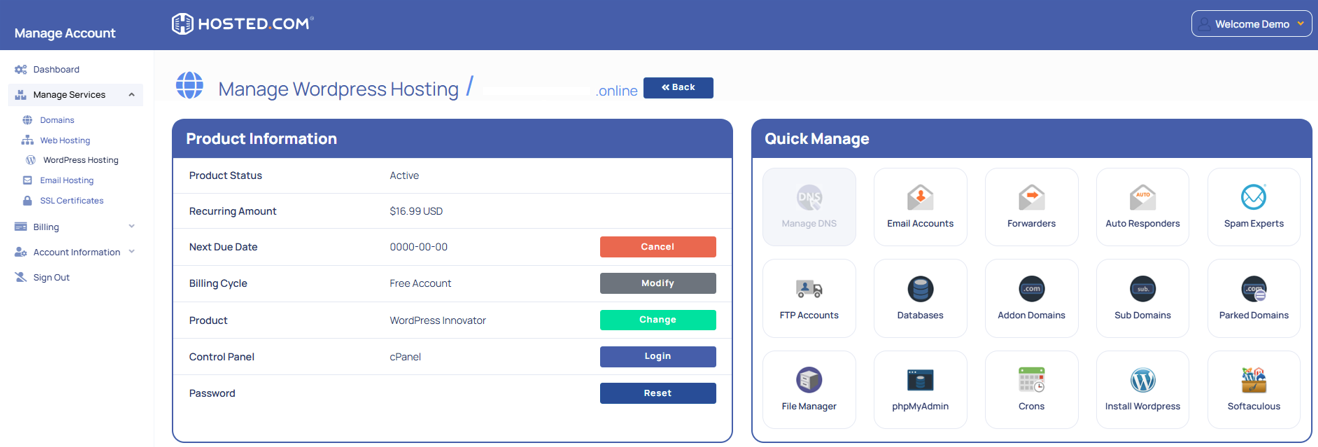
2. Select the hosting plan for your domain and click Login to cPanel.
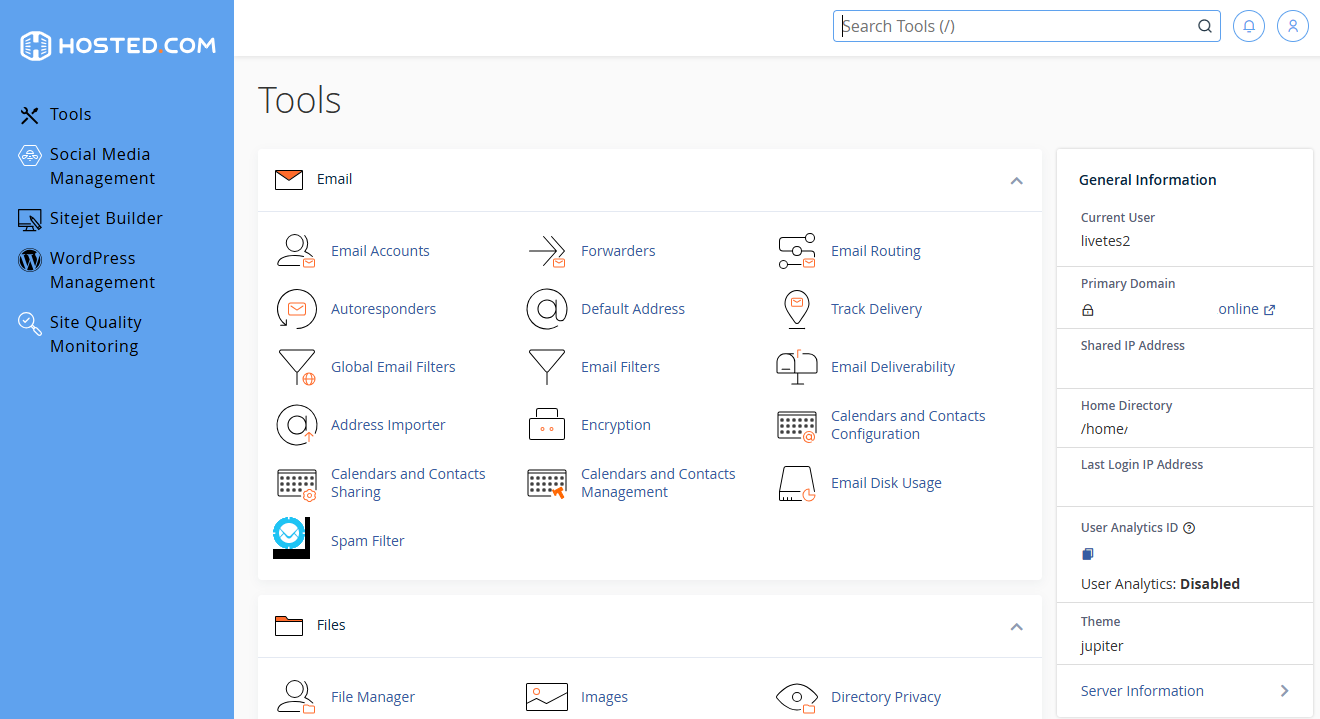
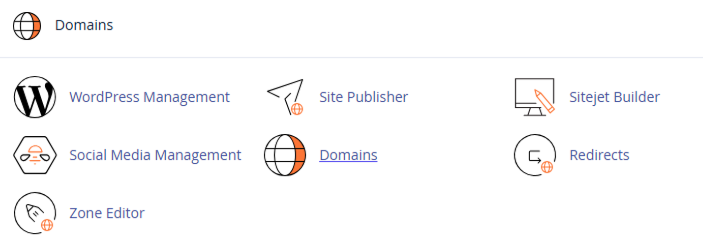
3. In cPanel, scroll down to Domains and click Zone Editor.
4. Depending on your cPanel version, you may have the option to define DNS record sets.
5. Add the DNS records you want to include (such as A, MX, TXT, CNAME, or SRV records).
6. Save the configuration as a template for future use.
7. When adding new domains, select the DNS, so the pre-defined records are applied automatically.
Additional Information
- Propagation Time: Any DNS changes made through templates will still take time to propagate (24–48 hours).
- Consistency Across Domains: Using templates ensures uniformity, reducing misconfigurations when managing multiple websites.
- Custom Templates: You can create different templates for various needs, e.g., one for standard hosting and another for email-only domains.
- Advanced Management: If you’re managing several domains with similar settings, Hosted.com® support can assist with bulk application of DNS.
- Monitoring DNS: After applying a template, verify DNS records using Hosted.com®’s DNS lookup tools or third-party services like MXToolbox.
Best Practices for DNS Templates
- Keep your templates updated with your latest mail, hosting, or third-party service requirements.
- Only include universally relevant records; add domain-specific records manually when needed.
- Test your template with one domain before rolling it out across multiple domains.



