


 Contact Support
 Sign In
This article covers how to check domain DNS records – DNS (Domain Name System) records are the backbone of how your domain name connects to the internet. They define how your website is hosted, how your emails are routed, and which services are authorized to work with your domain.
Knowing how to check DNS records helps you troubleshoot issues, confirm updates, and maintain domain security. With Hosted.com®, you can quickly view and verify your DNS records through your cPanel or by using external DNS lookup tools.
TABLE OF CONTENTS
What Are Domain DNS Records?
DNS records are instructions stored in the DNS that specify how your domain works. Common types include:
- A Record: Points your domain to an IP address (usually your web server).
- CNAME Record: Points one domain name to another (e.g., www to your root domain).
- MX Record: Directs email traffic to your email servers.
- TXT Record: Holds text information, often used for SPF, DKIM, or verification.
- NS Record: Lists the nameservers that host your DNS settings.
How to Check Domain DNS Records
How to Check Using Hosted.com® Dashboard
1. Login to your Hosted.com® account.
2. Click Manage Services, then select Domains.
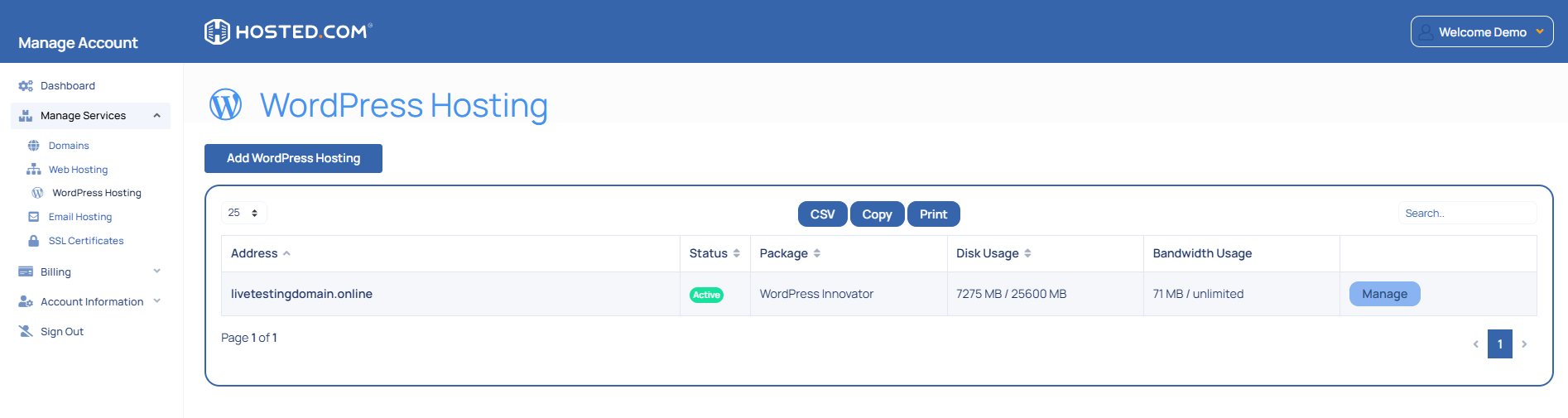
3. Find the domain you want to manage and click Manage.
4. Select Manage DNS to view existing records and add new ones.
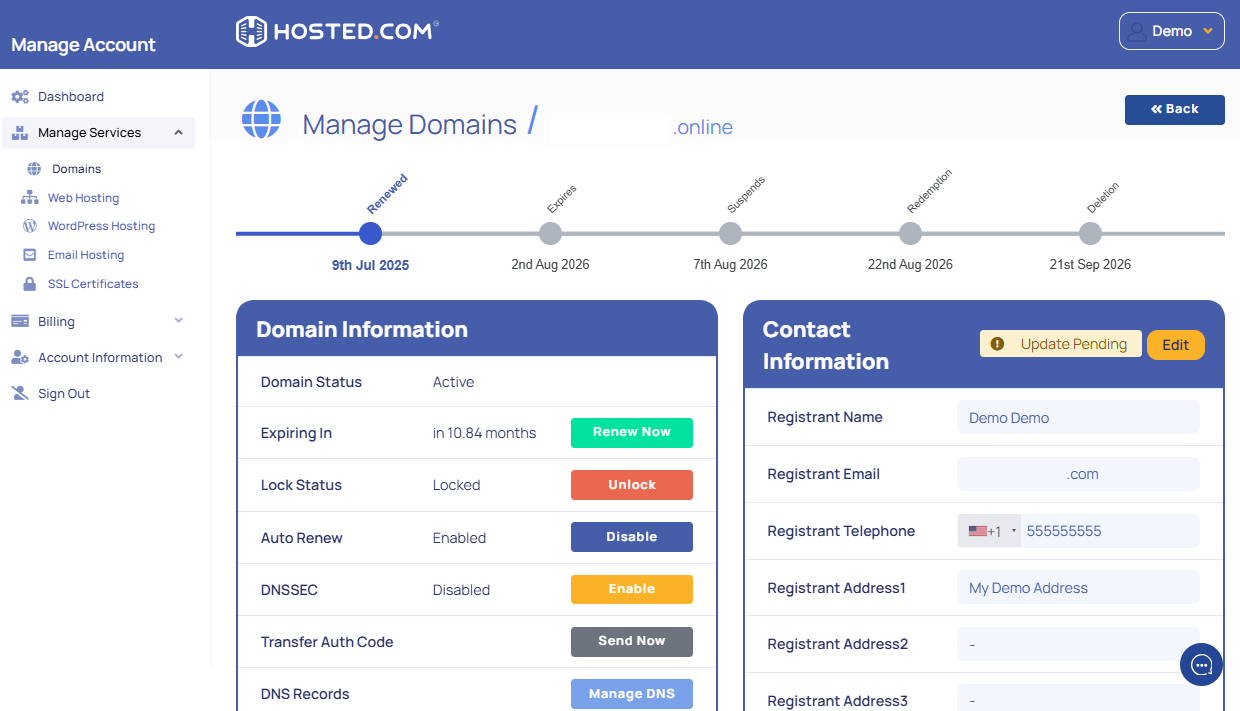
5. You can add or edit A, MX, CNAME, TXT, or other DNS records from this page.
How to Check Using Online DNS Checking Tools
If you prefer not to log in to cPanel or the Hosted.com® dashboard, online tools can quickly show your domain’s DNS records globally.
1. Go to a tool such as DNSChecker or WhatsMyDNS.
2. Enter your domain name.
3. Select the type of record you want to check (A, MX, TXT, CNAME, etc.).
4. Click Search or Lookup to view the results worldwide.
These tools are useful to:
- Monitor DNS propagation after updates.
- Verify email setup records such as SPF, DKIM, or DMARC.
- Confirm that DNS records are correctly configured.
How to Check Using cPanel via Hosted.com®
For domains hosted with Hosted.com®, you can also manage DNS records directly in cPanel.
1. Login to your Hosted.com® account.
2. Click Manage Services and select the hosting package linked to your domain.
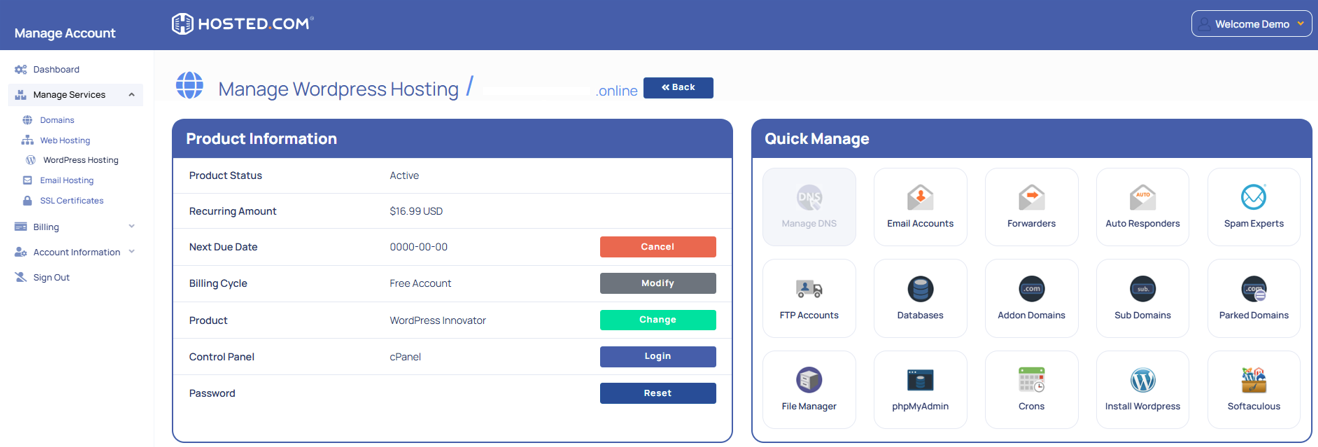
3. Click the Manage button next to the domain you want to access.
4. Scroll down to Control Panel under Product Information and click Login to open cPanel.
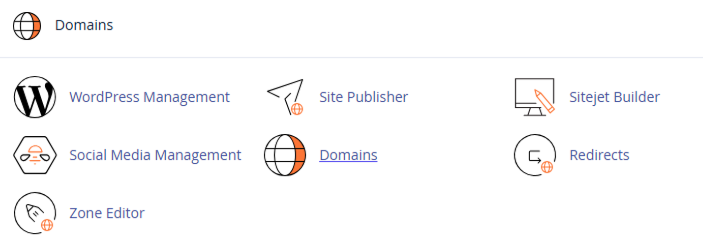
5. In the cPanel dashboard, scroll to the Domains section and click Zone Editor.
6. You will see a list of your domains; click Manage next to the domain you want to view.
7. From here, you can view, add, or edit A, CNAME, MX, TXT, and other DNS records.
Additional Information
- Propagation Time: DNS changes may take 30 minutes to 24 hours to update globally.
- Accuracy: Always verify that your records match your hosting and email provider’s requirements.
- Troubleshooting: Incorrect DNS settings can cause downtime, email delivery failures, or security warnings.
- Security Tip: Use SPF, DKIM, and DMARC records to protect your domain from spoofing and improve email deliverability.
- Hosted Services: If you use external services like Google Workspace or Microsoft 365, remember to update MX and TXT records accordingly.



