


 Contact Support
 Sign In
This guide explains the process of how to renew SSL certificate. An SSL certificate protects your website and ensures visitor data is secure. Since SSL certificates typically expire after one or two years, it’s essential to replace yours before it expires to maintain trust and security.
At Hosted.com®, keeping your site protected is simple, even when it’s time to replace your SSL certificate. While SSL certificates aren’t technically “renewed,” you can easily purchase and install a new one through your Hosted.com® account to ensure uninterrupted protection.
VIDEO: How to Install an SSL Certificate on Your Website
TABLE OF CONTENTS
How to Renew SSL Certificate
1. You can purchase an SSL certificate directly from Hosted.com® or claim a free one included with certain Web Hosting or WordPress Hosting plans.
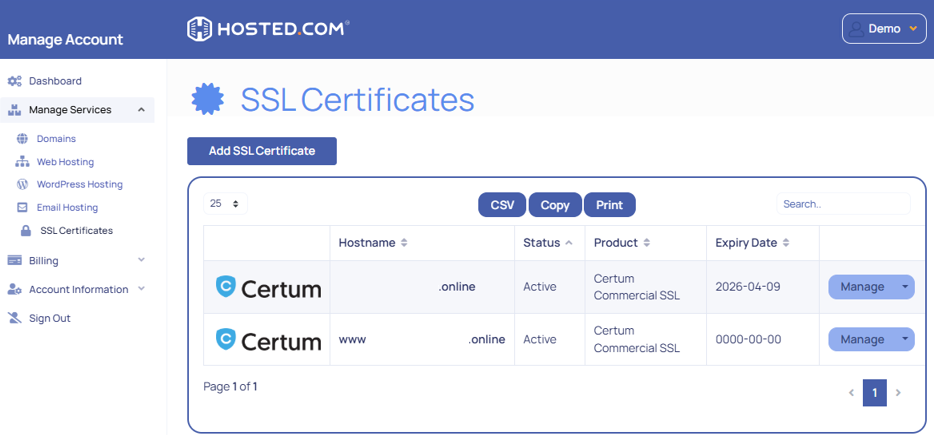
2. Create a Certificate Signing Request (CSR) from your web server. This file includes details about your domain and organization, as well as your private and public keys.
3. Provide the CSR to the Certificate Authority (CA) you’re using. Complete the required Domain Control Validation (DCV). Once verified, the CA will issue your SSL certificate files.
4. In most cases, Hosted.com® will automatically handle installation for certificates purchased through us. If you’re using a third-party certificate, you can upload the files manually in cPanel’s SSL/TLS Manager.
5. Ensure your server settings are updated to point to the new SSL certificate. This may involve updating virtual hosts and security configurations.
6. Test your SSL certificate using tools like SSL Labs’ SSL Test or your browser to confirm it’s installed correctly.
7. Update your site’s settings and internal links to load all resources over HTTPS. This ensures a secure browsing experience for your visitors.
How to Install a SSL Certificate
Additional Information
- Renew Early: Begin the replacement process at least 30 days before the expiration date to avoid downtime or browser security warnings.
- Renewal Reminders: Hosted.com® sends automated reminders to the email address on file. Ensure your contact details are updated.
- Multiple Domains: If you manage several domains, consider aligning SSL replacement dates for easier management.
- Validation May Be Required Again: Some certificates, particularly Domain Validated (DV), may require revalidation each time you replace one.
- Check Installation: Always confirm that your SSL certificate is active and valid after installation using online tools or your Hosted.com® dashboard.
- Support Help: If you have issues with replacing or installing your SSL certificate, Hosted.com® support is ready to assist.



