


 Contact Support
 Sign In
Yes, you can install multiple SSL certificates for the same domain, although it’s usually unnecessary for most websites. This setup is most common in complex environments such as multi-server systems or content delivery networks, where different servers require separate certificates.
Typically, only one SSL certificate is active for a single domain at a time. However, technologies like Server Name Indication (SNI) allow multiple certificates to coexist on the same server, each protecting different subdomains or configurations.
Hosted.com® fully supports multiple SSL installations through cPanel’s SSL/TLS Manager, so advanced users and developers can manage their security configurations with flexibility and ease. For most users, though, one SSL certificate per domain is sufficient.
TABLE OF CONTENTS
When Multiple SSL Certificates are Useful
Hosted.com® simplifies certificate management within cPanel, allowing you to upload, delete, or purchase new SSL certificates at any time.
Here are a few scenarios where using multiple SSL certificates might make sense:
- Load-balanced servers: Each server node may require its own SSL certificate for redundancy.
- Testing environments: Developers often use separate certificates for staging and live sites.
- Different certificate types: You may combine a Wildcard SSL for subdomains with a standard certificate for the main domain.
- Custom CAs: Some businesses use internal certificates for internal networks or applications.
Additional Information
Login to Hosted.com® Account
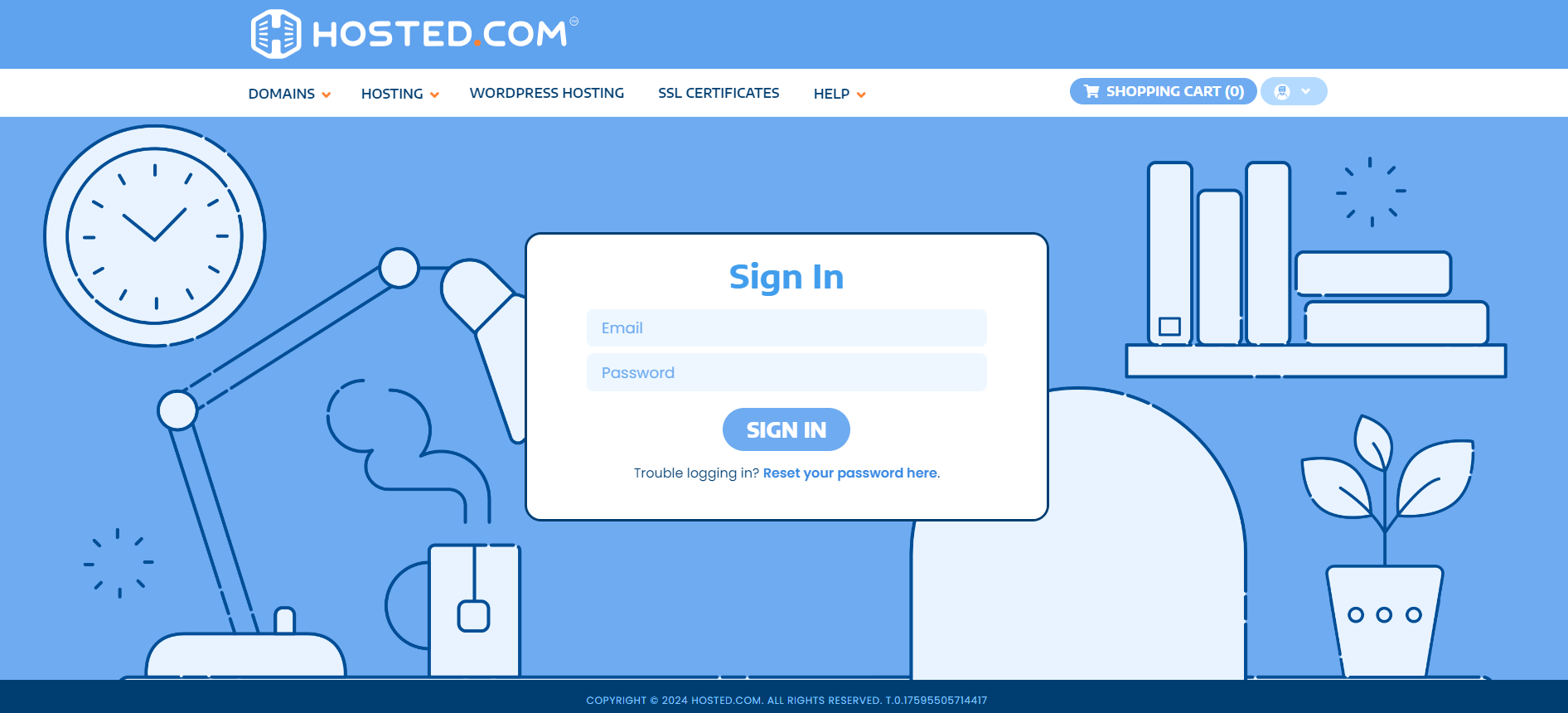
1. Go to the Hosted.com® website Account Login page.
2. Enter your Email and Password and click the Sign In button.
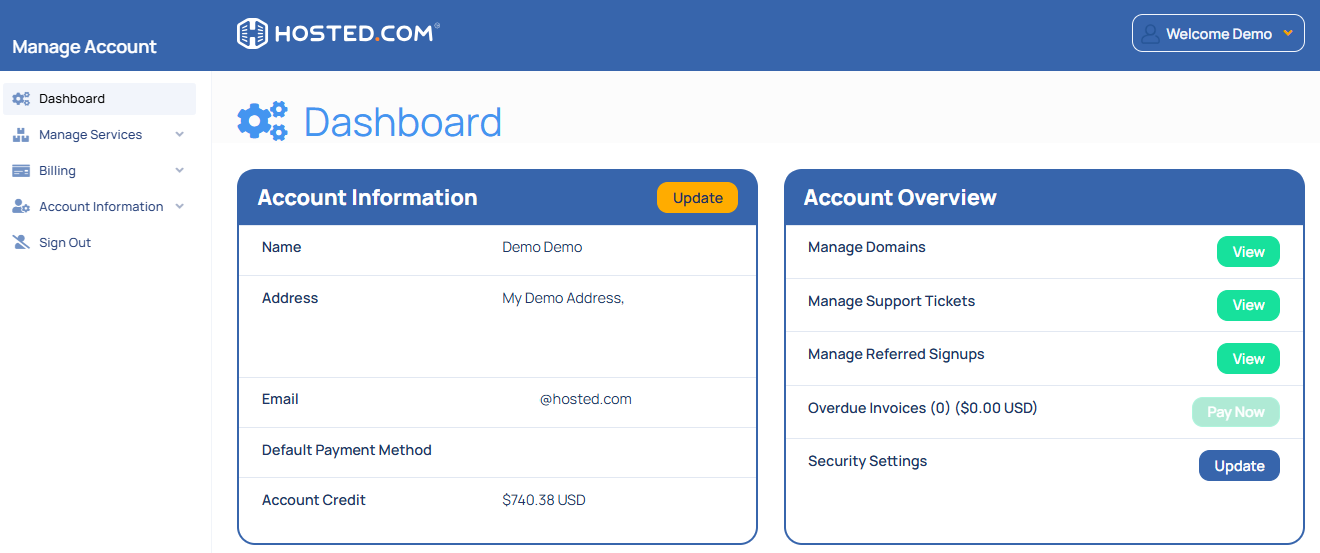
3. You will see the Hosted.com® Dashboard, displaying the Manage Account menu on the left and your Account Information, Account Overview and Open Support Tickets on the right.
Login to cPanel from your Hosted.com® Dashboard
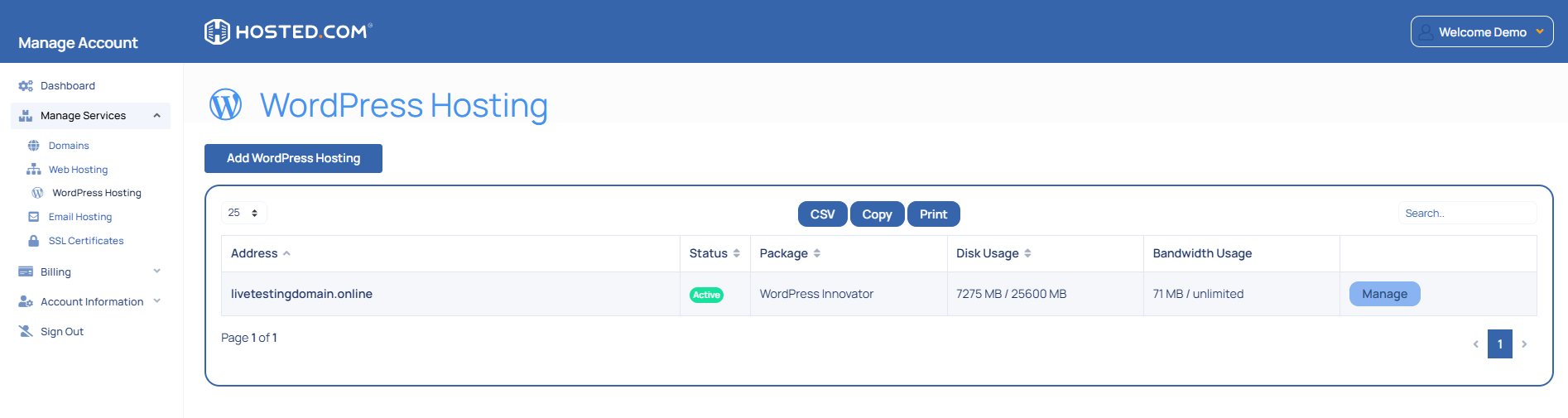
4. Click on Manage Services to view the sub-dropdown menu and select the hosting package for the domain you want to work with – in our example we are using WordPress Hosting.
5. Click the Manage button to the right of the domain name you want to access.
6. The display will now show Product Information, Quick Manage, Resource Usage and Site Statistics for that domain name.
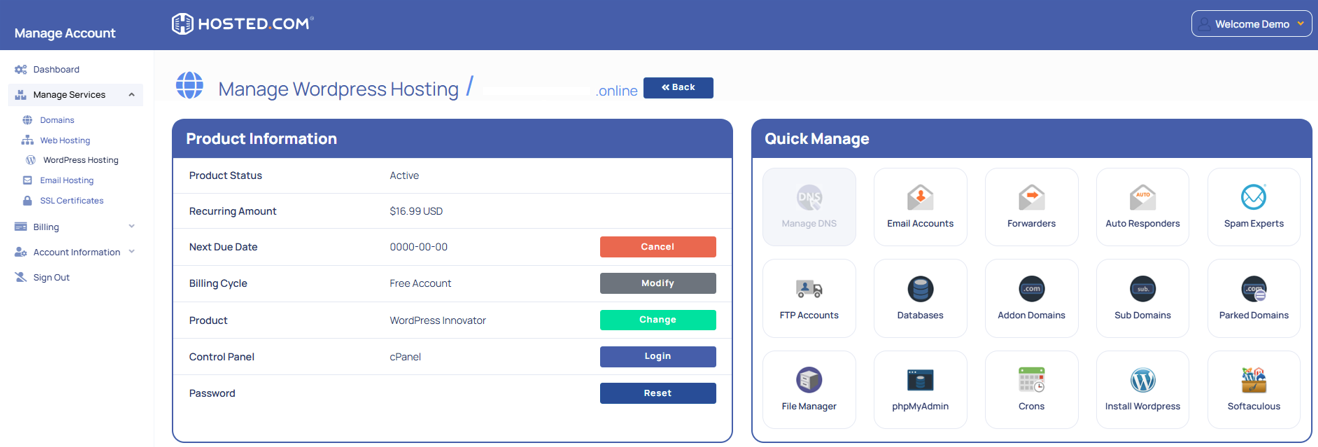
7. Under Product Information, scroll down to Control Panel, which will display cPanel to the right, and click on the Login button.
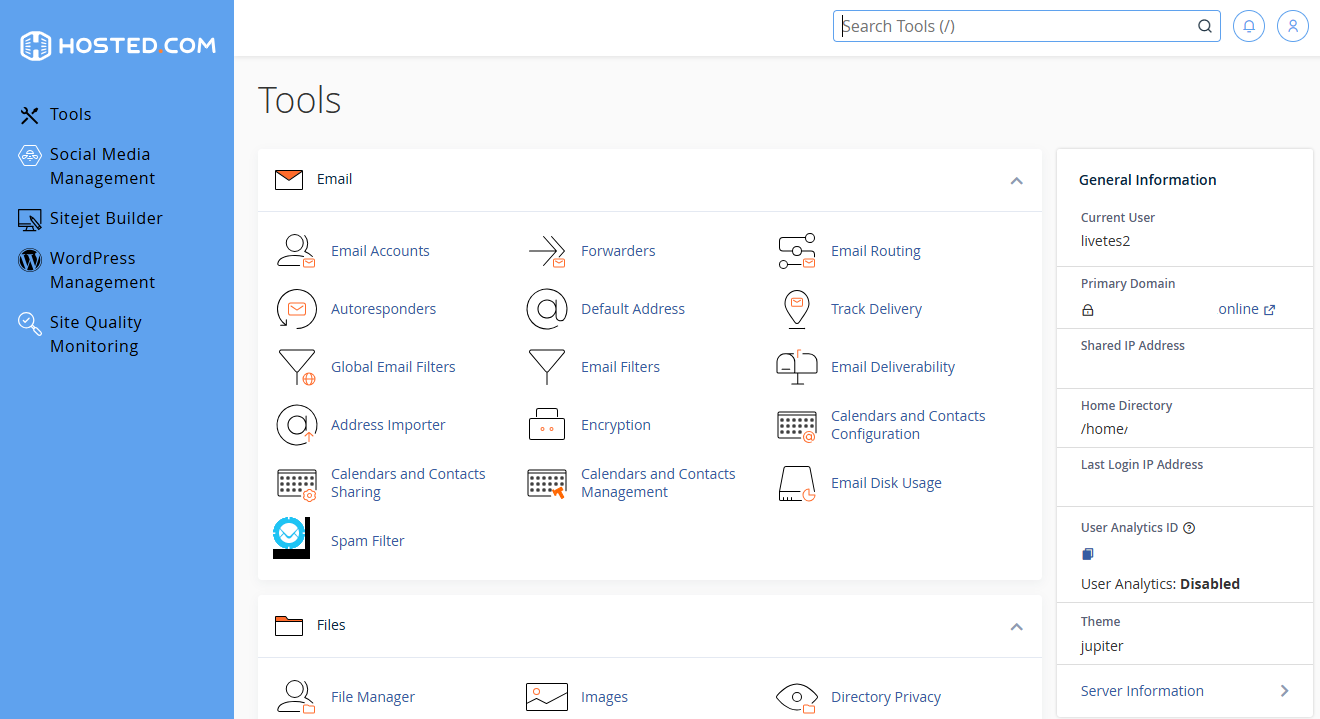
8. The cPanel Dashboard will now be displayed.



