


 Contact Support
 Sign In
How to include PHP code in HTML pages allows you add dynamic features to your website, such as contact forms, content includes, or real-time data, without having to rename all your files to .php.
It’s a helpful solution if you want to maintain clean, static-looking URLs while still taking advantage of PHP’s server-side functionality.
Hosted.com®’s web hosting plans support PHP by default, and with a quick adjustment to your .htaccess file, you can enable PHP code execution within .html pages.
TABLE OF CONTENTS
How to Include PHP Code in HTMLFiles
Follow these steps to configure your hosting environment.
1. Login to your Hosted.com® account.
2. Open the Manage Service dropdown and select your web hosting plan.
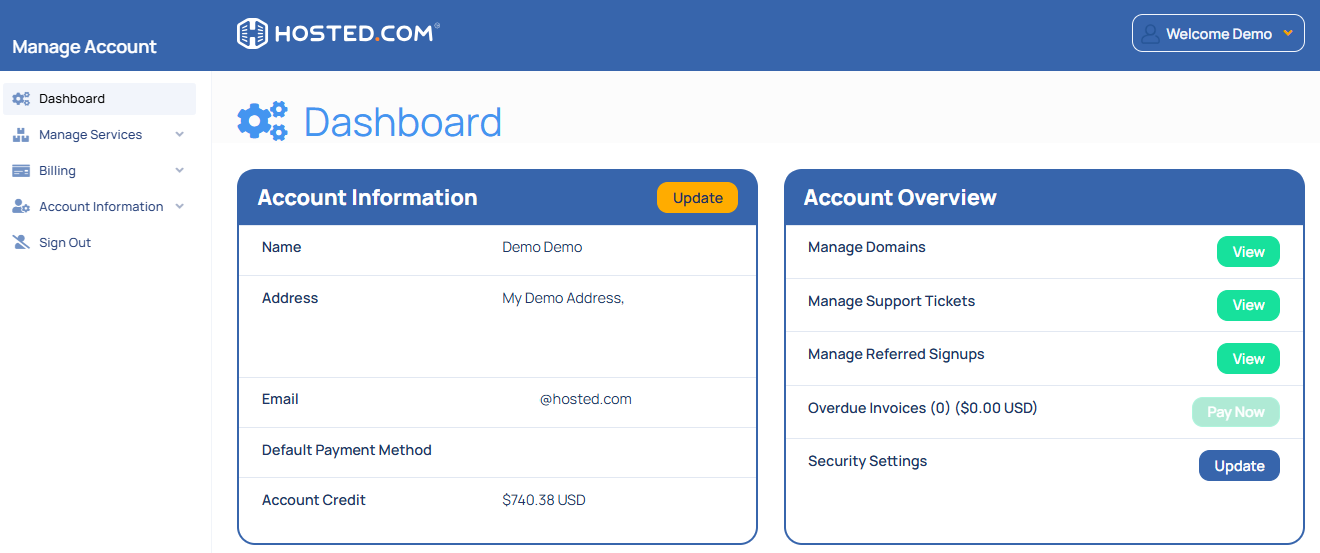
3. Click Manage next to your domain.
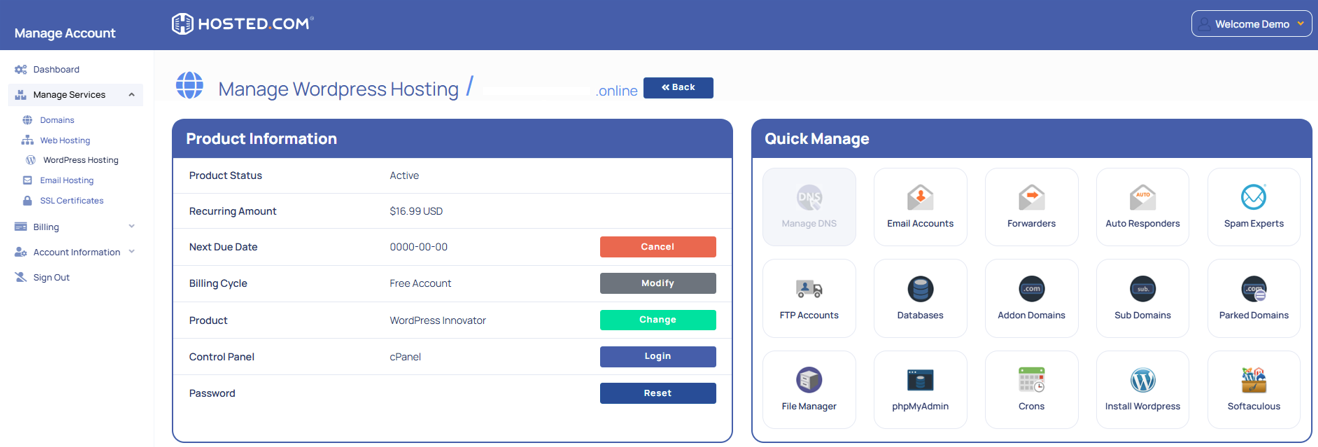
4. Click Login next to Control Panel to access cPanel.
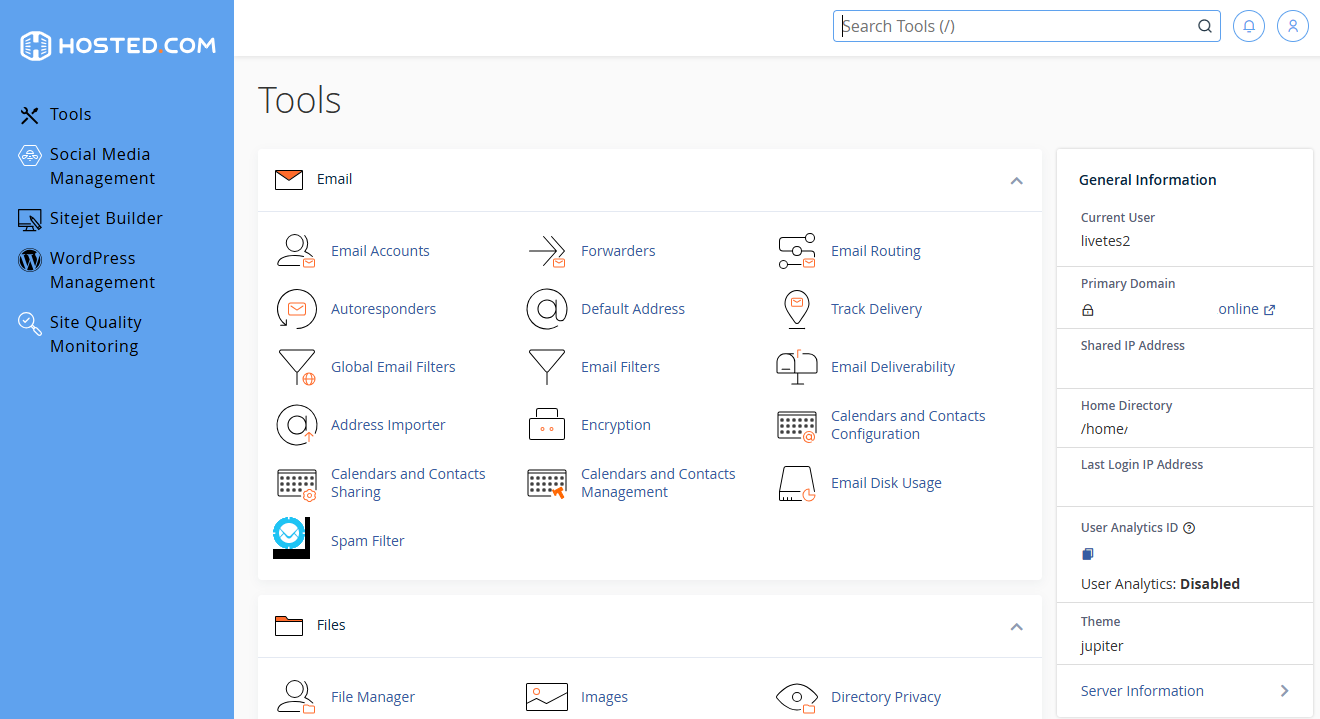
5. Scroll down to Files and click on File Manager.
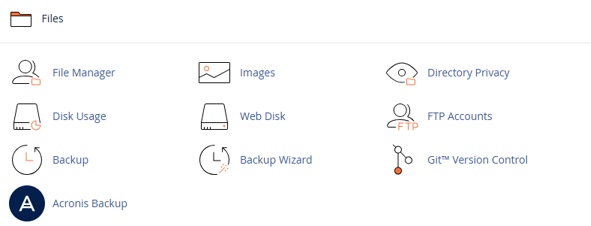
6. Navigate to the root folder public_html of your website.
7. Look for the file named .htaccess. If it doesn’t exist, right-click and select Create New File, then name it .htaccess.
8. Right-click on .htaccess and choose Edit then add the following line to the bottom of the file:
AddType application/x-httpd-php .html .htm9. Save your changes. Once this is done, the server will treat .html and .htm files as PHP scripts.
You can now open any .html file and insert PHP code, such as:
EXAMPLE:
<?php echo "Today is " . date("l, F jS Y"); ?>
When you visit the page in your browser, your PHP code will execute as expected.
Additional Information
- No File Renaming Required: Keep your .html file names and URLs while still using PHP functionality.
- Compatible with Most Servers: This method works with most Apache-based hosting environments.
- No Reboot Required: Changes to .htaccess are applied immediately; there is no need to restart your server.
- Use Sparingly: Embedding too many PHP in .html files can reduce code clarity and maintainability.
- Performance Note: Because the server now parses all .html files for PHP, there’s a slight performance cost.
- Security Tip: Always sanitize user input and avoid placing sensitive PHP logic in publicly accessible .html files.
- Not Ideal for CMS Use: If you’re using a CMS (like WordPress), avoid mixing PHP in standalone .html files unless you’re certain of the impact.
- Code Reusability: Use PHP includes to manage repeat elements (such as headers or footers) across multiple .html pages.
- Backup First: Always make a backup of your .htaccess file before making changes.



