


 Contact Support
 Sign In
Your cPanel username is required to manage your hosting account. It gives you access to all the tools in your cPanel dashboard, where you can manage files, databases, email accounts, security settings, and more.
Whether you’re logging in to cPanel directly or connecting through FTP, knowing your cPanel username is important. If you’ve forgotten it or wish to confirm, Hosted.com® makes it easy to retrieve your cPanel login credentials from your dashboard.
TABLE OF CONTENTS
How to Find Your cPanel Username
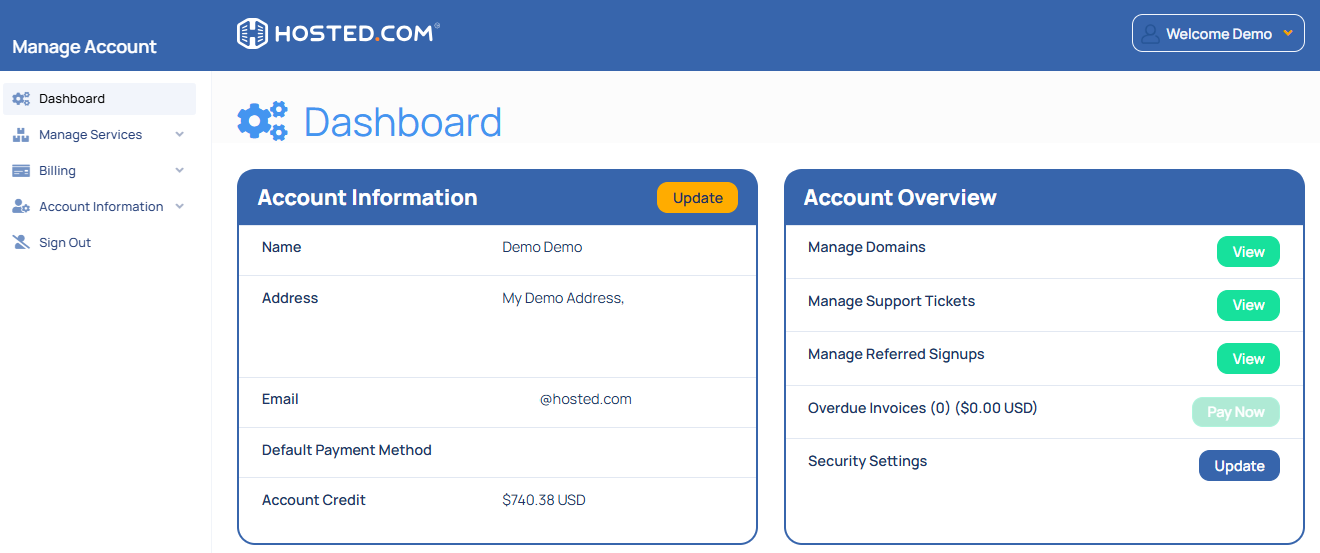
1. Login to your Hosted.com® Account.
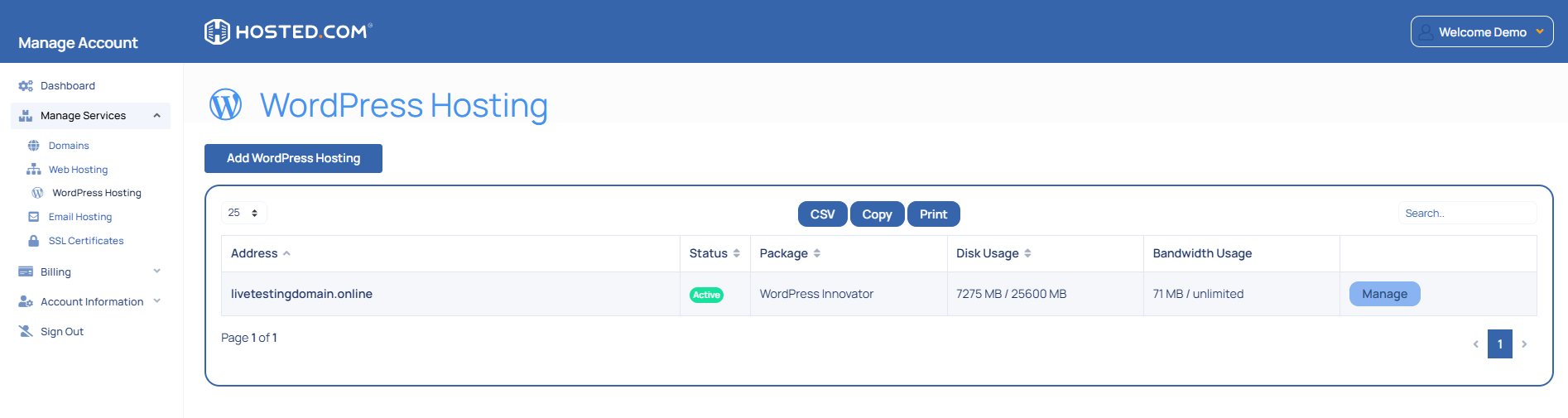
2. Navigate to your web hosting plan from Manage Services.
3. Click Manage next to the hosting plan associated with your domain.
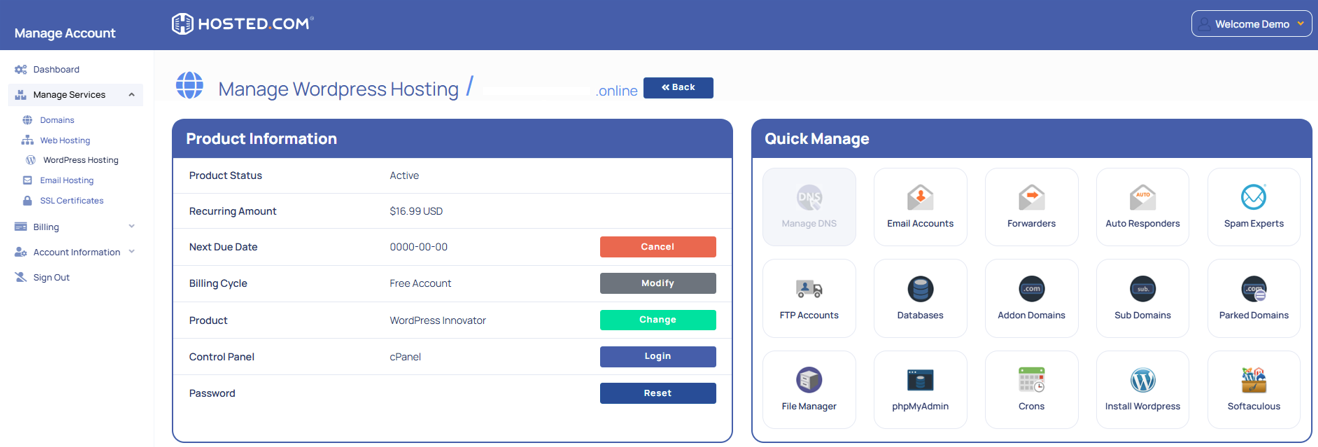
4. Click Login next to Control Panel to open cPanel.
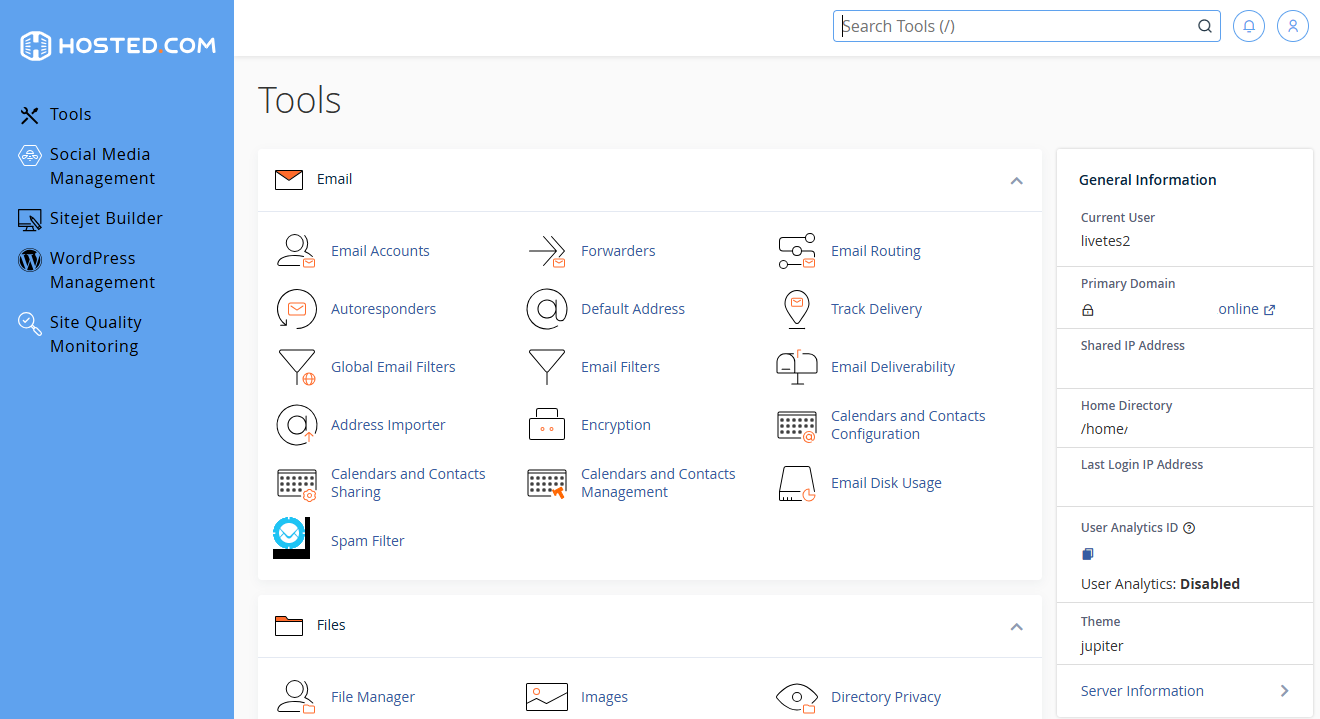
5. Once cPanel is open, your username will appear under General Information, next to Current User on the right side of the screen.
Additional Information
- FTP access: Your cPanel username is often the same as the one used for FTP and database access, unless you’ve set custom credentials.
- Auto-login option: From the Hosted.com® dashboard, you can open cPanel without entering your username and password by using the Login to cPanel button.
- Welcome email: Your cPanel username is also included in the welcome email sent when you purchase a hosting plan. Search your inbox for terms like “New Hosting Account Information.”
- Not the same as email login: Your cPanel username is different from your email address or Webmail login credentials and cannot be used interchangeably.
- Security tip: Keep your cPanel username private. If someone gains access, they could take full control of your website.
- Default naming: Hosting providers usually assign a system-generated cPanel username (e.g., userna5). You may not be able to change this, but you can reset the password if necessary.
- Multiple hosting accounts: If you have more than one hosting plan, each may have a different cPanel username. Check the Manage section for each service separately.
- Reseller hosting: Reseller hosting plans assign unique cPanel usernames for each client account.
- Login issues: If you are unable to login, check that your hosting plan is active and not suspended due to overdue payments or exceeding resource limits.
Temporary login: If you’ve recently migrated your website, your username may be different on the new server. Always confirm the current credentials in your Hosted.com® account before logging in.
Login to Hosted.com® Account
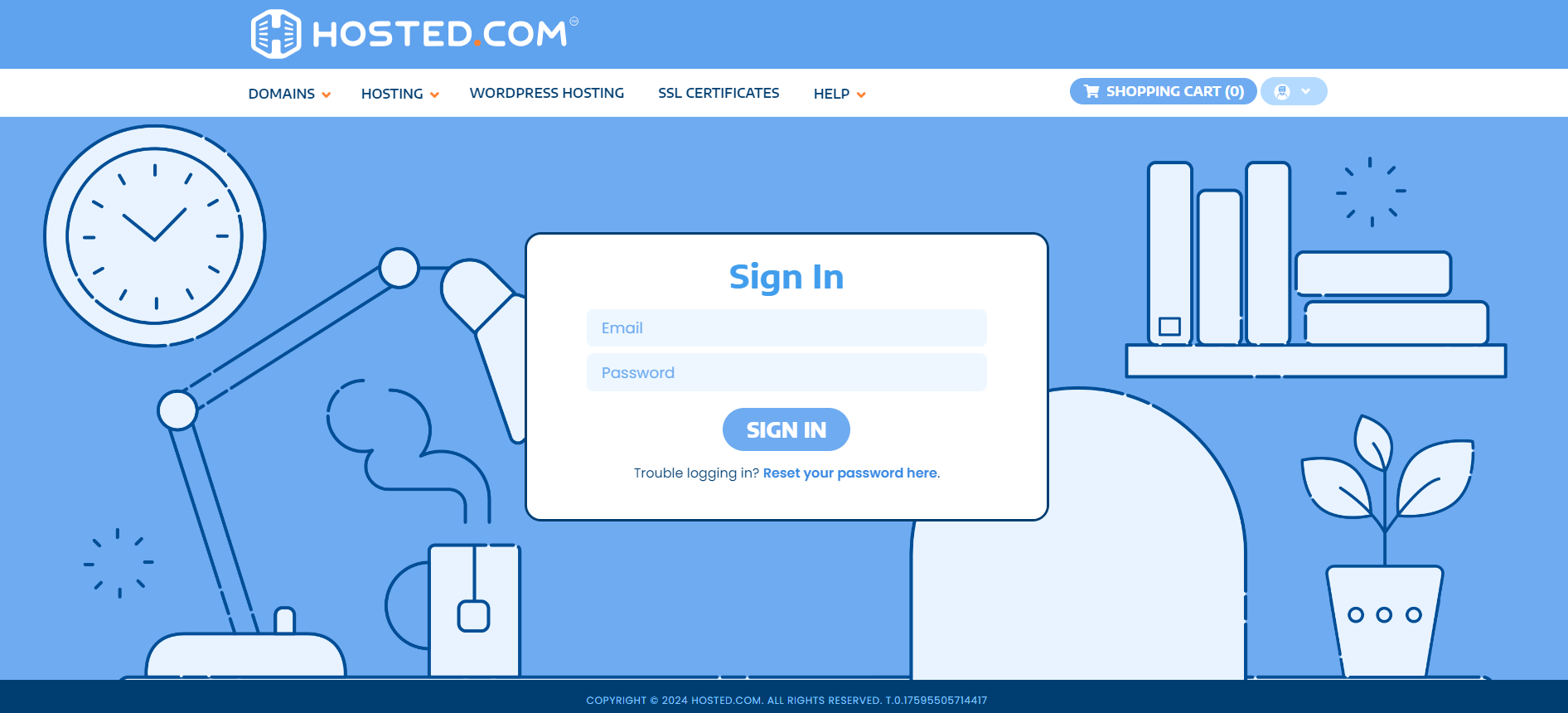
1. Go to the Hosted.com® website Account Login page.
2. Enter your Email and Password and click the Sign In button.
3. You will see the Hosted.com® Dashboard, displaying the Manage Account menu on the left and your Account Information, Account Overview and Open Support Tickets on the right.
Login to cPanel from your Hosted.com® Dashboard
4. Click on Manage Services to view the sub-dropdown menu and select the hosting package for the domain you want to work with – in our example we are using WordPress Hosting.
5. Click the Manage button to the right of the domain name you want to access.
6. The display will now show Product Information, Quick Manage, Resource Usage and Site Statistics for that domain name.
7. Under Product Information, scroll down to Control Panel, which will display cPanel to the right, and click on the Login button.
8. The cPanel Dashboard will now be displayed.



