


 Contact Support
 Sign In
Here is how to configure PHP timezone. Setting the correct timezone for your website is important for accurate timestamps in logs, scheduled tasks, user activity tracking, and application functions.
Configuring PHP timezone ensures all date and time functions align with your local or target region. With cPanel, you can easily set your PHP timezone either by using the Select PHP Version interface or by manually editing your php.ini file.
TABLE OF CONTENTS
How to Configure PHP Timezone in cPanel
1. Login to your Hosted.com® account.
2. Go to the Manage Services dropdown and choose your web hosting.
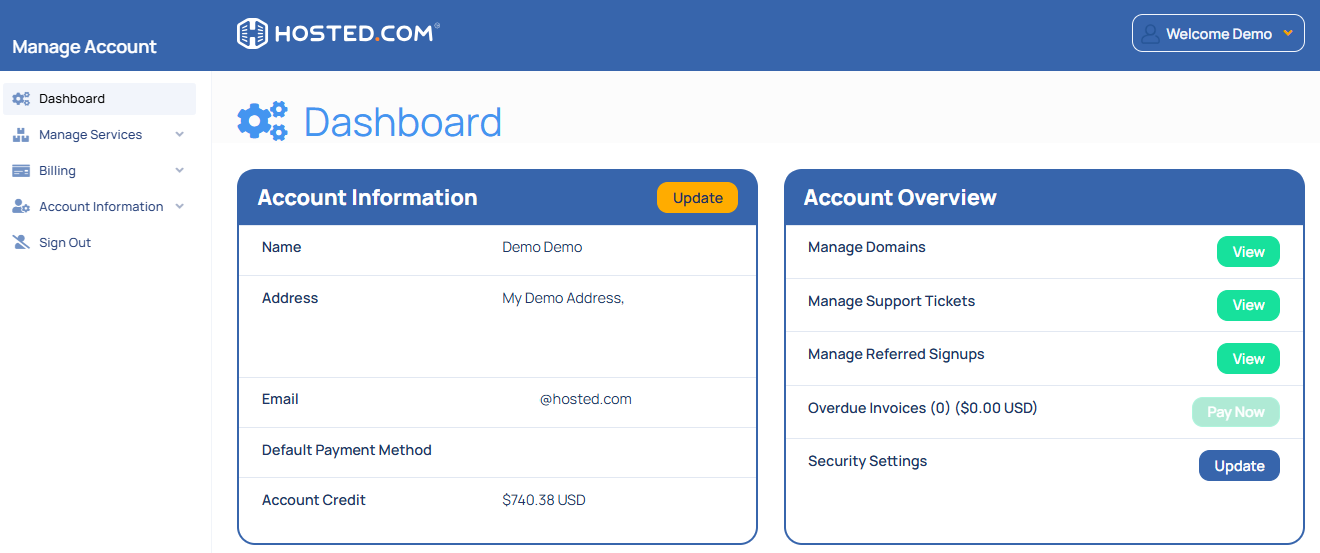
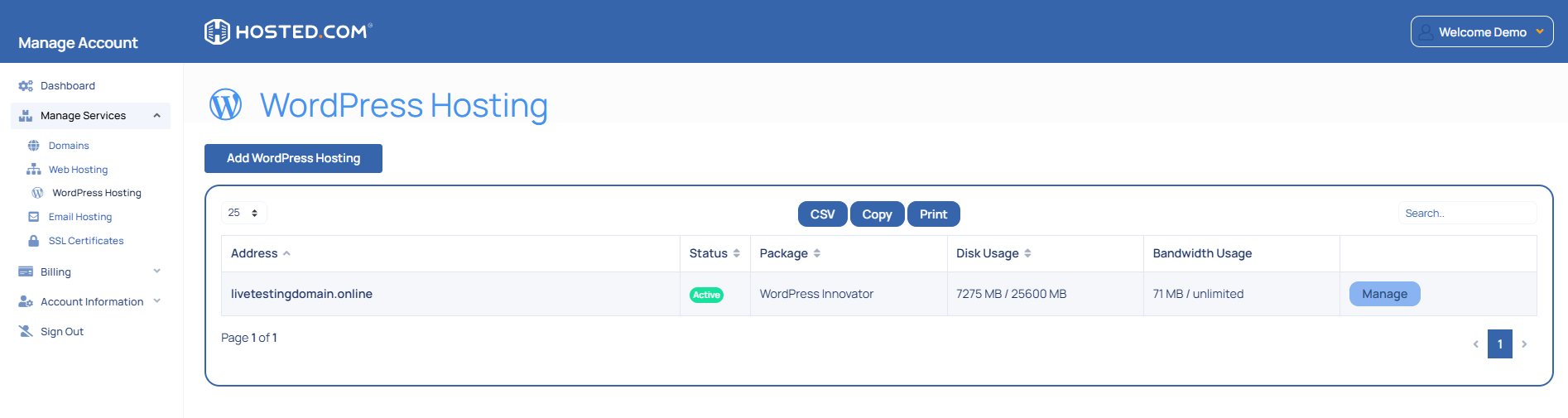
3. Click Manage next to your domain.
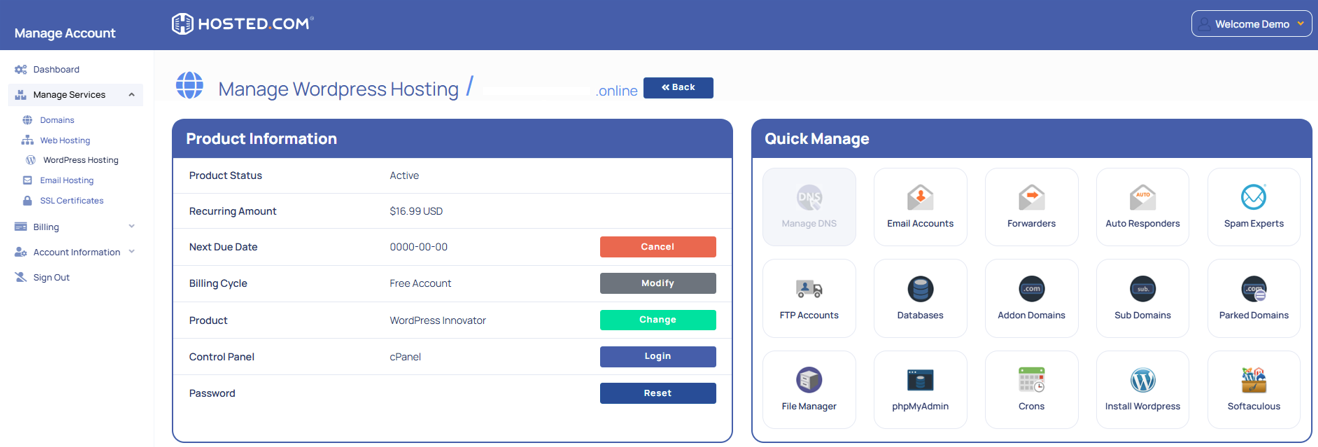
4. Click Login next to Control Panel to open cPanel.
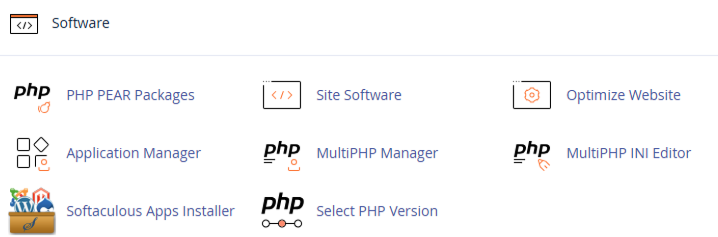
5. Under Software, click Select PHP Version.
6. In the top right corner, click Options or Switch to PHP Options.
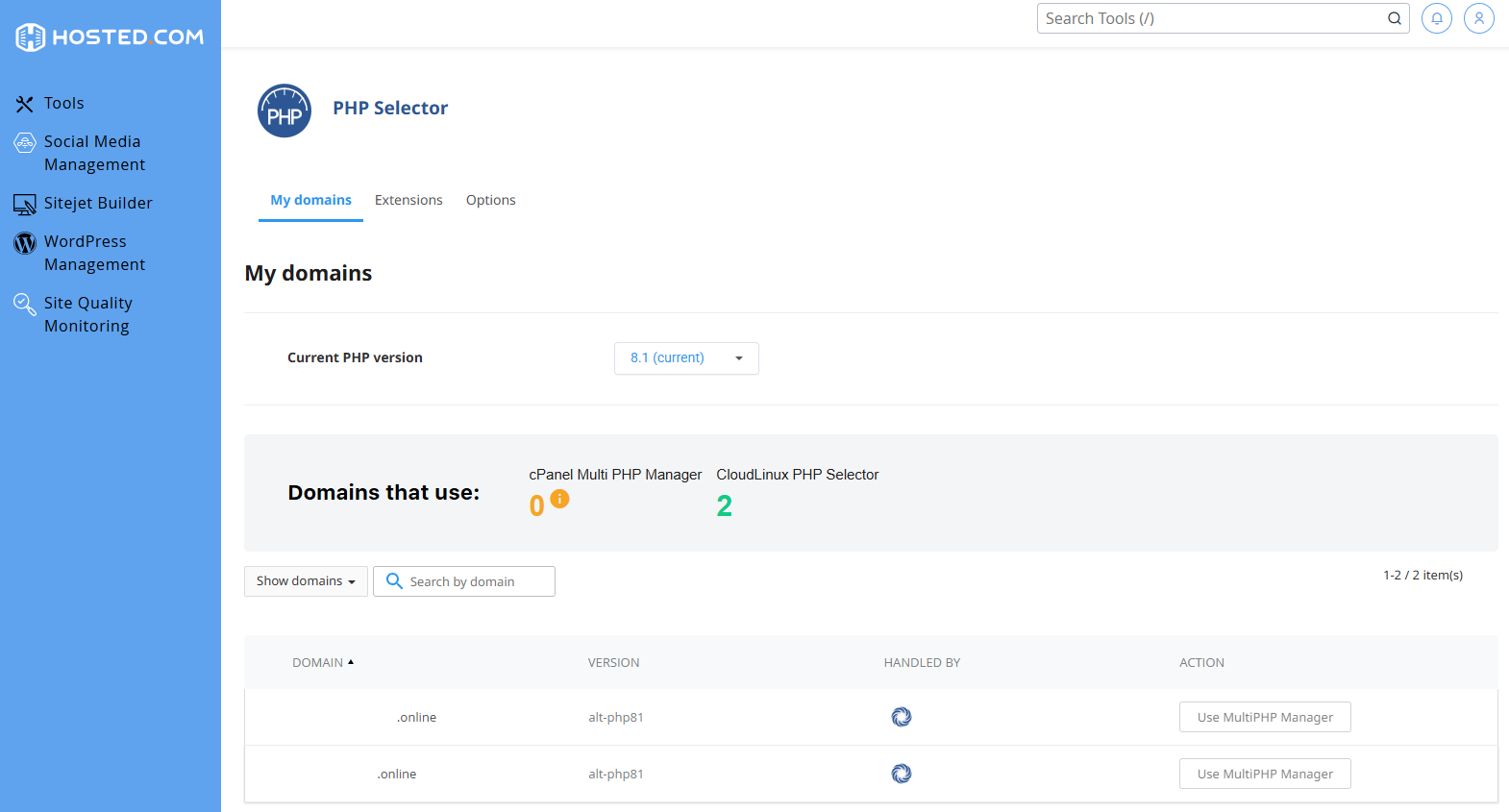
7. Choose the correct PHP version for your website.
8. Locate the date.timezone setting.
9. Click the current value (or blank field) and select your desired timezone from the dropdown list (for example, America/New_York).
10. Click outside the field or press Enter to save your changes.
Your new timezone will take effect immediately for all PHP scripts on your site.
Additional Information
- Timezone format: Use official PHP timezone strings such as America/New_York, Europe/London, or Africa/Johannesburg. Full PHP timezone list
- Impact on functions: Functions like date(), time(), strtotime(), and DateTime() will use the new timezone after it’s set.
- Default behavior: If you don’t set a timezone, PHP may default to UTC or your server’s global timezone, which could cause discrepancies.
- PHP version awareness: Ensure you are adjusting the timezone for the PHP version your site is currently running.
- CMS timezone settings: Platforms like WordPress, Joomla, or Drupal also have their own timezone settings that need to be configured inside the CMS dashboard.
- Error resolution: If you find warnings in PHP error logs about an undefined timezone, setting this value in cPanel will resolve the issue.
Login to Hosted.com® Account
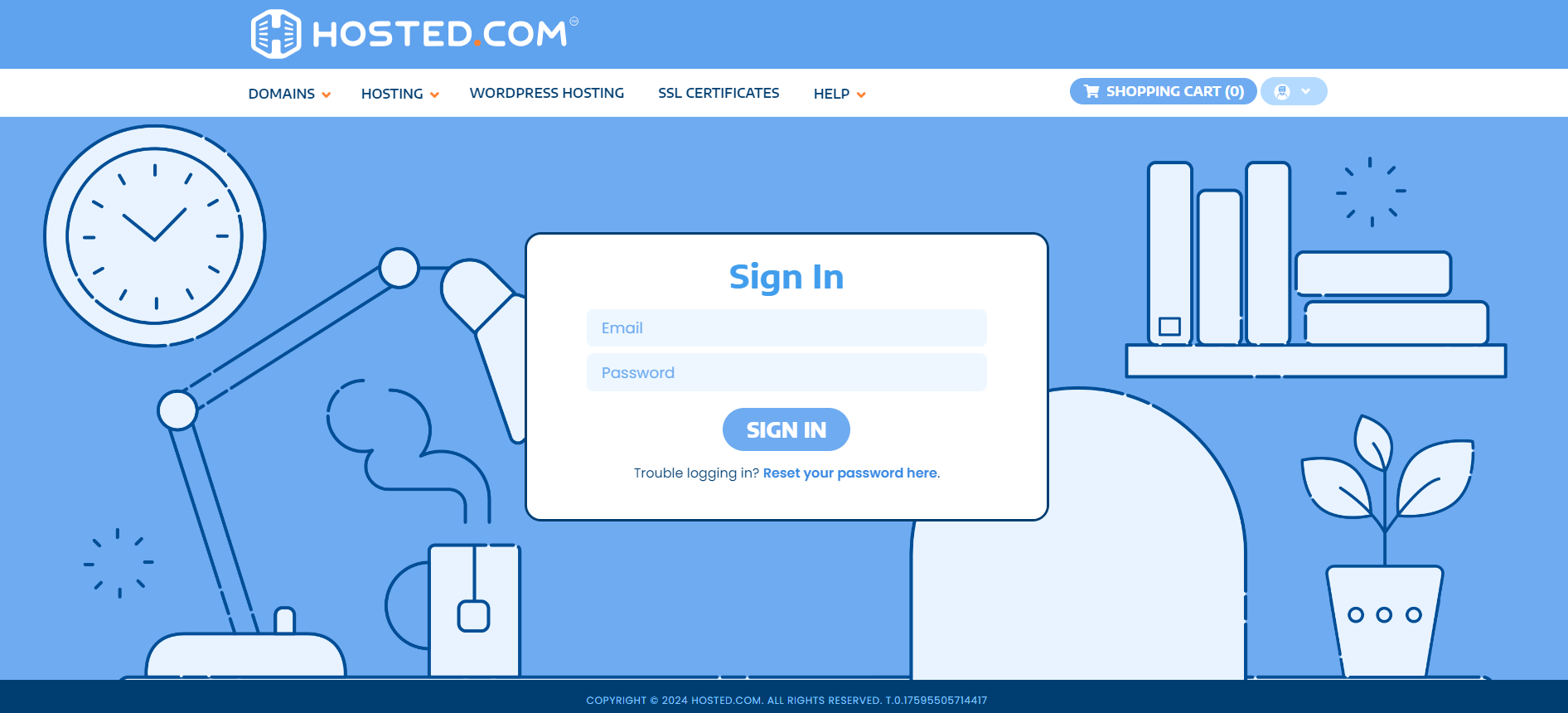
1. Go to the Hosted.com® website Account Login page.
2. Enter your Email and Password and click the Sign In button.
3. You will see the Hosted.com® Dashboard, displaying the Manage Account menu on the left and your Account Information, Account Overview and Open Support Tickets on the right.
Login to cPanel from your Hosted.com® Dashboard
4. Click on Manage Services to view the sub-dropdown menu and select the hosting package for the domain you want to work with – in our example we are using WordPress Hosting.
5. Click the Manage button to the right of the domain name you want to access.
6. The display will now show Product Information, Quick Manage, Resource Usage and Site Statistics for that domain name.
7. Under Product Information, scroll down to Control Panel, which will display cPanel to the right, and click on the Login button.
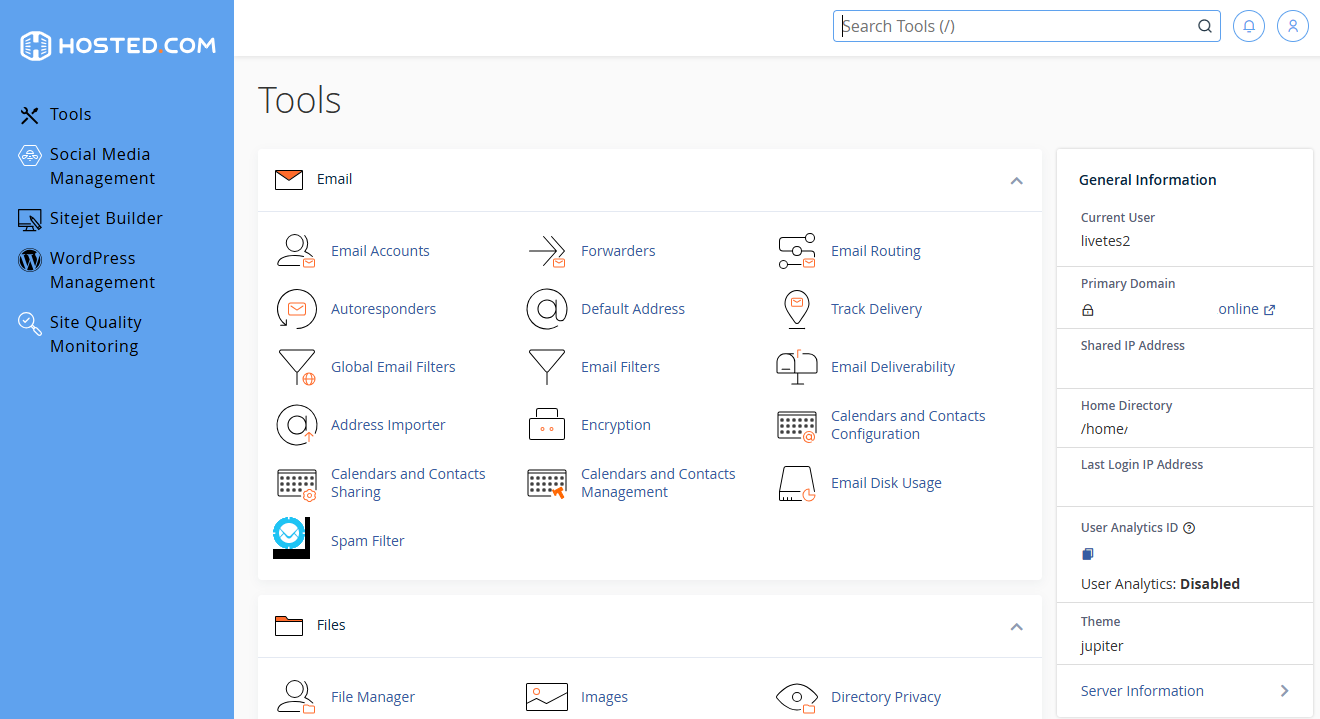
8. The cPanel Dashboard will now be displayed.



