


 Contact Support
 Sign In
This article will give you guidance on how to check website overload causes in cPanel. A slow or overloaded website can frustrate users, cause downtime, and hurt your search engine rankings. If your site shows errors, loads slowly, or goes offline during traffic spikes, you need to identify the cause quickly.
cPanel includes built-in tools to help you monitor resource usage and pinpoint what’s straining your server.
TABLE OF CONTENTS
How to Check Website Overload Causes in cPanel
1. Login to your hosting account.
2. Go to the Manage Services dropdown and select your web hosting.
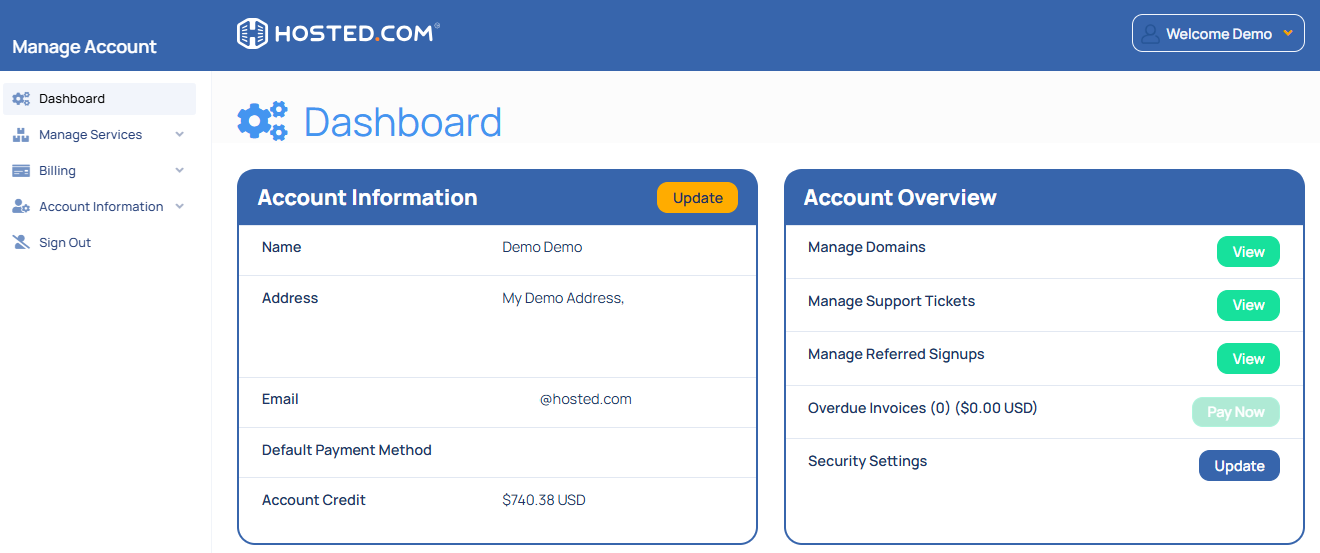
3. Click Manage next to your domain.
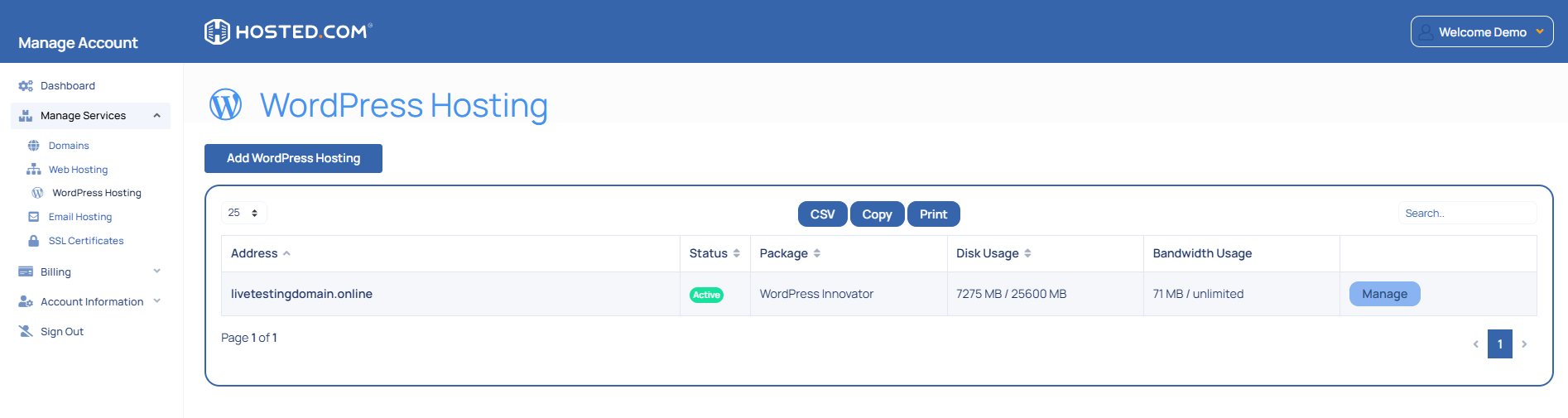
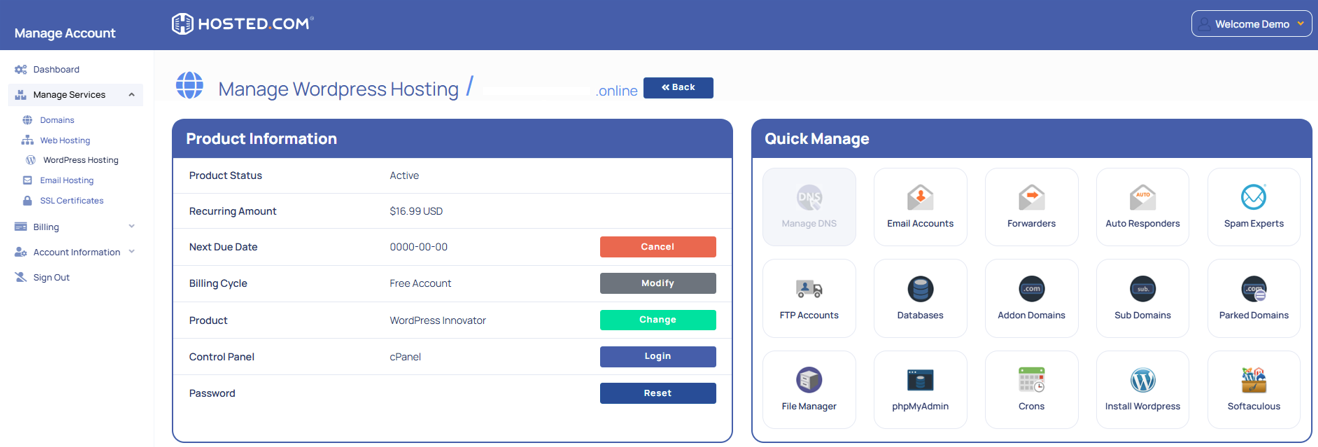
4. Click Login next to Control Panel to open cPanel.
5. Scroll to Metrics.
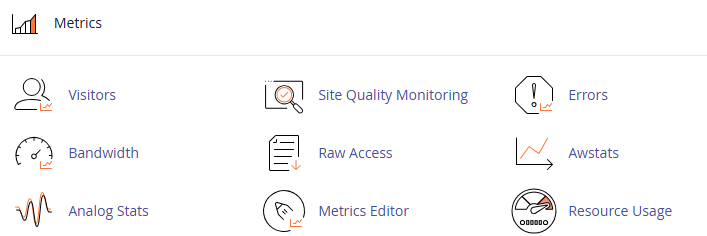
6. Click Resource Usage or CPU and Concurrent Connection Usage.
7. Review the summary for any faults, such as CPU overages, memory limits, or entry process restrictions.
8. Click Details for a breakdown of usage over time. Look for high spikes that indicate when your site was under pressure.
9. Match timestamps to site activity or traffic logs.
cPanel Tools for Resource Usage & Website Overload Checks
10. Identify patterns and possible causes, such as bots, plugins, high traffic, or large file requests.
Here are other cPanel tools that you can use Check other tools in cPanel for more insights:
- Errors: Look for 500 errors or overload issues.
- Awstats or Webalizer: View traffic analytics.
- Raw Access Logs: See visitor IPs and activity.
- Bandwidth: Spot traffic surges or large downloads
Additional Information
Common Causes of Website Overload
- High traffic spikes, especially on shared hosting.
- Poorly coded plugins or themes (e.g., in WordPress).Too many cron jobs or background processes.Search engine crawlers hitting too often.
- Unoptimized images or scripts.
Tools to Check for Website Overload
- WordPress users can install WP-Optimize or Query Monitor to detect slow queries or plugin issues.
- Use the cPanel Processes tool (if available under Advanced) to see current resource-heavy processes.
- Check phpMyAdmin for large or slow-loading database tables.
- Control bot activity via robots.txt to reduce unnecessary load.
- Enable caching with plugins like WP Super Cache or LiteSpeed Cache.
- Offload heavy files to a CDN (e.g., Cloudflare) to save bandwidth.
- Upgrade hosting if high traffic is consistent, moving from shared to VPS or dedicated hosting.
- Contact your hosting provider’s support for help reviewing high-load logs and recommendations.



