


 Contact Support
 Sign In
Speed up your website using LiteSpeed Web Cache Manager in cPanel. Website speed is significant for user experience, search engine rankings, and overall website performance. Hosted.com® makes it easy to optimize your site using LiteSpeed Web Cache Manager in cPanel, a powerful tool that improves loading times and reduces server resource usage. Whether you run a WordPress site, an ecommerce store, or a custom website, LiteSpeed caching can make a noticeable difference.
LiteSpeed Web Cache Manager works by storing frequently accessed content and serving it quickly to visitors. Instead of loading pages from the database each time, the cached version is delivered, resulting in faster page load times and improved efficiency.
TABLE OF CONTENTS
How to Speed Up a Website Via LiteSpeed Web Cache Manager
Login to Your Account
1. Login to your Hosted.com® account.
2. Navigate to your hosting plan from the Manage Services menu.
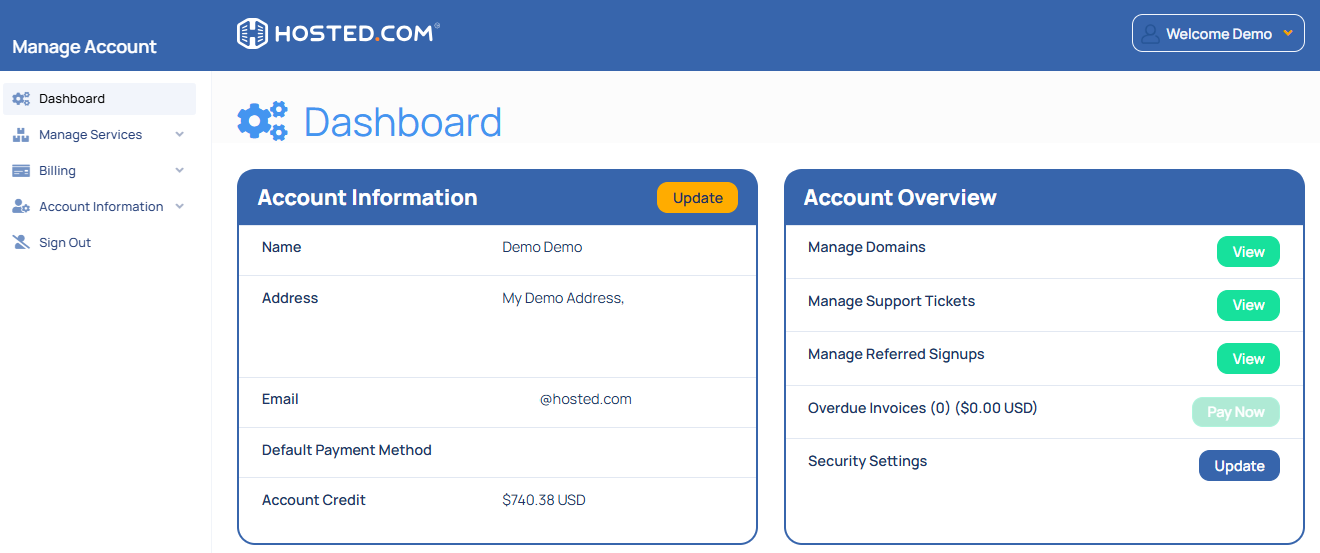
3. Click Manage next to the hosting plan associated with your current domain.
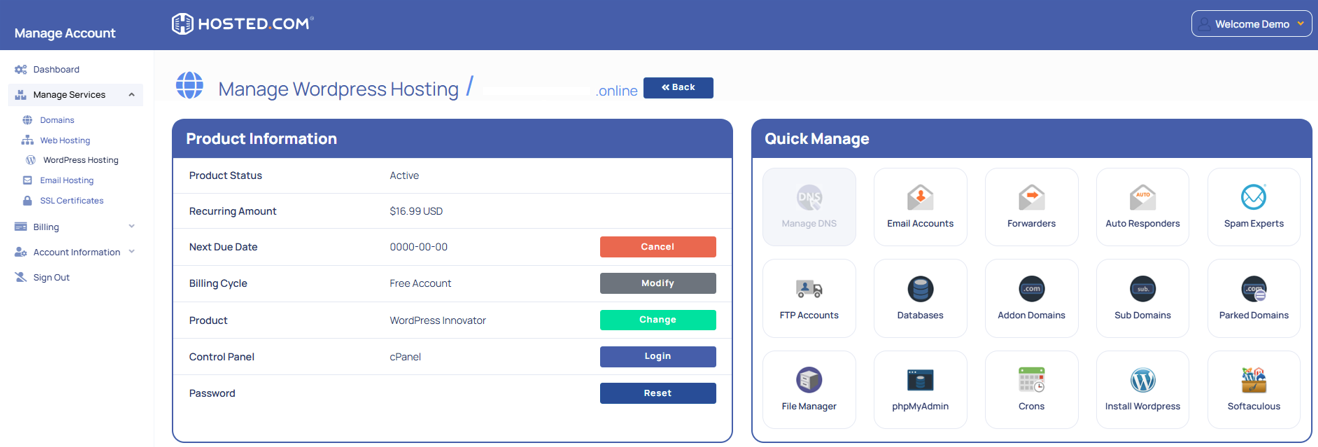
4. Select Login next to Control Panel to access cPanel.
5. In cPanel, scroll to Software and click LiteSpeed Web Cache Manager to open the dashboard.
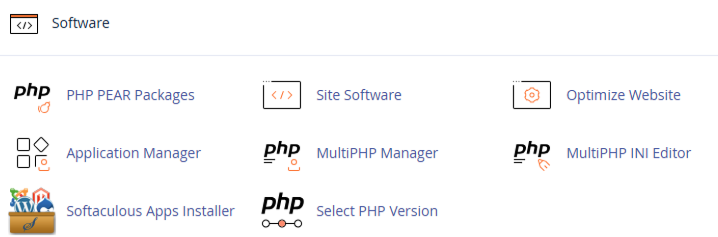
6. From the LiteSpeed interface, choose the website you wish to optimize.
7. The dashboard will display cache settings and options for the selected domain.
Enable Caching
8. Click Enable to activate LiteSpeed cache for your site.
9. You may also choose the caching level, such as public cache, private cache, or a combination based on your site’s needs.
Purge Old Cache
10. If you’ve made recent updates to your website, use Purge All to clear old, cached files. This ensures visitors receive the latest version of your pages.
Configure Litespeed Web Cache Settings (Optional)
11. Advanced users can configure settings such as Cache Expiration, ESI (Edge Side Includes), and Cache Exclusions for dynamic content.
12. WordPress users with LiteSpeed Cache plugins can synchronize settings with the plugin for maximum performance.
Test Your Website Speed
13. After enabling and configuring LiteSpeed cache, test your site using tools like Google PageSpeed Insights, GTmetrix, or Pingdom. You should notice faster load times and reduced server response times.
Additional Information
- Compatibility: LiteSpeed caching works with WordPress, Joomla, Magento, and other popular CMS platforms.
- Reduce Server Load: By serving cached pages, LiteSpeed reduces database queries and CPU usage, improving server performance during traffic spikes.
- Automatic Cache Management: LiteSpeed automatically manages cache for updated content, but manual purging is recommended after major changes.
- Security: Caching does not affect website security. Sensitive pages, such as login pages or checkout pages, can be excluded from caching.
- Plugin Integration: For WordPress sites, installing the LiteSpeed Cache plugin allows for additional features like image optimization, minification of LiteSpeed Web Cache CSS/JS files, and database cleaning.
- Monitoring Performance: Use LiteSpeed’s dashboard to monitor cache hits, misses, and purge logs to understand how caching improves site performance.
- Fallback Option: If issues arise, you can disable LiteSpeed caching temporarily without affecting your website’s content.



