


 Contact Support
 Sign In
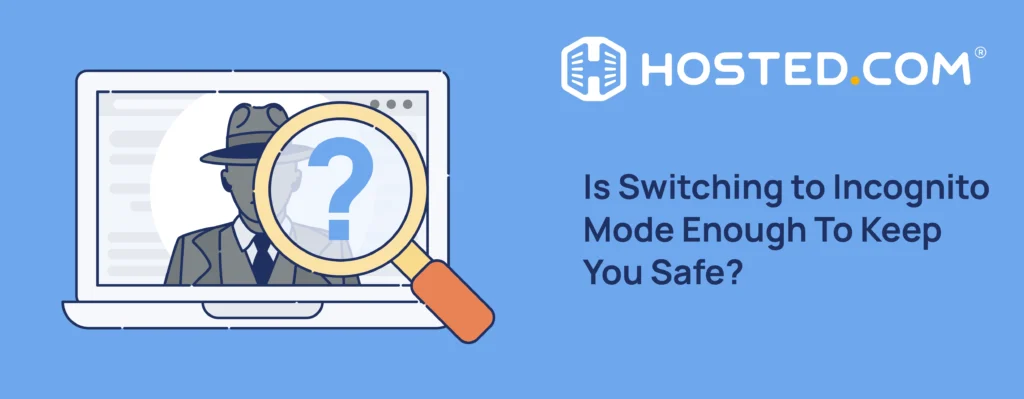
Switching to incognito mode often feels like an instant privacy upgrade, with most people assuming it keeps all their browsing activity hidden, anonymous, and safe. But does it really make you invisible or leave you wide open? In this guide, you will find out all about incognito mode, what it does and doesn’t do, and of course, how safe it really is. You’ll also learn when it makes sense to go incognito, common misconceptions around it, and how to keep your data private and safe with better browsing habits and secure Web Hosting.
KEY TAKEAWAYS
- Using incognito mode helps keep your browsing activity private on your device by deleting history, cookies, and session data.
- Private browsing limits what is stored on your device, but it does not hide your IP address, prevent monitoring or tracking, or provide anonymity.
- Data privacy and protection require a layered approach, combining incognito mode with tools and safe browsing practices.
- Incognito mode protects local privacy, but secure Web Hosting from Hosted.com® protects your website data from online threats.
TABLE OF CONTENTS
What is Incognito Mode?
Incognito mode is a setting in your web browser, usually found in the top right corner or top left, depending on your operating system that, when turned on, prevents browsing data and online activity from being stored locally on your computer when you access web pages that may be unsafe, unsavory, or you don’t want private information or search history being seen. It’s the little icon that looks like a spy from a noir film. If you’re too young to remember those, Google it!
Different browsers use different names, like Private Browsing or InPrivate, but they work the same way. With regular browsing, your data, including cookies, cached files, forms, history, etc., is stored, so the next time you visit, things are faster and more personalized.

When you decide it’s time to open Chrome, for example, and go undercover, it opens a separate private browsing session (the period from when you open a site to when you close the window) in a new window that does not save certain types of data on your device.
Consider it as giving your web browser selective amnesia: once you close the window, it forgets you were ever there. This includes the list of websites you visited not appearing in your browser history, library, or search bar. Similarly, information (names, email addresses, passwords) typed into forms isn’t saved for autofill later.
It also clears temporary data. This means websites can’t track you via cookies from old sessions, and any new cookies created during the session are wiped when you exit a site. Cookies are the small pieces of data that allow sites to remember preferences, login credentials, shopping cart contents, and other activity from previous visits.
The necessary cookies and site data are still created, so the site can function properly; the difference is that they are stored temporarily and deleted when you end a session. The same goes for your browsing history and search queries. However, not everything is deleted. Any downloads will stay on your device, and bookmarks you create will be saved.
Common Misconceptions & The Truth: What You Can’t Hide by Going Incognito
Before you get too excited, opening a new incognito window doesn’t make you invisible. In fact, there’s a fair amount of important information that is still visible to the outside world. If your goal is hiding your identity, data security, or tracking protection, you won’t get the completely hidden browsing experience you expect.
The most common misconception people have is that opening a new incognito tab is like putting on a magic invisibility cloak for web browsing, so no one can see what they are doing. The reality is, the browser setting instructs it not to store specific data after you end a session. That’s it.
As we discussed earlier, incognito mode only affects what is stored on YOUR DEVICE. Your Internet Service Provider (ISP), boss, and even the government (if they’re so inclined) can still see the sites you access. The websites you visit can see your IP address, location, and whether you’re using a computer or a mobile device.
Websites can also track your activity during a private session, especially if you log in to Google accounts, social media, etc. Even if you have incognito browsing turned on, they will know exactly who and where you are, and link all your “private” activity directly to your profile.
Sorry to burst your bubble.
Another myth is that it acts as a malware shield; the truth is, you are just as vulnerable to viruses, data theft, and especially the new breed of AI cyberattacks. If you click a suspicious link or download an infected file, the malicious software will still execute its script to steal data or hold your files for ransom just as easily as it would in a standard browser window. At the same time, it doesn’t provide encryption for data transfers either; that’s what SSL (Secure Sockets Layer) certificates are for.
The untraceable myth is another big one, as we discussed in the section on what you can’t hide. Advertisers and the sites you visit can still track you (to a degree). While incognito deletes cookies after you close the window, it doesn’t stop them from doing their job during the session.
Most popular browsers (Chrome, Safari, Mozilla Firefox) now block third-party cookies by default in incognito mode. However, thanks to what’s known as digital fingerprinting, sites can identify you by your unique combination of browser version, screen resolution, and device settings, even without cookies, and your enabled privacy settings.
Lastly, and this is not a major issue, your downloads and bookmarks are saved. If you bookmark a page while you are in private mode, it is saved to your usual browser profile. The same applies to downloading files; they are saved to your computer’s hard drive and stay there after you close a private tab or window.
In short, this mode wipes your local data, but much of what you do online remains visible. In fact, a study titled The Illusion of Anonymity: A Study on Incognito Mode by Shraddha Mishra, Assistant Professor at IPS Academy, found that around 70% of people (mistakenly) believe it hides their identity from ISPs and employers.
This holds doubly true if you’re trying to hide your identity on the dark web. Also, why are you there anyway?
When Should You Use it?
Incognito mode is most effective as a data privacy feature at the local level and for session management rather than totally masking your online actions. Because it doesn’t mask what you do online. It essentially gives a new browser window a clean slate and is best used for specific, more practical situations rather than the complete anonymity the name infers.
One of the best times to turn it on is when you’re using a public or shared computer. This is because it ensures your browsing history, forms, and login credentials are wiped the moment you close a window, preventing the next person who uses that device from accessing your private information. This is great for keeping sensitive business data safe, but a little shady in a personal setting, in this author’s opinion.
János Moldvay, VP of Measurement at Funnel, backed this up in a November 22, 2025 TechRadar article on the subject, when he said: “Incognito Mode primarily protects you against being spied on by people you might share your computer with. That’s the main extent of user privacy.”
As we discussed earlier, browsers and search engines use your history to personalize what you see. Going incognito prevents your previous searches and cookies from influencing results, allowing you to view neutral ones instead. Also, if you need to search for a product or service but don’t want to be subjected to targeted ads for the foreseeable future, using a private browser prevents those specific cookies from being stored on your device.
Incognito also allows you to avoid the one-session-per-browser rule if you need to log in to another account on the same site without logging out of your current session. You can stay logged into your main account in a standard window while opening a new private window to check your secondary account, avoiding the hassle of constantly logging in and out of both.
Enhancing Data Privacy & Safety While Browsing
When it comes to keeping your browsing private and safe, incognito mode is just one piece of the puzzle. Pairing it with the proper tools and safe browsing habits can go a long way to helping you fly under the radar as much as possible.
We’ve established that going incognito only stops your browser from saving history, cookies, and cache on your device; it does not hide your activity from your internet provider or the websites you visit.
A Virtual Private Network (VPN), on the other hand, does. They encrypt your internet traffic and route it through a different server, masking your IP address and making it seem as if you are in another location. For example, if you are in the United States, the VPN will make it look as if your IP is in the United Kingdom.
This makes it much harder for ISPs, advertisers, and sites to track your online activity or pinpoint your real location. They are also becoming increasingly popular, with 25% of internet users worldwide using one to hide their IP address.
Speaking of tracking, Google Chrome’s incognito mode and Microsoft Edge still allow fingerprinting. In fact, and we’re just quoting here, according to cybersecurity expert Bob Gourley, in a blog for Reader’s Digest: “The more you poke at Chrome, the more you’ll find it still works behind the curtain in private mode,” he says. “It will continue to tie any browsing activity back to your Google account unless you disallow it. Everything – bookmarks, IP range and autofill info – is recorded.”
Rather use Mozilla Firefox and other sites that have more privacy-focused features, paired with browser extensions like uBlock Origin to block third-party trackers and scripts. This can stop them from following you across the web and spamming you with ads and biased search results.
Ensure your browser is set to “HTTPS-Only” to prevent data interception on older, unencrypted websites without an active SSL certificate. This is the default setting these days anyway; you may have seen a warning pop-up telling you not to access a site without HTTPS encryption, saying it’s not safe and to return the way you came.
Best Practices for Safe Browsing
Even with all the right software in place, data privacy starts with you. Regularly clearing cookies and your browser cache data can help reduce long-term tracking. Using strong, unique passwords for each account helps prevent unauthorized access. Password managers can make this easier without sacrificing convenience.
When using public Wi-Fi, be aware that unsecured networks are probably the easiest way to expose your data. Avoid using your login information for sensitive accounts, like email, social media, and your hosting client portal, unless you’re on a secure connection.
Updating your browser extensions, operating system, and any other important software regularly also helps patch new security vulnerabilities.
Common sense is also essential here. If a link on a landing page looks suspicious, or you get a random pop-up telling you to download a file or perform an update, don’t click it, and run a security scan ASAP.
68% of all data breaches in 2025 involved human error, including people misunderstanding privacy settings or falling for phishing scams, even while in private mode.
Website & Data Security with Hosted.com®
As you can see, incognito mode focuses on your local privacy and data protection only to a degree; website security, on the other hand, is how to protect your hosting data privacy and your visitors’ information, regardless of whether they access your site normally or in a private tab. This is where your hosting provider and its infrastructure comes into the picture.
Hosted.com® provides secure Web Hosting and WordPress hosting solutions designed to protect your online business and customers from the various types of cyber threats and attacks out there.
All plans include a free SSL certificate (I mentioned this earlier) to encrypt data during transfer between visitors and your server, helping ensure sensitive information can’t be intercepted, read, or modified by hackers.
Our server infrastructure, backed by Monarx and Imunify 360, detects and mitigates harmful traffic and provides 24/7 proactive monitoring to help prevent unauthorized access and data breaches.
Daily automatic backups keep your website files and data safe, and allow you to recover and restore your pages in the event of a worst-case scenario.
For you, having these in place builds trust with customers and helps boost search engine visibility. For visitors, it means safer browsing experiences, regardless of whether they’re using incognito mode or not.
![Maximum Security for Your Business’s Website from Hosted.com [Learn More]](webp/incognito-mode-04-1024x229.webp "Maximum Security for Your Business’s Website from Hosted.com [Learn More]")
Getting Started with Hosted.com Website Builder – Quick Setup Guide
VIDEO: Getting Started with Hosted.com Website Builder – Quick Setup Guide
FAQS
Does incognito mode completely hide my browsing activity?
No, your ISP, employer, etc., can still see your browsing activity, the websites you visit, and what you do on them, even when using incognito mode.
Is my IP address hidden in incognito mode?
No, it does not hide or change your IP address; it stays the same. If you want to hide your IP, you will need to use a VPN.
Can websites track activity with incognito turned on?
Yes, websites can still track your activity during the session, especially if you log in or interact with content.
Does private mode protect against malware or phishing?
No, private mode does not give protection against malicious websites, phishing, or downloads.
Will downloads be deleted after closing an incognito window?
No, any files you download stay on your device as normal after you close an incognito window.
Other Blogs of Interest
– Social Search – Transforming How We Discover Content Online
– Product Research – Find Profitable Product Ideas For Your Store
– Why SSL Certificates Are Essential For Secure Online Payments
– Risks And Realities Of Unsecure Websites
– How To Secure A Website – Best Practices For Online Safety
- About the Author
- Latest Posts

Rhett isn’t just a writer at Hosted.com – he’s our resident WordPress content guru. With over 7 years of experience as a content writer, with a background in copywriting, journalism, research, and SEO, and a passion for websites.
Rhett authors informative blogs, articles, and Knowledgebase guides that simplify the complexities of WordPress, website builders, domains, and cPanel hosting. Rhett’s clear explanations and practical tips provide valuable resources for anyone wanting to own and build a website. Just don’t ask him about coding before he’s had coffee.