


 Contact Support
 Sign In
When uploading a file to your WordPress site and you suddenly see the 413 Request Entity Too Large error, it means that the file you are uploading is too large for the server to handle. This error occurs when your file size exceeds the limit set by your Host Vs Server: Highlighting The Major Differences.
You’ll often receive this error when you upload large images, videos, or plugin and theme files. Sometimes, even submitting a large contact form with lots of data can cause it. It’s the server’s way of saying, “This file is too large, and I can’t process it”.
In this guide we explain what this error means, why it appears, and how to fix it easily. You’ll also learn how to avoid it in the future by adjusting some settings on your server or How to Launch a WordPress Site: A Comprehensive Guide. Whether you’re new to WordPress or have been using it for some time, these steps are simple and safe to follow.
KEY TAKEAWAYS
- The 413 Request Entity Too Large error occurs when the file you’re trying to upload is too big for the server to handle.
- This error often appears when uploading large images, videos, plugins, or themes in WordPress.
- You can correct it by increasing the file upload size in your hosting settings or PHP configuration.
- Changing values like upload_max_filesize and post_max_size helps your server accept bigger files.
- Editing the .htaccess or functions.php file can also raise upload limits if you can’t access server settings.
- For NGINX servers, updating the client_max_body_size setting will fix this error.
- Resetting file and folder permissions can solve issues caused by blocked access during uploads.
- To avoid this error, compress your media files before uploading and regularly check your server’s limits.
- Add browser-based checks for file size to prevent large uploads from reaching the server.
- Review your hosting settings regularly to ensure your WordPress site stays error-free and ready for growth.
TABLE OF CONTENTS
What is 413 Request Entity Too Large?
The 413 Request Entity Too Large is an HTTP response code that indicates the request you’re trying to send, usually a file upload or large chunk of data, exceeds the server’s allowed size.
In simple terms, your Web Application Hosting Server: Everything You Need to Know or browser sends too much data at once, and the server refuses to process it because it hits a size limit set by the server’s configuration.
Here’s the step-by-step process of how the 413 error happens:
Step 1: Client Prepares a Request
The process starts when a user tries to:
- Upload a large media file to WordPress through the Media Library.
- Submit a large form with a file attachment.
- Make an API call that includes a large payload (e.g., JSON data).
Behind the scenes, the client (browser or API tool) sends an HTTP request with all that data in the request body.
Step 2: Server Receives the Request
The server receives the incoming request and checks the Content-Length header to see the amount of data being sent. At this point, it compares that size against its internal limit set by configuration files:
- Apache checks php.ini or .htaccess files for upload_max_filesize and post_max_size.
- NGINX checks client_max_body_size in nginx.conf.
- PHP also uses memory_limit to manage the amount of memory that can be used for scripts.
Step 3: Limit Exceeded
If the total size of the data exceeds any of those values, the server doesn’t even finish reading the request. Instead, it immediately returns an HTTP 413 status code with a message like:
- HTTP Error 413.
- 413 Request Entity Too Large.
- 413 Payload Too Large.
This tells the client that the data you sent is too much for the server to handle, and it won’t process it.
Step 4: Client Sees Error
On the user’s end, the upload fails. Depending on Step-By-Step Guide: How To Build A Website From Scratch and what browser you’re using, the message may appear in a plain browser window or inside the WordPress dashboard as a generic upload failure.
Tip: If you want to learn about the HTTP requests structure, methods and examples, refer to the Linode documentation.
Now that you are aware of the 413 (Request Entity Too Large) error, let’s see why it occurs.
What Causes 413 Request Entity Too Large?
This error usually happens when the server can’t handle the amount of data you’re trying to send. Let’s break down the most common reasons why it appears.
Server Limitations
Web servers have rules that limit the amount of data they can accept in one request. These limits are there to protect the server from being overloaded. If your request exceeds that limit, the server blocks it and sends back the 413 error.
Large File Uploads
One of the most common causes is trying to upload a file that’s too big. For example, if your server allows a maximum file size of 128MB and you try to upload a 200MB video, the server will reject it. WordPress often hits this limit when you’re adding large media files, plugins, or themes.
Incorrect File Permissions
If your file or folder permissions are set incorrectly, the server may not be able to process your request. For instance, if the uploads folder doesn’t have the right permissions, even a file within the allowed size may trigger an error. Usually, proper permissions are:
- 755 for folders.
- 644 for files.
These help the server to manage data properly.
Server Resource Constraints
When your WordPress Hosting has limited resources, such as memory or bandwidth, the server may fail to handle large uploads, especially during a traffic spike or when there are too many active processes. In this case, the server isn’t blocking the file size, but it doesn’t have sufficient power to complete the task.
Misconfigured Server Settings
Sometimes, the problem lies in the configuration files. For Apache servers, settings in the .htaccess or php.ini files control the amount of data allowed.
In NGINX, a line in the configuration file called client_max_body_size does the same job. If these values are set too low, even medium-sized files can cause the 413 error.
Understanding these causes helps you know exactly what to fix when this error appears. Each part plays a role in how your server handles requests, and a small setting can make a big difference.
5 Easy Methods to Fix 413 Request Entity Too Large Error in WordPress
In this section, we show you 5 simple and effective methods to solve this issue. Whether you’re using What Is Shared Hosting: Understanding the Pros and Cons, a VPS, or NGINX, these steps will help you quickly increase upload limits and get your site working.
We’ll walk you through how to:
- Reset file permissions to prevent your uploads from being blocked.
- Increase upload limits in your PHP settings.
- Edit key files, such as functions.php and .htaccess.
- Tweak server settings if you’re using NGINX.
Each method includes clear instructions, allowing you to apply the fix that works best for your setup. Let’s get started.
Reset File Permissions
Sometimes, incorrect file or folder permissions can cause issues when How To Upload HTML Files To WordPress: 3 Easy Methods. If the server can’t read or write to the correct folder, it may block the request and return a 413 error. In this case, resetting file permissions can help the server accept your uploads properly.
To do this, you need to access your website files using How To Use cPanel File Manager or an FTP client (e.g., FileZilla). If you want to use FileZilla, you may refer to the following:
Set File Permission Using FileZilla
However, we’ll use File Manager for this section example. Here’s how:
How To Login To cPanel and click File Manager under Files.
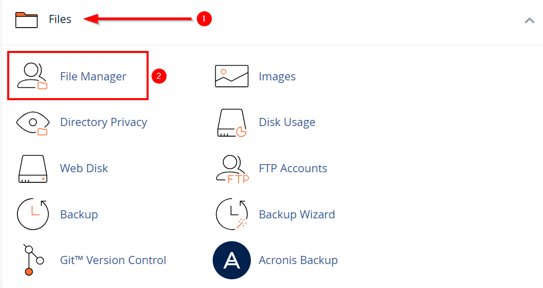
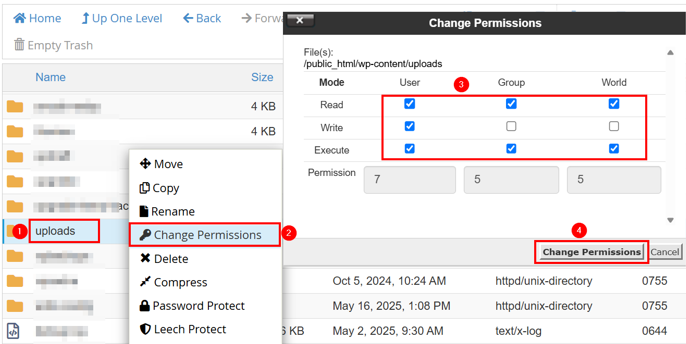
Navigate to the public_html folder. This is your WordPress installation directory. Now, right-click wp-content/uploads and select Change Permissions.
Set the folder permission to 755 (read, write, execute for the owner; read and execute for group and public). Then, click Change Permissions.
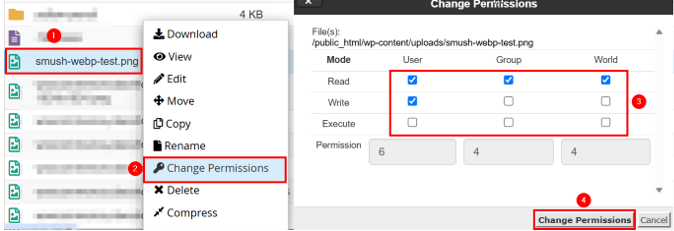
If there files inside that folder are causing problems, you may need to set their permissions to 644. To do this, right-click on the file and set permissions to 644 as follows:
Ensure the configuration files, .htaccess and wp-config.php, also have 644 permissions. This grants WordPress the necessary access to read and store files without causing the server to block the request.
Next, if resetting permissions doesn’t work, you should increase your server’s upload limits. Let’s discuss this.
Increase PHP Upload Size Limits
One of the most common reasons for the 413 Request Entity Too Large error is that your server’s PHP settings don’t allow big file uploads. To sort this, you need to increase a few limits in your hosting account. This change shows your server that it’s okay to accept larger files when you upload them through WordPress.
Here’s how to access PHP configurations:
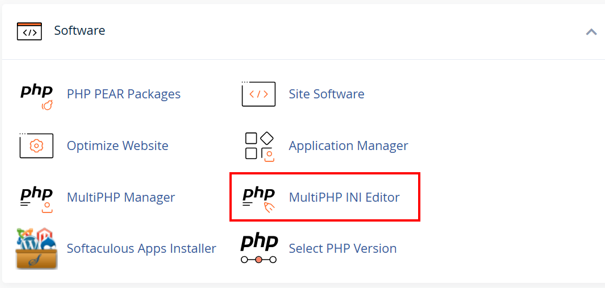
Go to Hosted’s cPanel → Software → MultiPHP INI Editor.
Under Basic Mode, choose the domain name or website where you wish to change the settings.
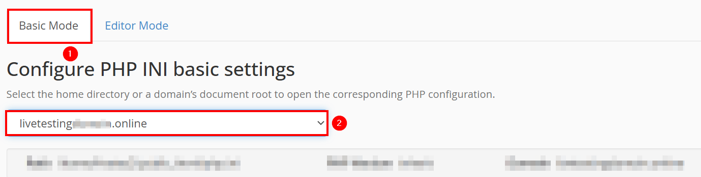
Once you’re in the PHP settings area, find the following 3 options and increase their values:
upload_max_filesize
This controls the maximum size of a single file upload. Set it higher, such as to 256M if you’re uploading large media files.

post_max_size
This controls the maximum size of the entire POST request, which includes all form data and file uploads. It should always be equal to or larger than upload_max_filesize. A safe value is 300M.

memory_limit
This tells the server the amount of memory a PHP script can use. If you’re uploading large files, increase this to at least 512M, so the server has sufficient space to process them.

Once you’ve updated these values, click Apply to save changes.
However, if you’re more comfortable using the editor mode, switch to Editor Mode,select your domain, and write the following code to set the same values. Then, click Save:
upload_max_filesize = 256M
post_max_size = 300M
memory_limit = 512M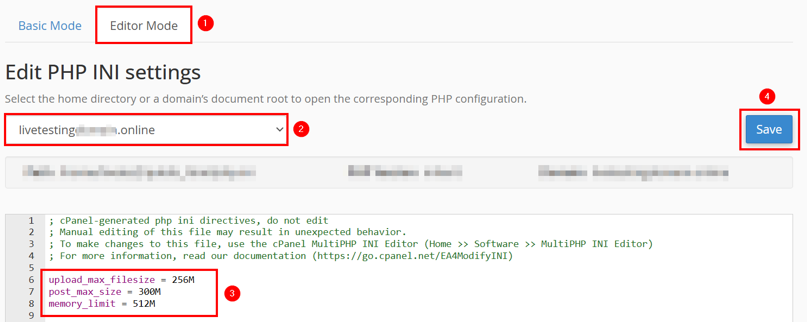
At this point, some hosting dashboards may automatically restart PHP, but if not, manually restart the server or check for an option to reload PHP.
Now, let’s talk about how you can adjust these limits directly through your WordPress theme’s functions.php file.
WordPress Hosting is built for performance, offering built-in caching, daily backups, and free SSL to keep your site fast and protected.
With cPanel access and expert support, you’ll have the tools and help you need to manage and grow your website.
Modify the functions.php File
If you’re still getting the 413 error after adjusting PHP settings in your Navigating WordPress Hosting Control Panels: A Primer, you can also increase file size limits by adding code to your theme’s functions.php file. This file controls some of your theme’s behavior and allows you to insert small custom scripts.
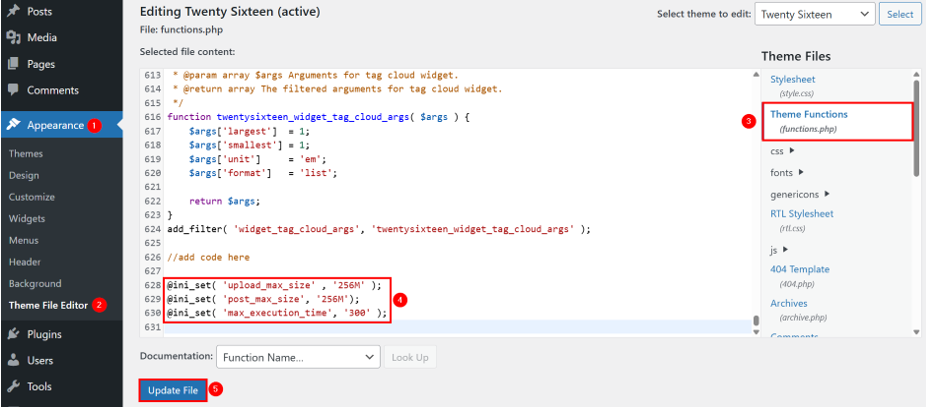
First, navigate to the WordPress Dashboard → Appearance → Theme File Editor. On the right-hand side, click functions.php (it may be listed as Theme Functions).
Next, scroll to the bottom of the file to add your code. However, if you prefer, you can also use an FTP client or your hosting’s File Manager to find this file inside:
/wp-content/themes/your-active-theme/functions.phpAt the end of the file, paste the following code:
@ini_set( 'upload_max_size' , '256M' );
@ini_set( 'post_max_size', '256M');
@ini_set( 'max_execution_time', '300' );
Here’s what each property does:
- upload_max_size increases the size of each file you can upload.
- post_max_size raises the total size of the entire upload request.
- max_execution_time gives your server more time (in seconds) to handle large uploads.
After adding the code, click Update File to save the changes.
Expert Tip: It’s always safer to add custom code to a How To Create A WordPress Child Theme instead of editing the main theme directly. This way, your changes won’t disappear if you How to Update WordPress Theme: 5 Effective Methods later. If you’re already using a child theme, follow the same steps, but open the functions.php file in your child theme folder instead.
Next, let’s look at how to make similar changes using the .htaccess file.
Edit the .htaccess File
Another way to fix the 413 Request Entity Too Largeerror is by editing your site’s .htaccess file. This file controls how your server behaves, and you can use it to raise the upload limits if you’re on an Apache server.
Here’s how to do it:
Open the File Manager and go to the public_html directory. Now, look for a file called .htaccess. If you don’t see it, ensure hidden files are visible. We recommend you download a backup of this file before making any changes to it. You may need to restore this backup if something doesn’t go as expected.
Now, click Edit at the top to open it in edit mode.
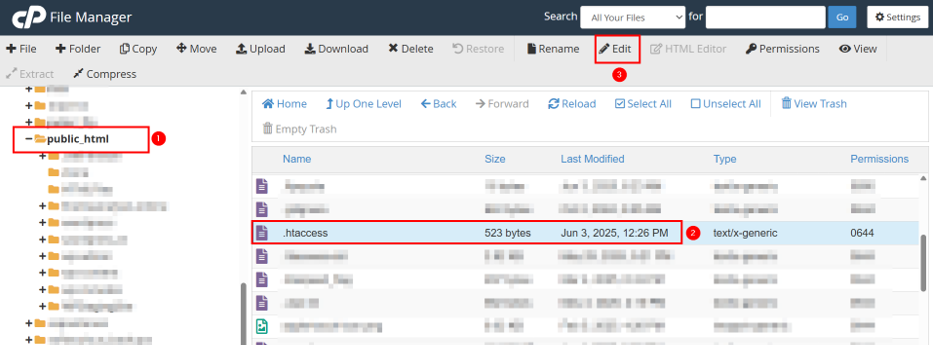
Once it’s opened, scroll to the bottom and add these lines after # END WordPress:
php_value upload_max_filesize 256M
php_value post_max_size 256M
php_value max_execution_time 300
php_value max_input_time 300
After pasting the code, click Save Changes to save the file.
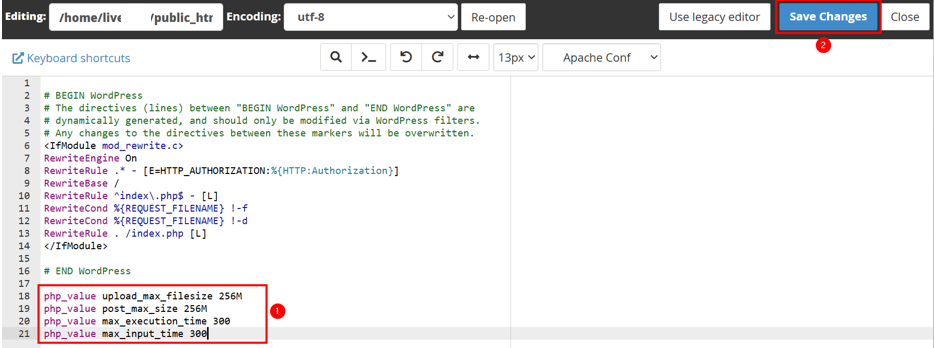
Once you’ve saved the .htaccess file, return to the WordPress admin area and try to upload the same file again. If the settings were applied correctly, the upload should now work without the 413 Request Entity Too Large error.
However, if the error continues, your Choosing a WordPress Hosting Provider: Factors to Consider may not allow overriding PHP settings through .htaccess. In that case, try one of the other methods or contact the host’s support team.
Modify NGINX Configuration
If your WordPress website is running on an NGINX server, the 413 Request Entity Too Large error often comes from a setting called client_max_body_size. This setting shows the server the size of an upload. If the file size exceeds the set value, NGINX blocks the request before it even reaches WordPress.
To change this limit, you need access to your NGINX server’s configuration file. This is usually found at:
/etc/nginx/nginx.confIf your How to Host a Website with Hosted® on a Performance Analysis: Shared Vs. VPS Vs. Dedicated WordPress Hosting, you can connect to it using SSH. Hosting companies that offer managed NGINX may give access through a custom panel, but in most cases, you’ll need root or sudo access.
Once you open the nginx.conf file, look for the http {}, location {}, or the server {} block where your website is defined. Inside that block, add or edit this line:
client_max_body_size 256M;This sets the upload limit to 256 megabytes. You can increase or decrease this value depending on the file sizes you plan to upload.
After saving the changes, you need to restart NGINX to apply them. To restart, use the following command:
sudo systemctl restart nginxNOTE: If you’re using a different Linux distribution or init system, the command may vary slightly.
Once restarted, try uploading your file again. If everything’s correct, the 413 error should be gone.
Tips to Avoid the 413 Request Entity Too Large Error
The best way to deal with the 413 error is to prevent it from showing up in the first place. Even though you’ve already learned how to fix it, keeping your site prepared helps you Minimizing WordPress Website Downtime During Site Migration, slow uploads, and server strain. Below are some effective ways to prevent this error from occurring again.
Regularly Monitor File Sizes
Regularly track the size of files you upload. While hosting plans can vary in the amount of data they allow, it’s easy to accidentally upload a large file that exceeds your server’s limits.
If you manage a team or run a multi-author site, create upload guidelines to keep everyone informed about size expectations.
You can also set a maximum upload limit inside WordPress using plugins (e.g., MaxUploader – Increase Media Upload File Size) that warn users before a file is even uploaded. This helps you control what gets added to your server, making troubleshooting easier.
Optimize Media Files
While you’ve learned to fix upload limits, another smart move is to reduce file size at the source. Many people upload images directly from their phones or cameras, which can be large and have a high resolution, more than is needed for a website.
To prevent future upload issues, create a routine where all media files are optimized before uploading. This means adjusting dimensions, compressing the file, and removing unnecessary metadata. Optimizing media also enhances your website’s loading speed and overall performance, which is a significant benefit for both user experience and SEO.
Implement Client-Side Validation
Client-side validation is a powerful tool that’s often overlooked. It runs in the browser, which means it catches problems early, even before the server gets involved. By validating file size on the user’s device, you can prevent oversized files from being uploaded in the first place.
This is especially useful for How To Create A Membership Website In WordPress, file-sharing tools, or any place where users are allowed to upload content. Most modern forms or upload plugins include this feature, and if not, a developer can add some JavaScript.
The benefit here isn’t just avoiding errors, but it also gives users faster feedback, which makes the site more responsive and professional.
Configure Chunked Uploads
Sometimes, you can’t avoid large files, such as when working with video content or large backups. In such cases, it’s advisable to break the file into smaller chunks and then upload them individually.
This process, known as chunked uploading, is not built into WordPress by default; however, some plugins, content delivery tools, and advanced custom scripts support it. It can also be helpful when dealing with slow internet connections or unstable networks, as failed chunks can be retried without having to upload again.
It’s a bit more advanced to implement, but it’s worth considering for media-heavy sites or projects where large files are common.
Regularly Review Server Settings
Websites grow over time. You may start with small uploads and a few users, but as your site grows, your needs change. That’s why it’s important to revisit your server settings regularly.
Make it part of your monthly or quarterly website maintenance routine to check your server’s configuration, including:
- Memory limits.
- Execution times.
- Max upload sizes.
If you’ve changed your hosting plan or installed plugins that add new features (e.g., galleries, backup tools, or form builders), these tools may require more resources than you started with.
Remember, keeping your server aligned with your site’s needs helps you avoid not just 413 errors, but other Troubleshooting Guide: Fix Common WordPress Performance Issues, too.
![Strip Banner Text - Simplify website management with Hosted®’s WordPress Hosting. [More Info]](webp/413-request-entity-too-large-2-1024x229.webp "Simplify website management with Hosted®’s WordPress Hosting")
FAQS
Can I fix the 413 Request Entity Too Large error without editing code or server files?
Yes, many hosting providers let you increase upload limits using their control panel (like cPanel). You can also use WordPress plugins that adjust PHP settings, though they may not work on all servers. If you’re unsure, contact your host’s support team for help.
Which plugin should I use to increase the upload size and resolve the 413 error?
You can use a plugin like MaxUploader – Increase Media Upload File Size to raise the upload limit and fix the 413 Request Entity Too Large error. It offers a simple way to set a higher file size limit directly from your WordPress dashboard. However, this only works if your hosting provider allows you to change PHP settings within WordPress. On many shared hosting plans, server rules may block these changes. If the plugin doesn’t work, you need to adjust the limit manually using .htaccess, php.ini (MultiPHP INI Editor), or functions.php. Still, MaxUploader is a quick option for users with flexible server settings.
Will increasing the upload limit affect my site’s performance?
Not directly. However, allowing large uploads can use more memory and processing power, especially on shared hosting. Always compress large files before uploading and avoid raising the limits too high unless it’s necessary.
What if the error still appears after updating the settings?
If the 413 Request Entity Too Large error doesn’t disappear, double-check that all changes were saved correctly. Clear your browser and server cache, restart your web server (Apache or NGINX), and confirm you’re editing the correct configuration files for your active PHP version.
Is the 413 (Request Entity Too Large) error a security risk or a server failure?
No, it’s not a security issue or a server crash. The 413 Request Entity Too Large error is a protective response from your server to block data that exceeds allowed limits. It helps prevent resource overload but can be adjusted safely when needed.
Other Related Tutorials
– How To Fix The Mixed Content Error in WordPress
– How To Fix ‘Sorry, You Are Not Allowed To Access This Page’
– How To Remove “Powered By WordPress” From Website
– How To Fix The HTTP 303 Status Code: 4 Easy Methods
– How To Fix Temporary Failure In Name Resolution Error
- About the Author
- Latest Posts

Rhett isn’t just a writer at Hosted.com – he’s our resident WordPress content guru. With over 6 years of experience as a content writer, with a background in copywriting, journalism, research, and SEO, and a passion for websites.
Rhett authors informative blogs, articles, and Knowledgebase guides that simplify the complexities of WordPress, website builders, domains, and cPanel hosting. Rhett’s clear explanations and practical tips provide valuable resources for anyone wanting to own and build a website. Just don’t ask him about coding before he’s had coffee.