


 Contact Support
 Sign In

If you are using Linux and try to access a site or connect to a server, you may see an error message saying Temporary Failure in Name Resolution. This error means your system cannot translate a website’s domain name, such as example.com, into its IP address. Without this translation, your system cannot reach the website or server.
So, fixing this error is important because name resolution is essential for internet access. If this problem is not resolved, you won’t be able to browse websites, update software, or connect to remote servers. This can disrupt your work, especially if you’re running a web server, managing cloud services, or just trying to access the internet.
This guide helps you understand why this error happens and how to fix it. You’ll learn how to check your internet connection, test your DNS settings, and update the necessary configurations to restore proper name resolution.
KEY TAKEAWAYS
- The Temporary Failure in Name Resolution error happens when your system can’t convert domain names into IP addresses.
- First, check your internet connection using the ping command to confirm if your system is online.
- Use the dig command to test if your DNS is working and whether the issue is local or server-related.
- Ensure DNS settings are correct by checking the /etc/resolv.conf file or running resolvectl status.
- If necessary, update your DNS server to a public one like Google DNS (8.8.8.8) or Cloudflare DNS (1.1.1.1).
- Clear your DNS cache and remove old or incorrect entries.
- Check your hosts file to ensure there are no incorrect domain mappings.
- If your firewall blocks DNS traffic, allow port 53 using ufwor iptables commands.
- Restart network services or your system after making changes to apply the new settings.
TABLE OF CONTENTS
What is a Temporary Failure in Name Resolution Error?
When you type a website address in your browser or try to connect to a remote server, your system needs to translate the domain name (like hosted.com) into an IP address (like 93.184.216.34). This process is called DNS resolution and is handled by a DNS server. If your system cannot reach the DNS server or if there’s a misconfiguration, you may see the following error:
Temporary Failure in Name Resolution
This error means your system failed to resolve the domain name because it couldn’t communicate with the DNS server. Without name resolution, your computer can’t find the website or server you’re trying to reach.
Here’s how it appears if we try to ping the example.com website:

Common Causes of Name Resolution Failed Error
Several reasons can cause this issue in Linux. Below are the most common ones:
- No Internet Connection: If your internet is down, your system cannot reach the DNS server, leading to this error.
- Incorrect DNS Settings: If your system uses the wrong DNS server or the DNS settings are missing, name resolution will fail.
- Corrupt or Misconfigured /etc/resolv.conf File: This file contains DNS settings. If it’s missing, empty, or incorrectly configured, your system won’t know which DNS server to use.
- DNS Service Not Running: Many Linux systems use systemd-resolved or NetworkManager to handle DNS settings. If these services are stopped or disabled, your system won’t resolve domain names.
- Firewall Blocking DNS Requests: A misconfigured firewall may block port 53 (used for DNS queries), preventing your system from reaching the DNS server.
- Issues with the Hosts File (/etc/hosts): An incorrect entry in this file can interfere with DNS resolution and cause failures.
- Temporary DNS Server Issues: Sometimes, the problem isn’t on your end. The DNS server itself may be down or experiencing issues.
Now that you understand why this error happens, the next step is to diagnose and fix it. The following sections cover the step-by-step solutions to restore your system’s ability to resolve domain names.
Fix Temporary Failure in Name Resolution Error
Before fixing the name resolution failure, check if your computer is connected to the internet. If your network is down, your system won’t be able to reach the DNS server, which can cause this error.
To check this, use the ping command because it’s the easiest way to check your internet connection. This command helps you see if your system can communicate with another computer or server on the internet.
To test your connection, open Terminal and type:
ping -c 4 8.8.8.8Here, ping sends small data packets to Google’s public DNS server (8.8.8.8) to check if it responds. However, -c 4 tells it to send 4 packets and stop.
After running the command, you’ll see an output like this:
64 bytes from 8.8.8.8: icmp_seq=1 ttl=57 time=10.4 ms
64 bytes from 8.8.8.8: icmp_seq=2 ttl=57 time=11.2 ms
64 bytes from 8.8.8.8: icmp_seq=3 ttl=57 time=10.8 ms
64 bytes from 8.8.8.8: icmp_seq=4 ttl=57 time=10.6 ms
If you see responses like the one above, your internet works great. However, if you see Request timed out or Network unreachable, your internet connection may be down.

If you face ping temporary failure in name resolution error, which means you don’t get a response from 8.8.8.8, you should troubleshoot. First, check your Wi-Fi or Ethernet connection to ensure your internet isn’t disconnected.
A simple yet effective step is to restart your router; sometimes, this can resolve network issues. Additionally, try accessing the internet from another device, like a different computer or a phone. If the other device connects successfully, the problem may be specific to your Linux system. These steps will enable you to identify and likely fix the connectivity issue.
Resolve DNS Related Issues
If your internet connection is working, but you still see the Temporary Failure in Name Resolution error, the problem is likely with your DNS settings. The Domain Name System (DNS) translates website names (like example.com) into IP addresses.
If something is wrong with DNS resolution, your system won’t be able to access websites or remote servers. If this is the case, you can try the following solutions:
Check DNS Resolution
To check if DNS is working, you can use the dig command. This command helps to see if a domain name is correctly resolving to an IP address.
dig example.comIf DNS works properly, you should see an output that includes an ANSWER SECTION like this:
;; ANSWER SECTION:
example.com.  300  IN  A  93.184.216.34
This means the domain example.com is resolving correctly to the IP address.

If you don’t get an ANSWER SECTION, your system uses the wrong DNS server. If you see an error like SERVFAIL or REFUSED, it could mean your DNS server is down. However, if nothing happens with this command, your system may not have a working DNS configuration.
If DNS resolution fails, check the DNS server configuration.
Note: If obtaining an IP address resolves the issue, you can adjust your DNS settings according to the instructions in Adjust DNS Server Configuration. However, if this doesn’t help, it’s worth checking if this is a common issue affecting others. Websites like Whats My DNS can help test this. This website checks DNS propagation from various global locations.
If the website’s IP addresses vary or don’t resolve, this can indicate a problem for the domain owner to address. Also, remember that many large companies maintain a status page, which can be a valuable resource if you suspect the problem may be on their end.
Adjust DNS Server Configuration
Linux systems use DNS servers to resolve domain names. If the wrong DNS servers are set or not configured, the name resolution won’t work. To check which DNS servers your system is using, run:
cat /etc/resolv.confYou should see an output like this:
nameserver 8.8.8.8
nameserver 8.8.4.4
If the file is empty or contains incorrect entries, you need to update it. To manually set your DNS server to Google’s public DNS, open the resolv.conf file with a text editor (in this example, we use Vim.org):
vim /etc/resolv.confAdd the following lines:
nameserver 8.8.8.8
nameserver 8.8.4.4
Press Escape from your keyboard, write :wq, and click Enter to save and exit.
Remember, if your system uses systemd-resolved, the DNS settings are managed differently. You can check the current DNS configuration with the following command:
resolvectl status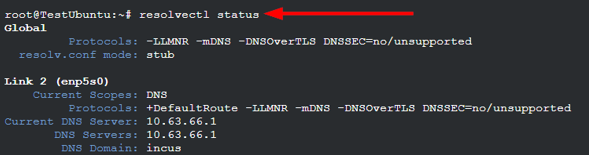
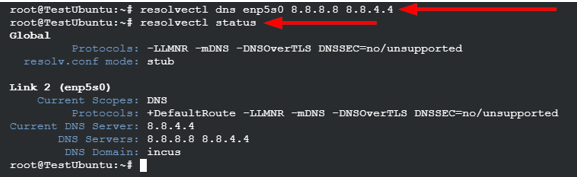
To change the DNS settings for a specific network interface (e.g., eth0,enp5a0, or wlan0), run:
resolvectl dns enp5a0 8.8.8.8 8.8.4.4This tells your system to use Google’s DNS servers.
Choose and register the ideal domain name for your website today, whether it’s for business, blogging, or personal branding.
With a simple and efficient Domain Registration process, you can easily secure your domain name and begin building your site in no time.
Resolve DNS Cache Issues
Sometimes, an old or incorrect DNS cache can cause resolution errors. Clearing the DNS cache can fix the issue.
If your system uses systemd-resolved, clear the cache with:
systemd-resolve --flush-cachesOr, if your system supports resolvectl, run:
resolvectl flush-cachesIf your system uses NetworkManager, use:
nmcli general reload dns-fullExamine /etc/hosts File
The /etc/hosts file maps domain names to IP addresses. If this file has incorrect entries, it can interfere with DNS resolution. To check the file, open it using:
cat /etc/hostsYou should see something like this:
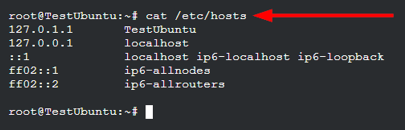
If you see incorrect entries, you can edit the file using:
vim /etc/hostsEnsure there are no incorrect domain mappings. If unsure, remove any unnecessary entries, save the file, and try again. By following these steps, you can diagnose and fix most DNS-related issues. If your system still shows a Temporary Failure in Name Resolution error, the problem could be related to your firewall settings or a deeper network issue, which we will cover next.
Manage Firewall Restrictions
If your internet connection is working and your DNS settings are correct, but you still see the Temporary Failure in Name Resolution error, your firewall may be blocking DNS traffic. Firewalls help protect your system by controlling network traffic, but sometimes they can accidentally block important requests, including DNS queries.
DNS works over port 53, which allows your computer to send and receive DNS requests. If a firewall blocks this port, your system won’t be able to resolve domain names, leading to DNS errors.
Some common reasons why a firewall may block DNS:
- Strict Firewall Rules: Some security settings may block DNS traffic, especially on servers or enterprise networks.
- Accidental Misconfiguration: If you or a network administrator changed firewall rules, port 53 may have been blocked in error.
- Third-party Firewall Software: Some security tools or antivirus programs include built-in firewalls that block outgoing DNS requests.
Check Firewall Status and Fix It
On Linux, many systems use Uncomplicated Firewall (UFW) or iptables to manage firewall settings. To check if a firewall is active, run:
ufw statusIf UFW is active and blocking connections, you may see something like this:
Status: active
To              Action      From
–               ------      ----
53/udp          DENY        Anywhere
53/tcp          DENY        Anywhere
This means DNS traffic is being blocked. However, you’ll find ALLOW under the Action tab, which allows connections.

To allow DNS requests, run these commands:
ufw allow 53/udp
ufw allow 53/tcp
Then, restart UFW to apply the changes:
systemctl restart ufwNow, try opening a website or running a ping or dig command to check if name resolution works.

However, if your system uses iptables instead of UFW, check if DNS is being blocked by running:
iptables -L --line-numbersYou’ll see something like the following:
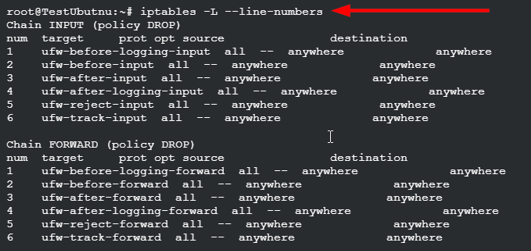
Here, if you see a rule blocking port 53, remove it using:
iptables -D INPUT <rule_number>Then, allow DNS traffic with:
iptables -A INPUT -p udp --dport 53 -j ACCEPT
iptables -A INPUT -p tcp --dport 53 -j ACCEPT
After making changes, restart the firewall with:
systemctl restart iptablesOnce you’ve allowed port 53, test DNS resolution again using the dig or ping commands. If there are still issues, we suggest consulting the documentation or help guides for those firewall and software packages you use to continue troubleshooting.
By following these steps, you can ensure that your firewall is not blocking DNS traffic and effectively fix the Temporary Failure in Name Resolution error.
![Strip Banner Text - Find and register your Domain Name with Hosted®. [Search Now]](https://www.hosted.com/articles/wp-content/uploads/2025/03/temporary-failure-in-name-resolution-2-1024x229.webp "Find and register your Domain Name with Hosted®")
FAQS
What are the best public DNS servers to use in Linux?
Some reliable public DNS servers include Google DNS (8.8.8.8, 8.8.4.4) and Cloudflare DNS (1.1.1.1, 1.0.0.1). These servers offer fast and stable DNS resolution, often performing better than default ISP DNS servers.
Does using a VPN affect DNS resolution?
A VPN can override your system’s DNS settings and use its own DNS servers. If the VPN’s DNS server is slow or misconfigured, you may experience resolution failures. Disconnecting the VPN or manually setting a reliable DNS server can help fix the issue.
What is the role of /etc/resolv.conf in DNS resolution?
The /etc/resolv.conf file is a configuration file that tells your Linux system which DNS servers to use for name resolution. It contains entries like nameserver 8.8.8.8, which direct your system to use Google’s DNS servers. If this file is missing, corrupted, or misconfigured, your system won’t be able to resolve domain names. Some Linux distributions use systemd-resolved, which manages DNS settings differently, meaning changes to /etc/resolv.conf may not be permanent.
Can I use multiple DNS servers?
Yes. You can configure multiple DNS servers in /etc/resolv.conf. Listing multiple nameservers ensures your system will try the following DNS server if the first one fails, improving reliability and preventing resolution errors.
Why does my DNS fail only on some Wi-Fi networks?
Some networks have custom security settings that block external DNS servers. If DNS fails only on specific Wi-Fi networks, switching to Google or Cloudflare DNS or using a VPN may help bypass restrictions.
Other Tutorials of Interest
– How To Fix DNS_PROBE_FINISHED_NXDOMAIN Error
– How To Fix DNS_PROBE_STARTED Error
– How to Redirect a Domain to Another Domain: Best Practices
– How To Install WordPress On A Subdomain: 2 Easy Methods
– Domain vs. URL: A Definitive Guide to Understanding Web Addresses
- About the Author
- Latest Posts

Rhett isn’t just a writer at Hosted.com – he’s our resident WordPress content guru. With over 6 years of experience as a content writer, with a background in copywriting, journalism, research, and SEO, and a passion for websites.
Rhett authors informative blogs, articles, and Knowledgebase guides that simplify the complexities of WordPress, website builders, domains, and cPanel hosting. Rhett’s clear explanations and practical tips provide valuable resources for anyone wanting to own and build a website. Just don’t ask him about coding before he’s had coffee.