


 Contact Support
 Sign In

The WGET command is a tool that helps you download files straight from the internet using your computer’s command line. It works without a browser and supports numerous file types, making it useful for simple and advanced tasks.
In this guide, you learn what wget is, how it works, and see real examples to help understand it better. We’ll also explain why it’s a helpful tool for downloading files quickly and safely.
KEY TAKEAWAYS
- wget is a powerful command-line tool used to download files and entire websites directly from the Internet.
- It works across different platforms, including Linux, macOS, and Windows, making it widely accessible.
- With simple commands, you can download one file, multiple files, or even automate tasks using scripts.
- It offers useful options to control speed, retry failed downloads, save files in specific folders, and continue interrupted downloads.
- wget is ideal for offline website access, bulk file downloads and working in server environments without a browser.
- While it’s great for static content, it doesn’t support JavaScript or dynamic websites.
TABLE OF CONTENTS
WGET Command and Its Significance
The wget command is a tool that lets you download files from the Internet using a simple, text-based command. Instead of clicking a download button in your browser, you type a short command, and the file is saved to your computer. This is helpful when working on a server or when you need to download many files quickly.
The name wget comes from World Wide Web and get. It means the tool is made to get content from the web. It’s useful when you want to grab files or even whole websites without needing a browser.
wget supports different internet protocols, including:
- Hypertext Transfer Protocol (HTTP)
- Hypertext Transfer Protocol Secure (HTTPS)
- File Transfer Protocol (FTP)
- Secure File Transfer Protocol (SFTP)
That means you can download files from a wide range of sources.
Wget is written in portable C, allowing it to work smoothly on any Unix-based system. You can also run it on Mac OS X, Windows, AmigaOS, and many other well-known platforms.
Why Would You Use WGET?
Using wget command is helpful because it allows you to download files without monitoring the process. It works in the background, so you can start a download and finish other tasks while it runs.
Another great feature of the wget command is that it can handle weak or unstable internet connections. If your connection drops, wget can retry the download without having to start over from the beginning. This saves time and avoids broken files.
You can also use wget in scripts and scheduled tasks, such as cron jobs. This means you can set it up to download files at a particular time, without having to do this.
If you want to save an entire website for offline use, you can use wget to mirror the site. It copies all the pages, images, and files, for you to view later, even without an internet connection. That makes it useful for backup, research, or travel.
How to Install WGET
Before you can use wget command, you need to install it on your system. The steps depend on the operating system you’re using, but the process is simple and doesn’t take long.
If you’re using Linux, wget is often already installed. If it isn’t, you can open the terminal and type:
sudo apt-get install wgetThis works on Debian-based systems, such as Ubuntu. For Red Hat-based systems (Fedora, CentOS), use:
sudo dnf install wget
or
sudo yum install wget
On macOS, the easiest way to install wget is through Homebrew. If you have Homebrew set up, run:
brew install wgetThis command will download and install wget for you.
However, if you’re using Windows, install it using Windows Subsystem for Linux (WSL), which lets you run Linux tools on Windows. Otherwise, go through the following steps to use wget in Windows Command Prompt:
- Open the Eternally Bored website.
- Download the wget.exe file for your Windows version.
- Copy the downloaded wget.exe file into the C:\Windows\System32 folder.
- Once installed, you can test it by typing wget –version in your terminal to ensure it’s working.
TIP: If you’ve installed Git Bash, which gives you a terminal that works like Linux, then copy the wget.exe file to the Git Bash binaries folder. It’s usually located at:
C:\Program Files\Git\mingw64\binOnce copied, you’ll be able to use the wget command directly inside the Git Bash terminal.
How to Use the WGET Command?
Before using the wget command, it’s helpful to understand how it’s written. The basic structure looks like this:
wget [options] <URL>Here, wget is the command, [options] are the additional settings you can add, and <URL> is the web address of the file that you wish to download. You can use various options to customize how wget operates. Don’t worry, we’ll show you some of these options while working on wget command examples below.
IMPORTANT:
When using wget to download files from public websites like WordPress.org, no special access is required. However, if you’re trying to download files from your website, ensure you connect to the server via SSH. If you don’t connect, you’ll receive the error 403: Forbidden.
Download Single File
One of the most common uses of wget is downloading a single file from the Internet. It’s a quick and simple way to save a file directly to your current working folder without using a browser.
For example, if you wish to download the latest version of WordPress, you can run this command:
wget https://wordpress.org/latest.zipWhen you run it, wget connects to the server, starts the download, and saves the file as latest.zip in your current directory. While the file downloads, you’ll see details, such as:
- File size.
- How much has been downloaded.
- The speed.
- How long it took to complete.
This default behavior helps you keep track of the download without extra tools. You don’t need to set a file name or folder; it all happens with one simple line.

Download Multiple Files
If you need to download several files, wget makes it easy to do this all at once. Instead of running the command for each file, you can save all the download links in a text file and let wget handle the rest.
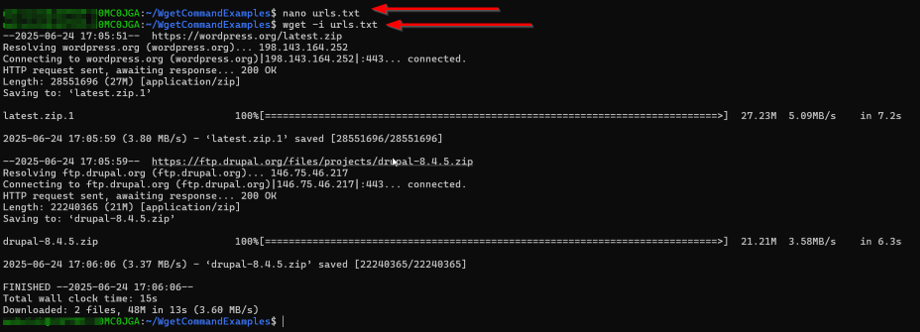
First, execute the following command to create a TXT file to store your URLs. You can name it something like urls.txt.
nano urls.txtInside this file, list each link on a new line. Here’s an example with 2 popular content management systems (CMS) download links:
https://wordpress.org/latest.zip
https://ftp.drupal.org/files/projects/drupal-8.4.5.zip
Then, press Ctrl + O (Write Out). Nano will ask you to confirm your filename. Press Enter to save (or edit the name first). Then, press Ctrl + X to exit the nano editor.
After saving the file, use the following command to start downloading:
wget -i urls.txtThe -i option tells wget to read each line in the file and download all the listed files. This is ideal when you’re setting up a project or need to collect multiple tools or documents in one go.
Save File with Custom Name
Sometimes, the original file name from a URL isn’t clear or useful. With the wget command, you can rename the file while downloading it using the -O option.
Here’s the command:
wget -O wordpress-cms-install.zip https://wordpress.org/latest.zipIn this example, the file from WordPress will still be downloaded, but instead of saving it as latest.zip, it’ll be saved as wordpress-cms-install.zip.

This is helpful when you want better file names or when working with multiple downloads that may have similar names. It also saves you from having to rename the file manually later.
Renaming during the download makes things cleaner, especially if you are unzipping files or organizing them in a specific folder.
Download to a Specific Directory
By default, wget command saves files to the folder you’re in. But if you wish to organize things, you can say exactly where to place the file using the -P option.
EXAMPLE:
wget -P Desktop/WgetCommandExamples/ https://wordpress.org/latest.zip
This command downloads the file and saves it inside the Desktop/WgetCommandExamples/ folder. If the folder doesn’t exist, wget will try and create it for you.

Using -P is useful when you’re downloading many files and want to keep them in separate folders by category, date, or project. It also helps avoid cluttering your main directory with extra files.
Just ensure the path you give is correct, so your file ends up in the right place.
Limit Download Speed
If you’re downloading a large file and don’t want it to use all your internet bandwidth, wget command lets you set a download speed limit using the –limit-rate option. This option gives you better control over how wget behaves on busy networks.
Here’s how it works:
wget --limit-rate=400k https://wordpress.org/latest.zipThis command limits the download speed to 400 kilobytes per second. That means wget will download the file more slowly but won’t slow down the rest of your internet use.
This is particularly helpful if you’re sharing a connection or downloading in the background while working on other tasks. You can change the number to fit your needs. For example:
- 1m for 1 megabyte per second
- 100k for 100 kilobytes per second

Set Retry Attempts
Sometimes, your internet connection may drop, or the web server may not respond immediately. To ensure your download doesn’t fail, you can ask wget to try again using –tries option.
EXAMPLE:
wget --tries=100 https://wordpress.org/latest.zip
This command requests that wget retry up to 100 times if there is a problem, which is helpful when working with slow servers, weak connections, or large files that might not fully download the first time.
By setting a higher retry limit, you don’t have to begin the process manually. wget will continue trying for you until it either finishes the download or hits the limit you set.
It’s a simple way to make your downloads more reliable.
Download in the Background
If you’re downloading a large file and don’t want to wait for it to finish, you can use the -b option to run the download in the background.
EXAMPLE:
wget -b http://example.com/my-file.tar.gz
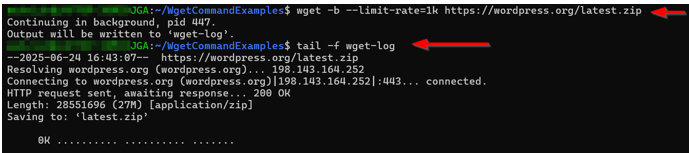
NOTE: We use the -b with the –limit-rate option to slow our download down in the background.
This command starts the download but doesn’t keep the terminal busy. Instead, it runs quietly in the background while you are busy with other tasks. When you use -b, wget automatically creates a file called wget-log in your current folder.
The wget-log file displays the download progress and any errors. To watch it live, you can run:
tail -f wget-logThis will display the latest updates from the log in real time. However, if you wish to stop the background job, press Ctrl + C. And, if you want to forcefully kill jobs by process ID, use kill pid (replace pid with your process ID).
Remember, if you don’t stop the background jobs (process IDs) and close the terminal, all the background jobs will die. To avoid this, use nohup for persistent download:
nohup wget -b http://example.com/large-file.zipIf you don’t have a large file, you may also use –limit-rate to intentionally slow your download process down:
nohup wget -b --limit-rate=1k https://wordpress.org/large-filename.zip
To verify this, open your terminal again and run the following command:
pgrep -a wget
Using background mode is ideal for large files, long downloads, or when working on a remote server and you wish to stay productive. Just double-check you don’t lose any data after closing the current session.
Manage your website with full control using Hosted®’s cPanel Web Hosting – complete with FTP access, email setup, file management, and powerful security tools.
You’ll also benefit from an intuitive dashboard, one-click app installs, and expert support.
Download via FTP/SFTP
Besides HTTP and HTTPS, the wget command also works with FTP/SFTP servers. This is helpful when you need to download files that require a username and password.
EXAMPLE:
wget --ftp-user=YOUR_USERNAME --ftp-password=YOUR_PASSWORD ftp://example.com/something.tar
In this command, replace YOUR_USERNAME and YOUR_PASSWORD with your actual FTP login details that you receive after creating an FTP account. The file at the given FTP link will be downloaded to your current directory.
This method is often used when you’re accessing private servers or downloading from a site that’s only available through FTP. It keeps things simple and secure without requiring extra software. Remember, if you have the correct FTP link and your credentials are valid, otherwise, the download won’t work.
TIP: To receive the FTP link, connect to your web hosting server via FTP client (e.g., FileZilla), navigate to the file you wish to download, right-click on it, and choose Copy URL(s) to clipboard.
Continue Interrupted Downloads
Sometimes your download may stop halfway due to a lost connection or power cut. Instead of starting over, you can continue where it left off using the -c option.
EXAMPLE:
wget -c https://wordpress.org/latest.zip
The -c flag stands for continue. It tells the wget command to check the existing file and pick up from where it stopped. This saves time and data, especially when downloading large files.
If you don’t use -c and you rerun the same command, wget won’t overwrite the existing file. Instead, it will create a new file with .1 at the end, which can clutter your folder. However, if you use -c, you can avoid duplicates and finish downloads without wasting effort.
Mirror an Entire Website
The wget command can do more than download single files. It can save an entire website for offline use. This is helpful if you wish to browse a site without internet or back it up for later use.
EXAMPLE:
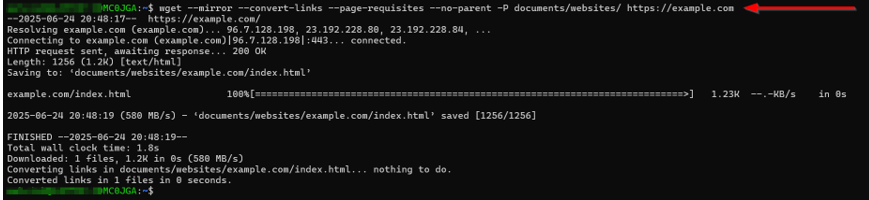
wget --mirror --convert-links --page-requisites --no-parent -P documents/websites/ https://some-website.com
Let’s break it down:
- –mirror enables recursive downloading to copy the whole site.
- –convert-links updates all the links, so they work offline.
- –page-requisites grabs everything the page needs, like images, stylesheets, and scripts.
- –no-parent keeps the download inside the selected directory and prevents it from navigating to other sections.
- –P documents/websites/ tells wget command to save everything in the documents/websites/ folder.
Once the download finishes, you’ll have a full copy of the site that opens in your browser even when you’re offline.
Check for Broken Links
You can also use the wget command to check for broken links on a website. This is useful if you manage a site and wish to ensure all the pages are working properly. It works by scanning links without downloading the content.
COMMAND EXAMPLE:
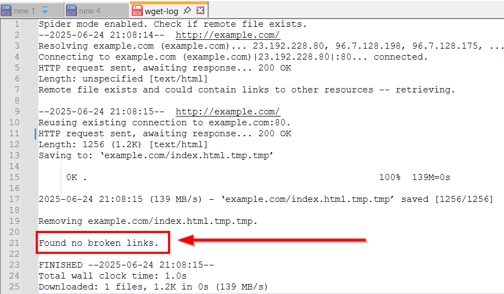
wget -o wget-log -r -l 5 --spider http://example.com
Let’s explain the options:
- –spider tells wget to check links without saving files.
- -r makes it scan the site recursively.
- -l 5 sets the scan depth to 5 levels.
- -o wget-log saves all results in a log file named wget-log.
Note: If you scan a website twice or a different website, the previous logs will be replaced inside the wget-log file.
Once the scan is complete, you can search for broken links (404 errors) inside the log using this command:
grep -B 2 '404' wget-log | grep "http" | cut -d " " -f 4 | sort -uThis command filters out the broken links, making it easier to fix issues on your site.

In our example, we have no 404 errors:
Download Numbered Sequence
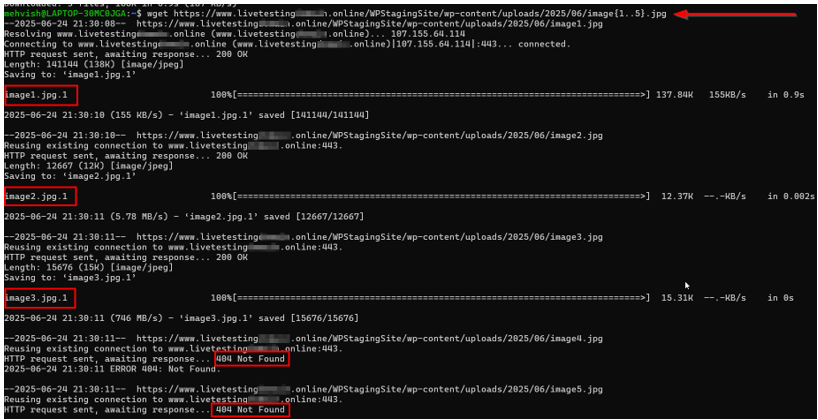
If you need to download a group of files that follow a number pattern, such as images or documents, the wget command makes it easy using a simple range format. Here’s the command:
wget http://example.com/images/image{1..50}.jpgThis tells wget to download files named image1.jpg through image50.jpg from the same folder. It saves you from typing out every single link.
Here’s the example where we tried to download 5 images; however, the website only has three images. So, we get a 404 error for the 4th and 5th images:
Let’s make it more user-friendly by specifying a basic check:
for i in {1..5}; do
url="http://example.com/image${i}.jpg"
if wget -q --spider "$url"; then
wget "$url"
else
echo "Not found: $url"
fi
done
This code downloads the available images and shows a user-friendly message with the corresponding link that is not found:

However, if you wish to log which files were downloaded/missing/failed, use the following code:
for i in {1..15}; do
url="http://example.com/image${i}.jpg"
if wget -q --spider "$url"; then
wget -q "$url" && echo "$url" >> downloaded.txt || echo "$url" >> failed.txt
else
echo "$url" >> missing.txt
fi
done
Here’s what each file contains:
- downloaded.txt: Successfully downloaded URLs.
- failed.txt: Existed but failed to download.
- missing.txt: Files not found on server.
Remember, you can always change the file type or adjust the range as needed. For example, if you want to download PDFs numbered 101 to 120, you can write:
wget http://example.com/reports/{101..120}.pdfThis approach works when you download photo galleries, scanned documents, reports, or something with a numbered naming pattern. It’s fast, efficient, and saves you lots of time.
These examples cover basic and advanced uses of the wget command. Whether you’re downloading one file or building a local copy of a website, these commands will help you do it easily and efficiently.
When Not to Use WGET Command
While wget is great for downloading files, it’s not the right tool for every job. One of its limits is that it doesn’t support JavaScript. That means it can’t interact with parts of a site that rely on scripts to load content.
Because of that, wget is not ideal for dynamic websites (those that load data on the fly). If a page only shows certain parts after a user clicks or scrolls, the wget command won’t be able to capture all of it.
Also, when downloading from a website, don’t overload the server. Running wget with too many requests in a short time can cause problems for that site. Always use it responsibly, especially when downloading large amounts of content.
WGET vs Curl: What’s the Difference?
Some people confuse the wget command with the curl command. Both are command-line tools used to access files over the internet, but they serve different purposes.
WGET is the better choice when you need to download files or entire websites. It’s easy to use, works well with various file types, and supports features like background downloading, retries, and mirroring.
However, curl is more flexible for sending data, especially for working with APIs. It supports multiple protocols and can be used to send and receive data in various formats.
So, if your goal is to grab files quickly and easily, use wget. If you’re working with APIs or need more control over the request, choose curl.
![Strip Banner Text - Get advanced control and flexibility with cPanel Web Hosting from Hosted®. [View Plans]](webp/wget-command-2-1024x229.webp "Get advanced control and flexibility with cPanel Web Hosting from Hosted®")
FAQS
What does wget do?
The wget command downloads files, folders, or even full websites from the internet using a simple command. It’s great for saving files directly to your computer without needing a browser.
Does wget support HTTPS?
Yes, wget fully supports HTTPS. You can use it to securely download files from websites that use SSL/TLS encryption, which is common on most modern sites.
Does Wget follow redirects across different domains?
By default, wget follows up to 20 redirects, but only within the same domain. If a redirect points to a different domain (e.g., from example.com to www.example.com), it won’t follow it unless you allow it to span hosts using extra options. This helps prevent downloading from unintended sources.
Is wget installed by default on all systems?
Not always. Most Linux systems come with wget pre-installed, but on macOS and Windows, you may need to install it manually. It’s easy to install using package managers like Homebrew or by downloading the setup.
Can wget command run automatically in background scripts?
Yes, it works well in scripts and cron jobs. You can automate file downloads by adding wget commands to a shell script. Use the -b option to run them in the background and log the progress.
Other Related Tutorials
– WordPress Cron Jobs – How To Setup, View & Manage
– The Role of Website Backups in Maintaining SEO Health
– WordPress Backup Strategies Before, During, and After Site Migration
– How to Backup Your WordPress Site – A Comprehensive Guide
– How to Restore WordPress from a Backup – Best Practices
- About the Author
- Latest Posts

Wayne Diamond, the founder and CEO of Hosted.com, has over 20 years of expertise in the domain name and website hosting industry.
Under his leadership, Hosted.com will work towards transforming the way SMEs, entrepreneurs, freelancers, and established enterprises of all sizes manage their domain names, website and WordPress hosting, and online presence.