


 Contact Support
 Sign In
This How To Upload Files Using WinSCP guide provides step-by-step instructions for uploading and downloading files between your local computer and a remote server using WinSCP. We’ll assume you have WinSCP installed, running on your computer, and have successfully established a connection to your remote Web Hosting server.
TABLE OF CONTENTS
Upload Files Using WinSCP
- Select the files you want to upload to your server from your computer using the Local panel (left panel). You can also select them in Windows File Explorer.
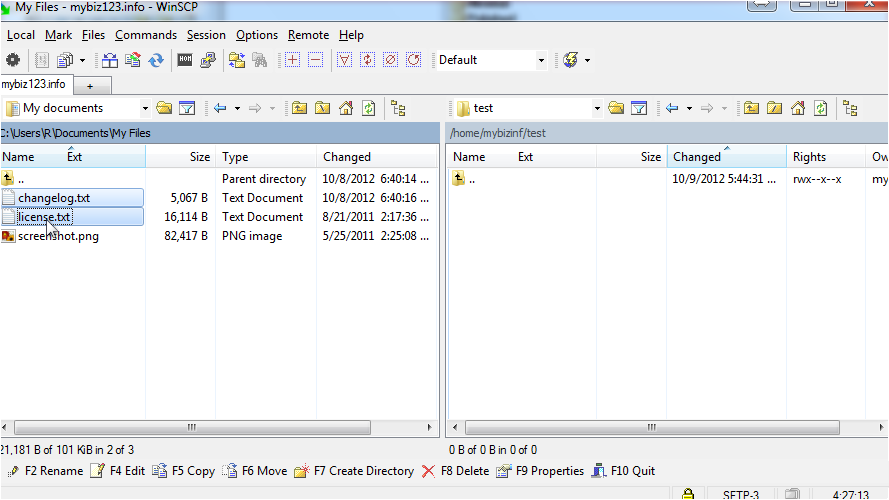
Note: You can hold the Ctrl button to select multiple files.
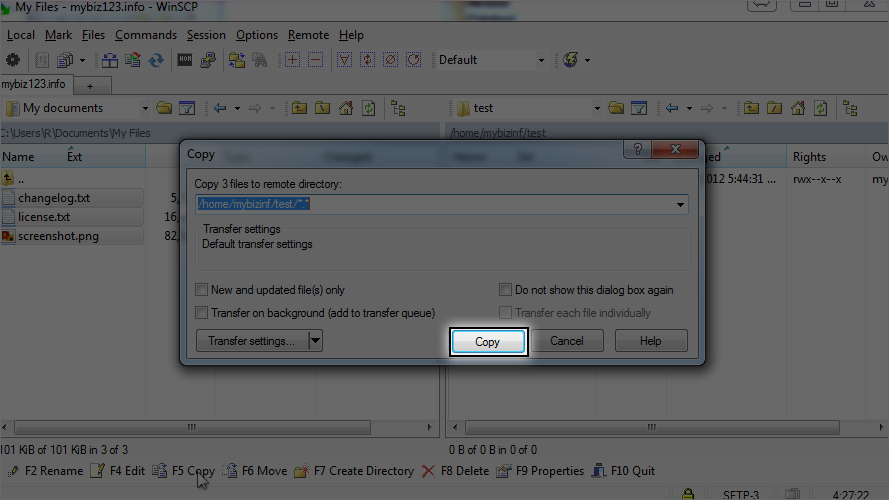
- Click on the “F5 Copy” button in the bottom right.
- Click Copy in the window that pops up.
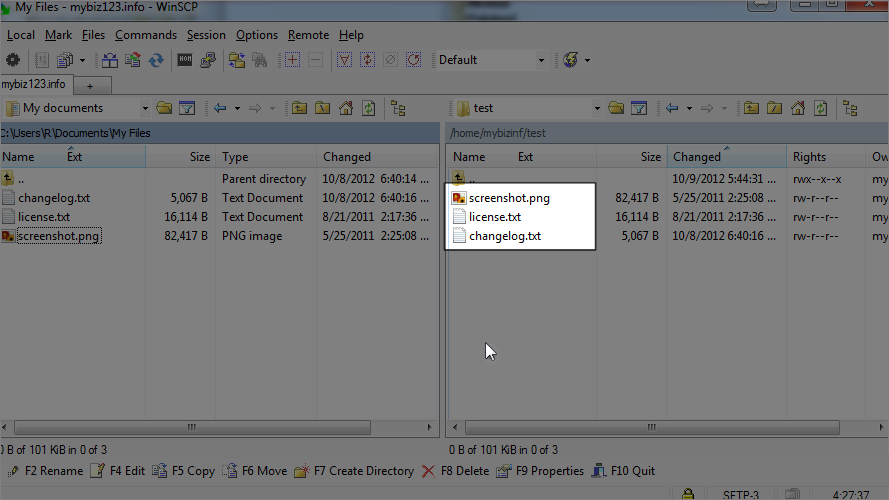
- The files will then be uploaded to the directory you selected and displayed in the remote server window.
Drag and Drop Method
Drag the selected files from the local panel and drop them onto the desired location in the Remote panel (right panel). This initiates the upload process.
*Alternatively, you can right-click the selected files and choose “Upload” from the context menu.
Downloading Files
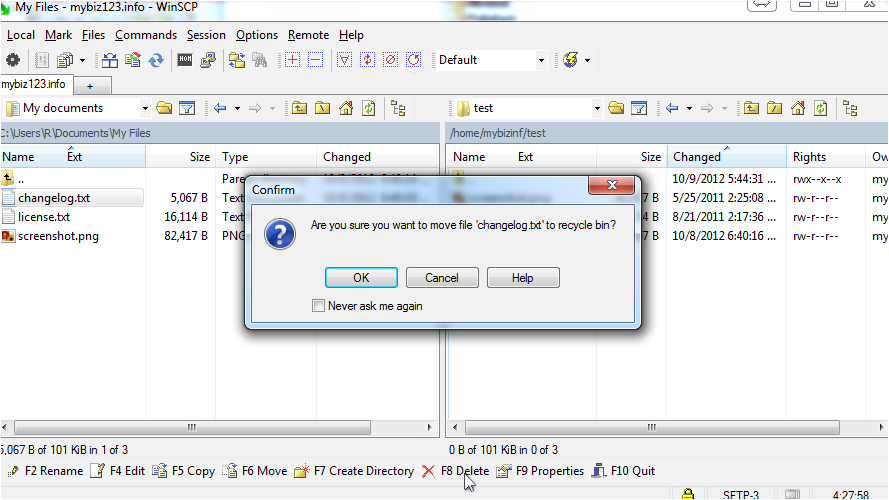
Downloading files from the remote server is similar to uploading them. For this tutorial, we will start by removing the “changelog.txt” file from the local computer.
To remove “changelog.txt” select it and click “F8 Delete” and “click Ok” in the pop-up window.
- Navigate to the “changelog.txt” file you want to download on the Remote Panel (right panel).
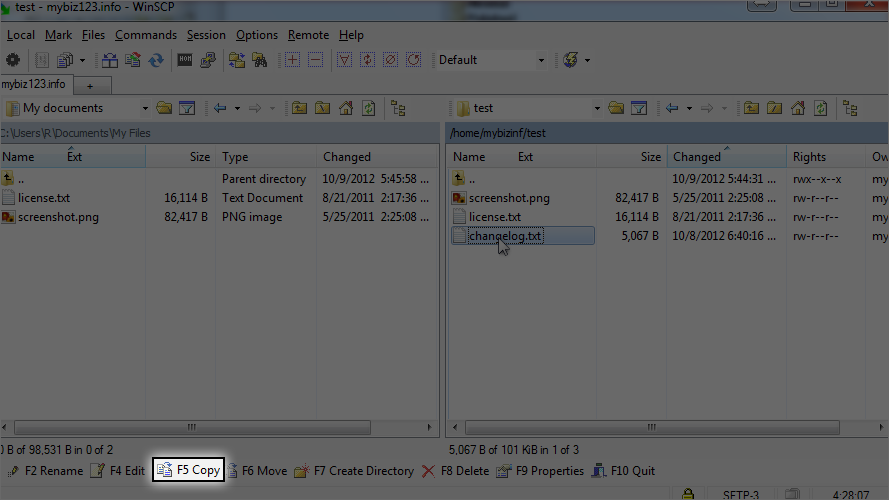
- Click on the “F5 Copy” button in the bottom right.
- Click “Copy” in the window that pops up.
*Alternatively, right-click the file and click the “Download” button on the toolbar.
- Select the destination where the files are to be downloaded in the pop-window.
- Click “Ok”
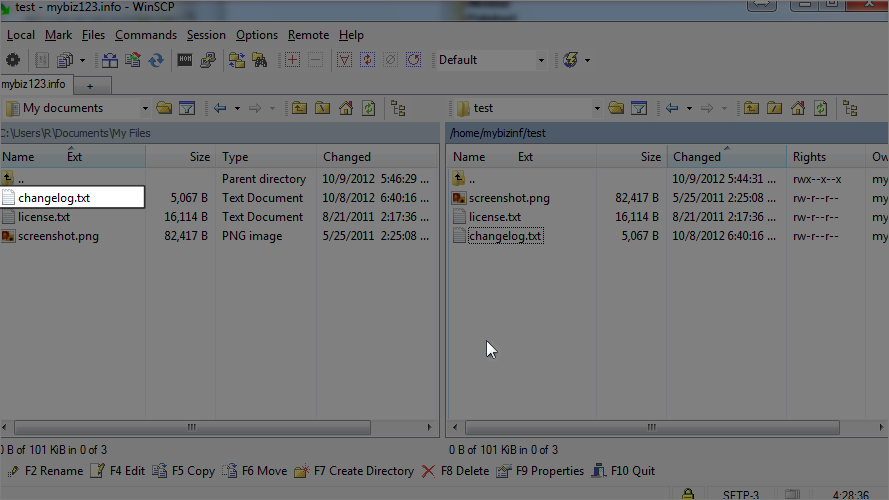
- Once the files are downloaded, they will appear in the directory chosen.
Important Notes
The popup window requesting confirmation might appear during transfers. Click “Copy” or “Overwrite” if necessary to proceed.
WinSCP offers other upload methods like the “Put” command. However, the drag-and-drop method is the simplest approach.
Additional Information:
Transferring Files
WinSCP is a free and widely used File Transfer Protocol (FTP) client, mainly used for transferring files between your local machine and a remote server, like managing files in Manage Files In FTP Voyager” target=”_blank” rel=”noopener”>FTP Voyager. However, you can also use it to manage files within your local machine or on the remote server itself. Here’s how:
Local File Management: Navigate to the desired folders in the Local panel (left panel). You can then use the same drag-and-drop method or right-click options (cut, copy, paste, delete) to manage files within your local storage.
Remote File Management: Navigate to the folders on the remote server in the Remote panel (right panel). Like local file management, you can use drag-and-drop or right-click options to manage files on the remote server.
This way, you can use WinSCP for a broader range of file management tasks, not just transfers between your computer and a remote server.
Related Knowledgebase Articles:
– How To Configure A Site In WinSCP



