


 Contact Support
 Sign In
How to delete error_log files using cron task in your cPanel. This allows you to automatically delete these files, keeping your account clean. The error_log file in your cPanel Hosting account stores PHP errors generated by your website. While this file is useful for troubleshooting, it can increase in size over time and consume disk space, potentially affecting your website’s performance. Using a cron job allows you to automatically delete these files at scheduled intervals, keeping your hosting account clean and optimized.
TABLE OF CONTENTS
What is a Cron Job?
A cron job is a scheduled task that runs automatically on your server at specified intervals. In cPanel, cron jobs can execute commands or scripts to perform maintenance tasks, such as clearing log files, sending emails, or running backups. Setting up a cron job to delete error_log files ensures your hosting account stays tidy without requiring manual intervention.
Why Delete error_log Files with a Cron Task?
Manually deleting error_log files can be time-consuming, especially for websites that have frequent PHP errors or multiple subdomains. A cron job automates this process, saving you time and preventing disk space issues. By scheduling a recurring task, you ensure that old log files are removed regularly, helping your Hosted.com® WordPress Hosting or cPanel account remain efficient and clutter-free.
How to Delete error_log Files with a Cron Task
1. Login to your Hosted.com® account.
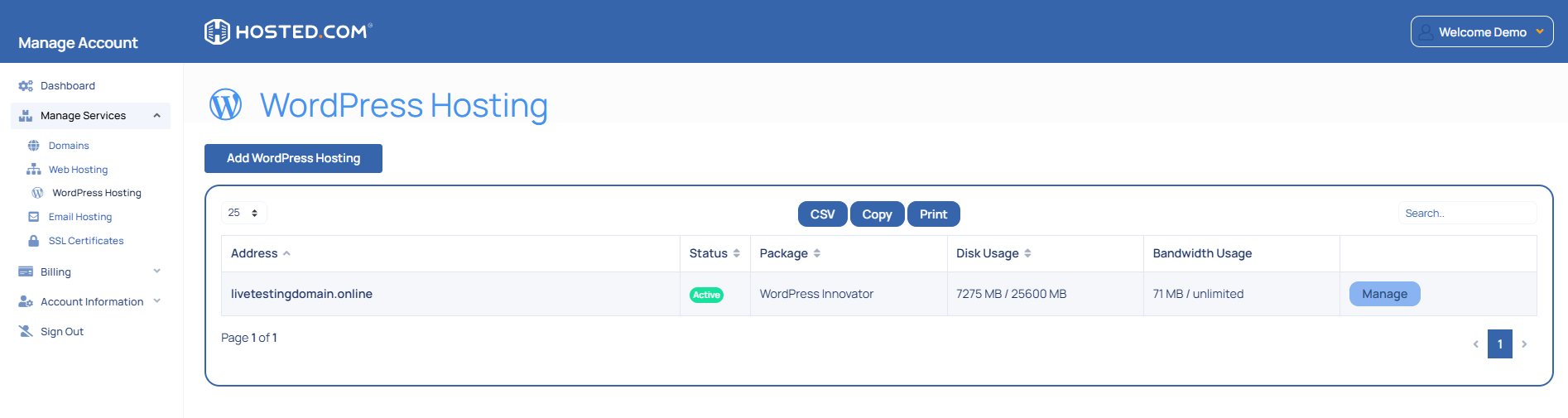
2. Navigate to your web hosting plan from the Manage Services menu.
3. Click Manage next to the hosting plan associated with your domain.
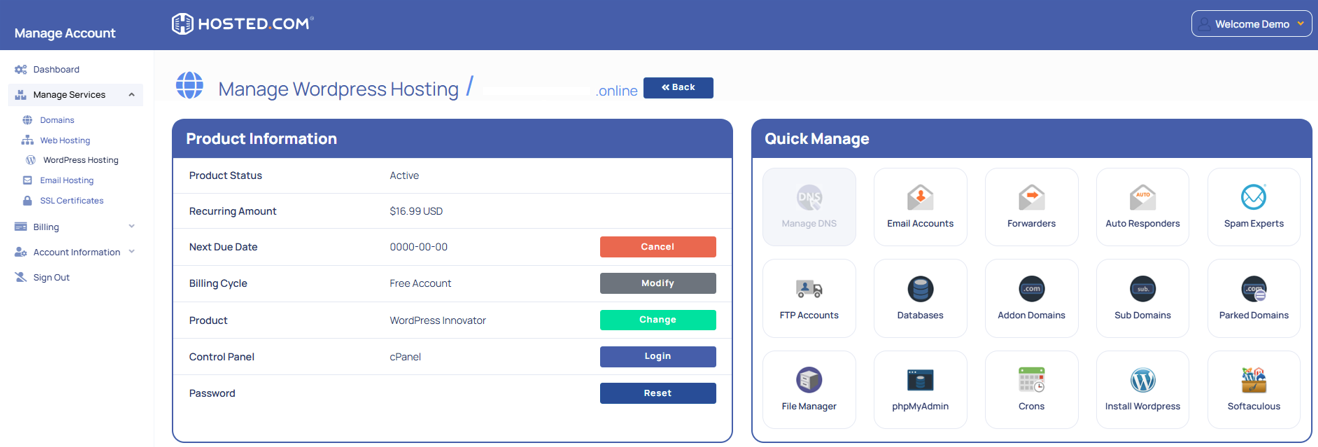
4. Click Login next to Control Panel to open cPanel.
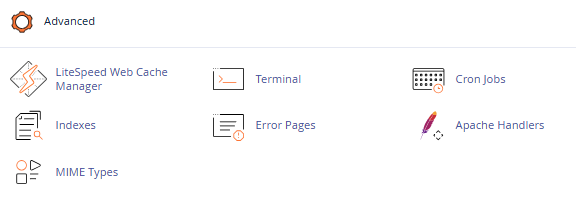
5. Scroll to Advanced and click Cron Jobs.
Setup a New Cron Job:
6. Choose the desired interval for the cron job (e.g., daily, weekly). In the Command field, enter the following command to delete all error_log files in your home directory:
find /home/yourusername/public_html -type f -name "error_log" -delete7. Replace /home/yourusername/public_html with the correct path to your website files.
8. Save the Cron Job: Click Add New Cron Job to save the scheduled task. The cron job will now run automatically at the specified interval, deleting all error_log files.
9. Verify: Check your public_html directory to confirm that error_log files are being deleted.
Additional Information
- Custom Paths: If you have multiple subdomains or directories, adjust the path in the command to target the specific folders where error_log files are located.
- Testing: Test the command manually in your cPanel Terminal or via SSH before scheduling it to ensure it works correctly.
- Cron Frequency: Avoid running the cron job too frequently, as this can create unnecessary server load. Daily or weekly intervals are usually sufficient.
- Backup: Consider backing up your error_log files before deletion, in case you need them for troubleshooting in future.
- Permissions: Ensure that your cPanel account has the correct permissions to delete files in the targeted directories.
- Server Resources: Automated deletion helps maintain disk space and can improve overall website performance.
- Troubleshooting: When the cron job doesn’t run, check the syntax, verify the path, and confirm that cron jobs are enabled on your Hosted.com® account. Hosted.com® support can assist with configuration issues.



