


 Contact Support
 Sign In

If you have spent time and effort into creating original content for your website, such as photos, blog posts, or designs, you probably don’t want others copying it without asking. One of the easiest ways people grab content is by right clicking to save or copy it.
That’s when disabling right click can help. It’s not a perfect solution, but it does make it harder for someone to steal your work with just a few clicks. It’s a simple trick that can protect your images, text, and other valuable stuff on your site.
This guide provides various simple ways to disable right click on WordPress. Whether you’re just getting started or have been Why Use WordPress: Benefits of Using WordPress for Your Website for a while, these steps are easy to follow and don’t take much time.
KEY TAKEAWAYS
- Disabling right click helps protect your images and content from being copied easily.
- You can use free plugins to block right click on images or the entire page.
- Some plugins allow you to control right click for logged-in users or members only.
- You can add custom JavaScript or PHP code if you don’t want to use a plugin.
- Extra tools such as watermarks, copyright notices, and anti-hotlinking add further protection.
- Disabling right click doesn’t stop all copying, but it makes it more difficult for most visitors.
- Always test your site after making changes to ensure everything works correctly.
TABLE OF CONTENTS
When You Should Disable Right Click on WordPress
Disabling right click on your WordPress site can be a smart move, but it’s not something every website needs. Let’s discuss a few cases where it makes sense, and where it may not.
Protect Original Content
If your website has content you’ve created from scratch (e.g., photos, illustrations, or written work), you might wish to keep it safe from people who try to copy and use it without permission.
This is especially important for photographers, writers, designers, and bloggers. In this case, you can disable right click to make it difficult for someone to take your content and post it elsewhere.
Prevent Image Hotlinking
Hotlinking happens when someone uses your image on their website by linking directly to the file on your server. That means your WordPress Hosting is being used to load content for someone else’s website, which can slow down your site and eat up bandwidth.
By disabling right click, you stop users from finding and copying the image link, which helps protect your site’s speed and your content’s ownership.
Potential Drawbacks
While disabling right click can help protect your work, it’s not a perfect fix. Some visitors use right click for good reasons. For example, opening a link in a new tab or translating text. In this case, blocking it can be frustrating for those users.
Also, someone who wants your content can still find ways to work around it; for example:
- Using browser tools.
- Taking screenshots.
So, while this method adds a layer of protection, it shouldn’t be your only one. It’s best to combine it with other tools if you’re serious about protecting your content.
How to Disable Right Click on Websites
In this section, we’ll learn how to disable right click on WordPress content (posts/pages), images, and galleries, as well as on the entire website.
Use WP Content Copy Protection & No Right Click Plugin
This plugin is designed to stop visitors from copying your content. It blocks right click, highlights, and even keyboard shortcuts people often use to copy text or open the source code.
To get started, navigate to WordPress Dashboard → Plugins → Add New, and search for WP Content Copy Protection & No Right Click. Once you locate it, click Install Now, then click Activate.
Then, click Protection in the admin toolbar. Alternatively, you can go to Copy Protection → Settings → Main Settings. Here, you can turn on protection for your How to Change Your WordPress Homepage: 3 Methods, posts, and other content.
You can customize the warning message by editing the text in Selection disabled message. Once you’re done, click Save Settings.
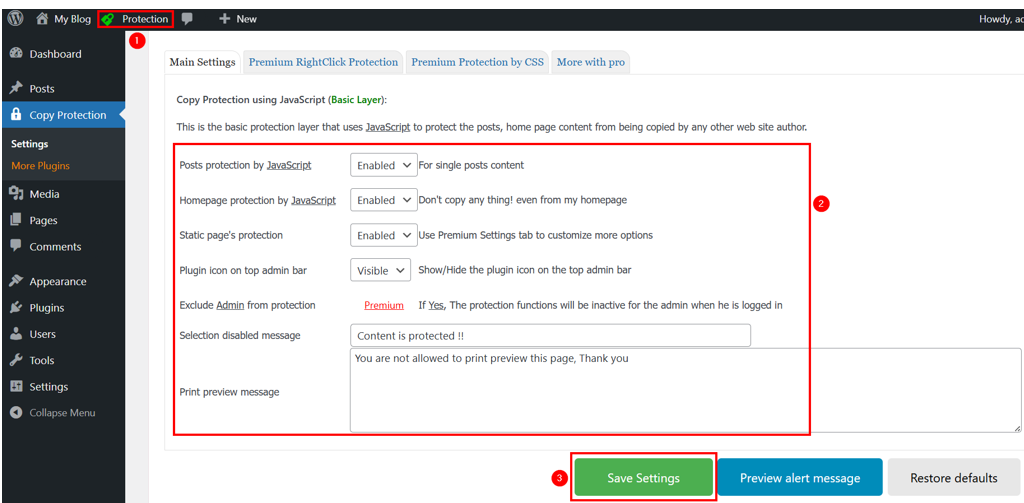
Now, test the changes on the front end. For example, you may see a warning message when attempting to select or copy an image.

With this plugin, you can disable right click across your entire site, stop people from selecting text and copying images, and block keys like:
- CTRL+C and CTRL+V (prevents users from copying and pasting the content).
- CTRL+U in Google Chrome (Prevents users from viewing page source, which is another way to steal content).
This makes it harder for someone to copy or view your code.
The plugin also offers premium features. If you upgrade, you’ll get further options. For instance, you can add watermarks to your images and place a transparent layer over your content to stop tools from grabbing it. These tools provide further control over how your content is protected.
This method is great for beginners since you don’t need to code. Everything is done through simple settings inside your WordPress Admin Dashboard Tips for Accessing and Using WP Admin.
Use Custom Code to Disable Right Click on WordPress
If you don’t want to use a plugin, you can disable right click on WordPress by adding a small piece of JavaScript code to your 10 Top Free WordPress Themes for your Website. This method gives you more control, but you’ll need to be careful when editing your site’s files.
Here’s a quick overview of how it works:
You’ll add a short script telling the browser to block the right click action. This code runs every time someone visits your site and prevents them from using the right click menu.
Follow these steps to add the code:
Go to WordPress Dashboard – Appearance – Theme File Editor. In the list of files on the right side, find and click footer.php. Next, scroll to the very bottom of the file, just before the closing tag.
Then, paste the following code:
<script>
// Disable right click
document.addEventListener('contextmenu', function(e) {
e.preventDefault();
});
// Disable cut, copy, and paste
['cut', 'copy', 'paste'].forEach(function(evt) {
document.addEventListener(evt, function(e) {
e.preventDefault();
});
});
// Disable specific keyboard shortcuts
document.addEventListener('keydown', function(e) {
if ((e.ctrlKey || e.metaKey) && ['c', 'x', 'v', 'u'].includes(e.key.toLowerCase())) {
e.preventDefault();
}
});
// Disable text selection
document.addEventListener('selectstart', function(e) {
e.preventDefault();
});
</script>
After that, click Update File to save your changes.
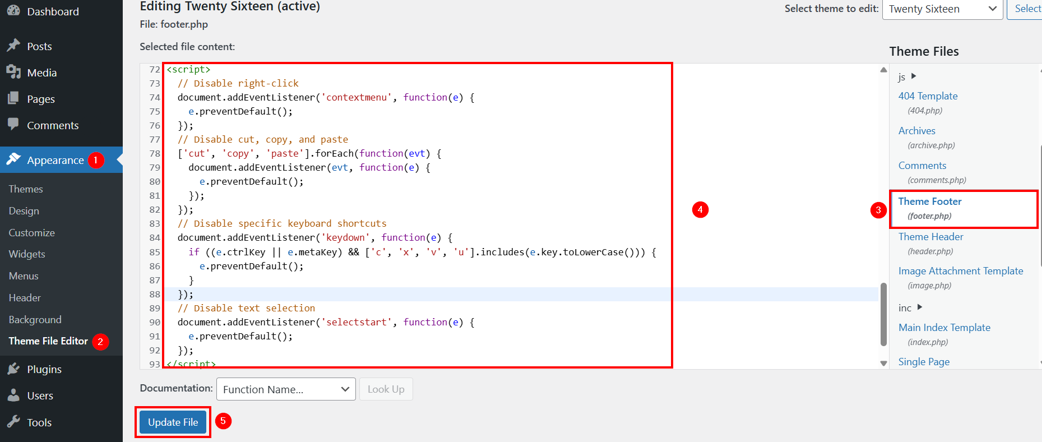
Now, when someone tries to right click anywhere on your site, nothing will happen. This code blocks:
- Right click.
- Cut, copy, paste (via mouse and keyboard).
- Keyboard shortcuts, including Ctrl+C, Ctrl+X, Ctrl+V, and Ctrl+U.
- Mouse-based selection.
However, it won’t stop users who are familiar with browser dev tools or taking screenshots. For stronger protection, pair it with a plugin or server-side solution.
NOTE:
Be very careful when editing your theme files. If you make an error, this could break your site. It’s a good idea to How to Backup Your WordPress Site: A Comprehensive Guide before making any changes. If you’re using a theme that gives regular updates, your code may be erased during updates. To avoid this, How To Create A WordPress Child Theme or WPCode plugin instead.
Use PHP Function Hook
If you’re comfortable working withPHP, you can disable right click on WordPress by adding a custom function to your theme. This method adds the necessary JavaScript directly through PHP.
Here’s how to do it:
Open the functions.php file by navigating to Appearance → Theme File Editor. Scroll to the bottom of this file and write the following:
function disable_right_click_js() {
echo '';
}
add_action('wp_footer', 'disable_right_click_js');Then, click Update File to save your changes.
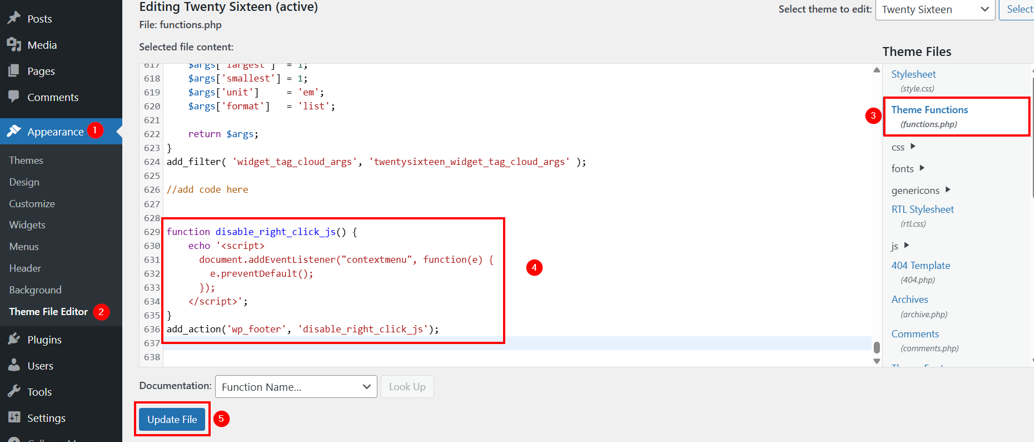
This function will insert JavaScript into your site’s front end to disable right click on WordPress site. The function hooks into the wp_footer action, so the code runs just before the closing tag.
However, if you wish to block right click, cut, copy, paste, and selection, you can combine this method with the previous approach. Now, the revised code will look as follows:
function disable_content_interaction_js() {
echo '<script>
// Disable right click
document.addEventListener("contextmenu", function(e) {
e.preventDefault();
});
// Disable cut, copy, and paste
["cut", "copy", "paste"].forEach(function(evt) {
document.addEventListener(evt, function(e) {
e.preventDefault();
});
});
// Disable specific keyboard shortcuts
document.addEventListener("keydown", function(e) {
if ((e.ctrlKey || e.metaKey) && ["c", "x", "v", "u"].includes(e.key.toLowerCase())) {
e.preventDefault();
}
});
// Disable text selection
document.addEventListener("selectstart", function(e) {
e.preventDefault();
});
</script>

<style>
body {
user-select: none;
-webkit-user-select: none;
-moz-user-select: none;
-ms-user-select: none;
}
</style>';
}
add_action('wp_footer', 'disable_content_interaction_js');
This method is best for users who understand how WordPress functions work and want a cleaner, plugin-free solution. It’s simple, but remember to always back up your website before editing any theme file(s).
So far, we’ve learned how to prevent right click on web pages. Now, let’s see how to protect images on a website.
WordPress Hosting delivers the best performance, security, and flexibility to help your website thrive.
With daily backups, malware scanning, and staging environments, managing your site is easy and secure.
How to Disable Right Click on Images/Galleries
If you’re sharing original photos or artwork on your WordPress site, it’s a good idea to keep them protected. Here, we explain 2 simple ways to add no right click protection:
- For single images.
- For galleries.
Let’s start with the first one.
Add No Right Click to All WordPress Images
The easiest way to block right click on WordPress images is by using a free plugin called No Right Click Images. This plugin only affects your images so visitors can still right click on WordPress Anchor Links: Easy Manual & Automatic Setup or other content.
You can also choose whether to allow right click for users who are WordPress Login URL How to Find, Protect and Change It. This is helpful if you How To Create A Membership Website In WordPress or sell stock photos to subscribers.
To use this plugin, you first need to install and then activate it. Then, go to Settings → No Right Click Images. The default settings work for most sites, but it’s a good idea to review them. Also, ensure that Disable Dragging of images is enabled. This stops users from dragging images to their desktop.
The plugin also blocks touch and gesture actions, which is useful for phones and tablets. However, if your site has clickable images or interactive elements, you may want to disable the Disable Touch events and Disable Gesture events.
On Apple devices, visitors can still open a context menu. To prevent this, toggle on Disable context menu on Apple devices. Once everything looks correct, click Save Changes.
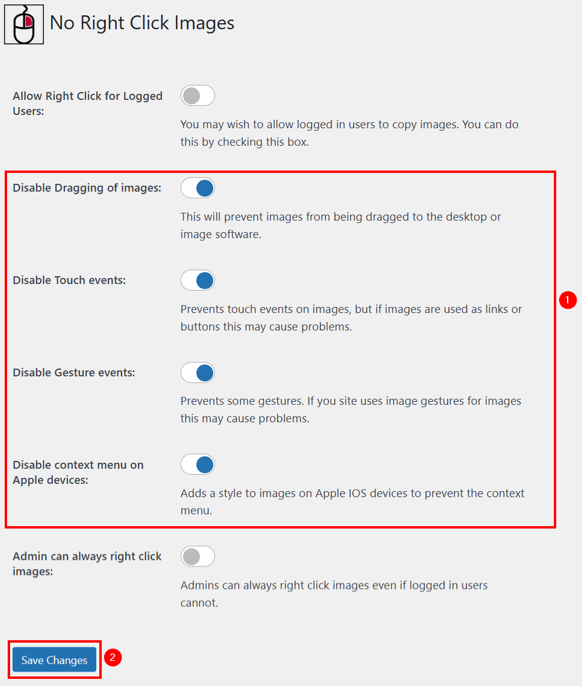
To test it, log out of your admin account, visit your site, and try right clicking on an image. If everything’s working, the right click menu should be blocked.
IMPORTANT:
If your website users know how to use the browser’s developer tools, they can steal image data by opening the image URLin a new tab and then using the right click menu to save the image.
Add No Right Click to WordPress Image Galleries
If you’re creating a gallery, for example, a photography showcase or a product display, you’ll want to block right click for the entire gallery. For this, use the Envira Gallery plugin. It’s one of the best tools for protecting images in bulk.
Here’s how to use it after installing and activating it:
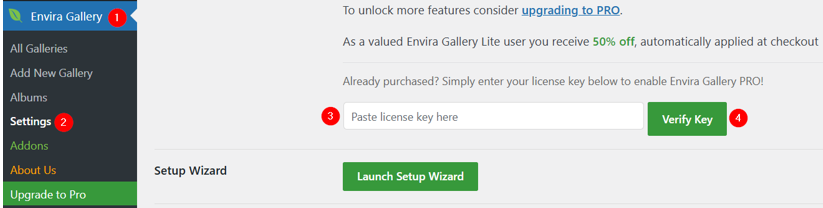
Go to Envira Gallery → Settings and enter your license key, then click Verify Key.
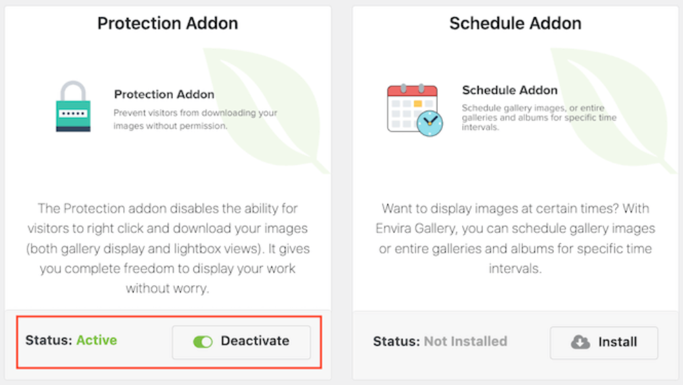
Next, visit Envira Gallery → Addons and install Protection Addon. Activate it by clicking the toggle switch.
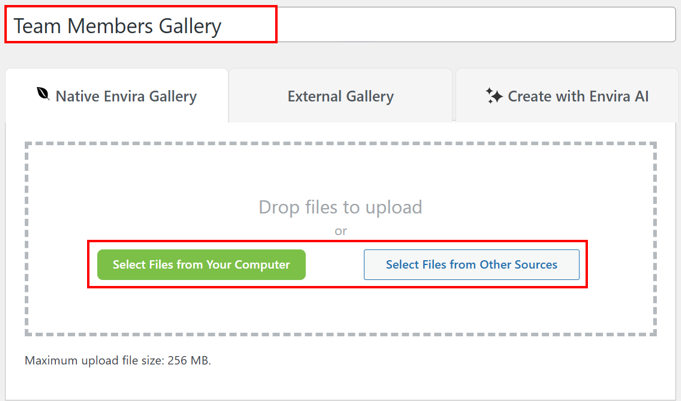
Now, go to Envira Gallery → Add New Gallery to create your gallery. Give it a name, then upload or select images from your Media Library.
After that, scroll down to Misc and check the box for Enable Image Protection. This blocks the right click menu for every image in that gallery.

However, if you want to show a message when someone tries to right click, you can switch on Enable Popup Alert. Then, add a custom message and button text. This is great for reminding users that your images are copyrighted or even encouraging them to buy a license.

Once you’re done, click Publish to save the gallery.
Now, to add the gallery to a page or post:
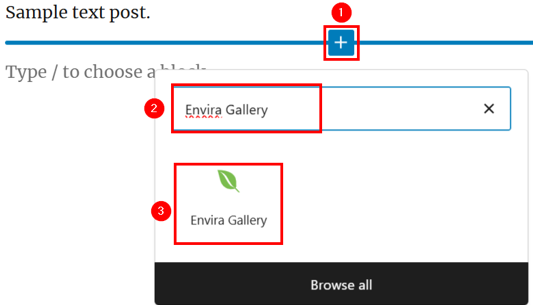
Open a post/page in the editor, click +, search for Envira Gallery, and click it to insert it into your post or page. Next, select your gallery from the dropdown and click Publish or Update to make it live.
Alternative Ways to Protect Your Content
Even if you disable right click on WordPress, people can still find other ways to copy your content. To avoid this, you can add more layers of protection. Here are some smart steps you can take:
Add a Clear Copyright Notice
One simple way to protect your content is by adding a copyright notice to your site. This tells visitors that your work is yours and shouldn’t be reused without your permission. Remember, not everyone knows it’s wrong to copy content, so a clear message can help avoid trouble.
Your copyright notice doesn’t need to be fancy. Just say what’s permitted and what’s not. For example, you may be fine with people sharing short quotes or links if they give you credit and link back to your site.
Place the notice where everyone can see it, such as in your website’s footer or sidebar. If someone still misuses your content, you’ll have the right to file a DMCA takedown notice.
Use a Creative Commons License
Want to let people reuse your content under your terms? A Creative Commons license helps you set those rules. You can allow sharing but block any changes or ask for credit with every use. Even if you use one, it’s still a good idea to keep your copyright notice, too.
Watermark Your Images
If you use a lot of original images, adding a watermark is a smart move. A small logo or site name (domain name) on your pictures makes them harder to steal and less useful to others.
To do this, you can use the Image Watermark plugin. After installing it, go to Settings → Watermark and choose where to place the mark, how transparent it should be, and whether to keep a backup of the original image.
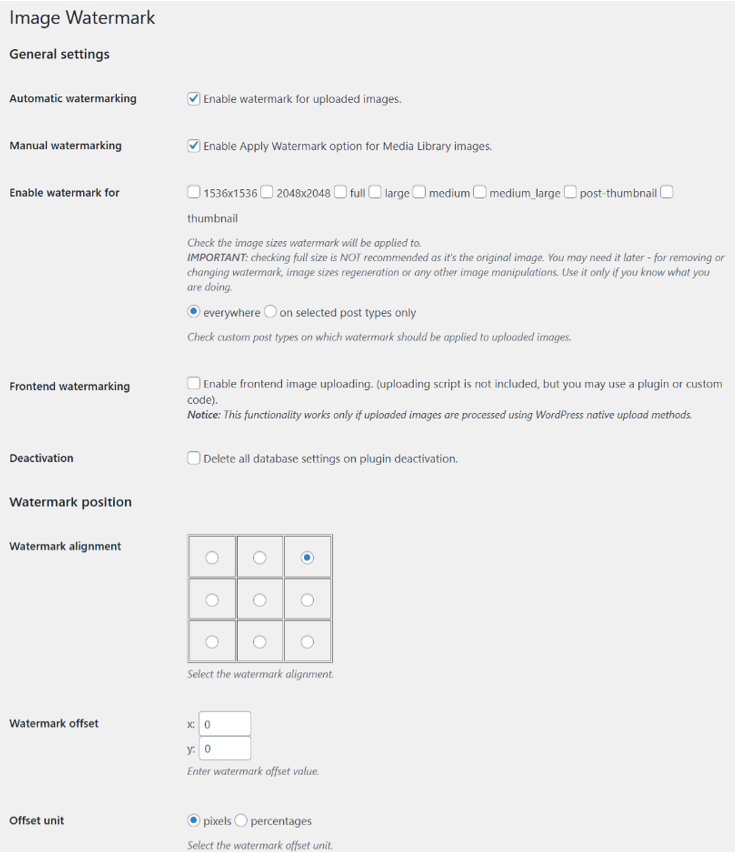
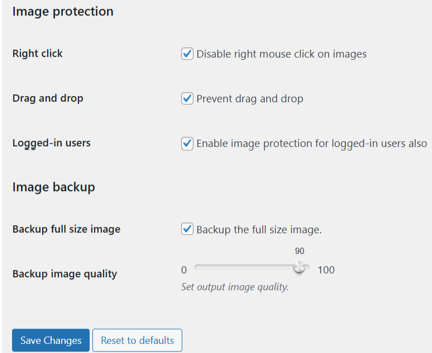
This plugin also includes basic image protection by switching off both right click and drag-and-drop. Even if someone copies your image, your brand stays visible. Lastly, ensure you click Save Changes to save your preferences.
Disable Hotlinking
Hotlinking is when other websites load your images directly from your server. It consumes your bandwidth and slows down your site. To stop this, you have a few choices:
You can use a CDN (e.g., Cloudflare) that has built-in hotlink protection.

You can also install the All-In-One WP Security & Firewall plugin.

Or, block it manually by adding the following code to your .htaccess file:
RewriteEngine on
RewriteCond %{HTTP_REFERER} !^$
RewriteCond %{HTTP_REFERER} !^http(s)?://(www.)?yourdomain.com [NC]
RewriteCond %{HTTP_REFERER} !^http(s)?://(www.)?google.com [NC]
RewriteCond %{HTTP_REFERER} !^http(s)?://(www.)?bing.com [NC]
RewriteCond %{HTTP_REFERER} !^http(s)?://(www.)?yahoo.com [NC]
RewriteRule .(jpg|jpeg|png|gif|svg)$ http://dropbox.com/hotlink-placeholder.jpg [NC,R,L]
TIP: You can find the .htaccess file in your site’s root folder using your How To Use cPanel File Manager or an How To Configure A Site In FileZilla. If you ever want to undo this, just delete the code.
Install Plagiarism Protection
Sometimes, your content ends up on other websites without your knowledge. In this case, the Copysentry tool can help. It scans the internet regularly and alerts you when your content is copied.
If you don’t want to pay for a tool, you can search manually. Pick a sentence from your page, put it in quotes, and search it on Google. It’s slower but still works well to catch content theft.
![Strip Banner Text - Simplify website management with Hosted®'s WordPress Hosting plans. [More Info]](webp/disable-right-click-on-wordpress-02-1024x229.webp "Simplify website management with Hosted®'s WordPress Hosting plans")
FAQS
Can disabling right click stop all types of content theft?
No, it only blocks basic methods such as saving images or copying text. Users can still access content using developer tools or screenshots. It’s a good deterrent but not a complete solution.
If I disable right click on WordPress, will this affect my site’s SEO?
No, it won’t directly affect SEO. However, be careful not to block useful features for regular users, such as opening links in a new tab, as this could impact the user experience.
What’s the difference between using a plugin and adding custom code?
Plugins are easier for beginners and often come with more features. Custom code offers more control but requires a certain level of technical knowledge. Always back up your site before editing files.
Is it legal to use someone else’s images if right click is disabled?
No, disabling right click doesn’t change copyright laws. You still need permission to use content owned by others, even if you find ways to save it.
Can I allow right click for logged-in users only?
Yes, some plugins allow you to disable right click for public visitors but enable it for logged-in users, which is helpful for membership or private websites.
Other Related Tutorials
– How To Remove “Powered By WordPress” From Website
– How To Remove Author From WordPress Posts: 5 Easy Ways
– How To Undo Changes In WordPress: Pages, Posts & Revisions
– How To Hide Page Title In WordPress: 5 Easy Ways
– WordPress Cron Jobs: How To Setup, View & Manage
- About the Author
- Latest Posts

Rhett isn’t just a writer at Hosted.com – he’s our resident WordPress content guru. With over 6 years of experience as a content writer, with a background in copywriting, journalism, research, and SEO, and a passion for websites.
Rhett authors informative blogs, articles, and Knowledgebase guides that simplify the complexities of WordPress, website builders, domains, and cPanel hosting. Rhett’s clear explanations and practical tips provide valuable resources for anyone wanting to own and build a website. Just don’t ask him about coding before he’s had coffee.