


 Contact Support
 Sign In
This article will show how to use Redis with WordPress Hosting. Redis (Remote Dictionary Server) is an in-memory database that can dramatically improve your WordPress website’s performance by caching frequently accessed data. By reducing the number of database queries, Redis helps your site load faster, handle more visitors, and deliver a smoother user experience.
When purchasing a hosting plan with Hosted.com® that includes Redis Caching, a Redis sock is created for the hosting plan. This Redis socket can be found here:
/home/<username>/.redis/redis.sockWhen configuring Redis for your WordPress application, ensure you use socket mode and specify the path shown above. Disable any TCP or PORT 6379 settings, as all communication with the Redis database will be done through the socket.
Redis has been configured to allow up to 20 databases per cPanel account. These databases start at 0 and go up to 19. The default database is 0.
TABLE OF CONTENTS
What is Redis?
Redis is an open-source, in-memory key-value store that functions as a cache for your WordPress database. Instead of repeatedly fetching the same data from MySQL, Redis stores it in memory and serves it instantly when required.
Key benefits of Redis for WordPress include:
- Faster page loading times.
- Reduced database load.
- Improved scalability for high-traffic websites.
- Better performance for ecommerce websites and membership platforms.
Prerequisites
Before setting up Redis, ensure you have:
- A WordPress Hosting plan that supports Redis (contact Hosted.com® Support if unsure).
- cPanel or SSH access to enable and manage Redis on your server.
- The Redis Object Cacheplugin (or similar caching plugin) installed on your WordPress website.
How To Use Redis With WordPress Hosting
Enable Redis on Your Hosting Plan
1. Login to Your Hosted.com® Account.
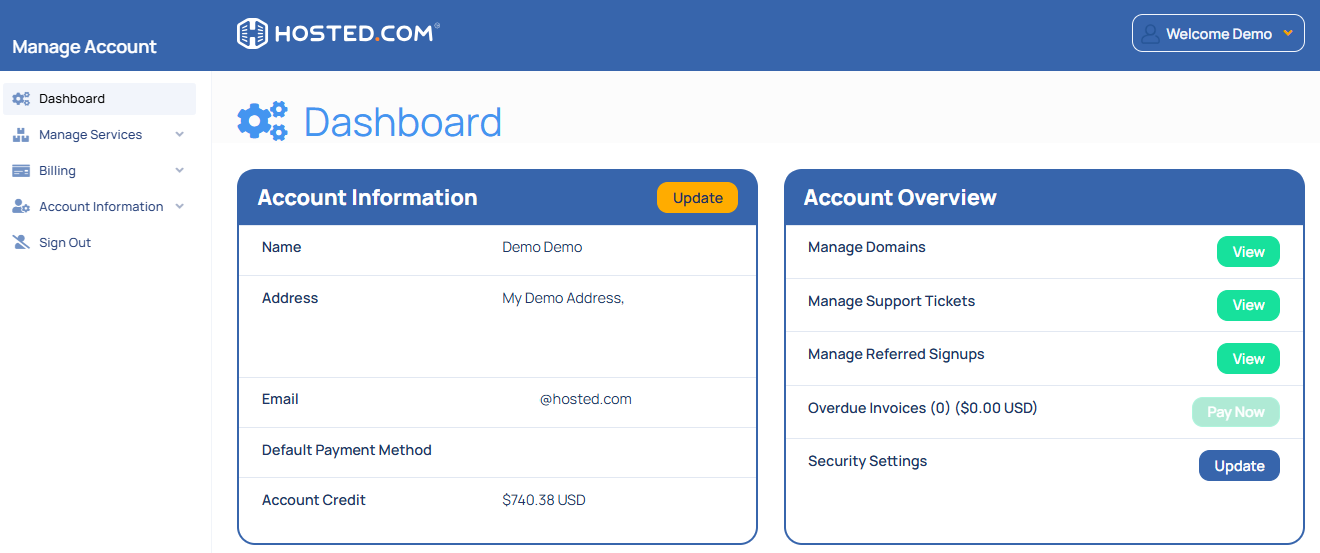
2. Go to the Manage Services drop-down section and select your hosting plan. Click Manage next to your domain.
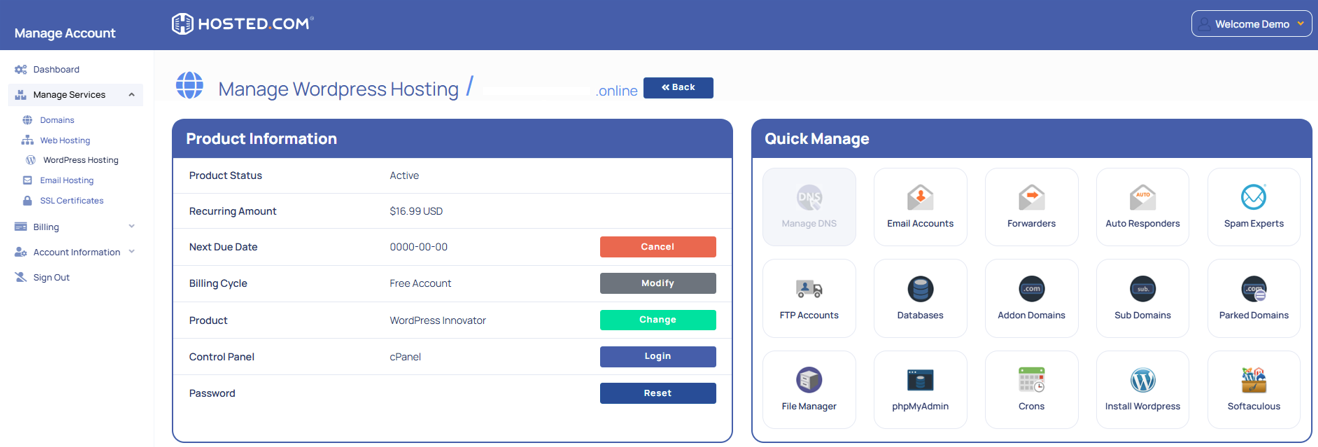
3. Next, click Login next to Control Panel, to access cPanel.
4. Open WordPress Management on the left side of the screen.
5. Access your WordPress Dashboard.
6. Go to Plugins > Add New.
7. Search for Redis Object Cache (or another Redis-compatible caching plugin).
8. Click Install Now, then Activate.
Configure Redis Plugin Settings
9. In the WordPress Dashboard, navigate to Settings > Redis.
10. Click Enable Object Cache.
11. Verify that the plugin is successfully connected to the Redis server (you should see a status message indicating connection success).
Test & Verify Redis is Working
12. Visit your Redis plugin settings and check the Object Cache status.
13. Test your website speed using tools like GTmetrix or Google PageSpeed Insights to confirm improvements.
14. Monitor server performance to ensure Redis is caching correctly.
Additional Information
- Persistent Object Cache: Redis stores cached data persistently, meaning cached objects remain available even after your site restarts.
- Flushing Cache: If you update your site and don’t see changes immediately, flush the Redis cache from the plugin settings.
- Compatibility: Not all plugins are fully compatible with Redis. If you encounter errors, try disabling object caching or consult plugin documentation.
- Security: Redis should always be configured to run behind authentication and firewall rules to prevent unauthorized access.
- High-Traffic Sites: For ecommerce stores (WooCommerce) or sites with thousands of users, Redis provides a significant performance boost compared to database-only caching.
- Alternatives: If Redis is not available, WordPress also supports Memcached or page caching plugins such as WP Rocket or W3 Total Cache.



