


 Contact Support
 Sign In
This article will show you how to move a WordPress website to another domain which might sound complicated, but with Hosted.com®, it’s simple when done carefully. Whether you’re rebranding your business, changing your website’s name, or merging websites, this guide will show you exactly how to move your WordPress site to a new domain.
NOTE:
This article outlines the steps involved in moving a WordPress Website from one domain to another on the same Hosted.com® WordPress Hosting plan.
TABLE OF CONTENTS
How to Move a WordPress Website to Another Domain
1. Login to your Hosted.com® account.
2. Navigate to your hosting plan via the Manage Services menu.
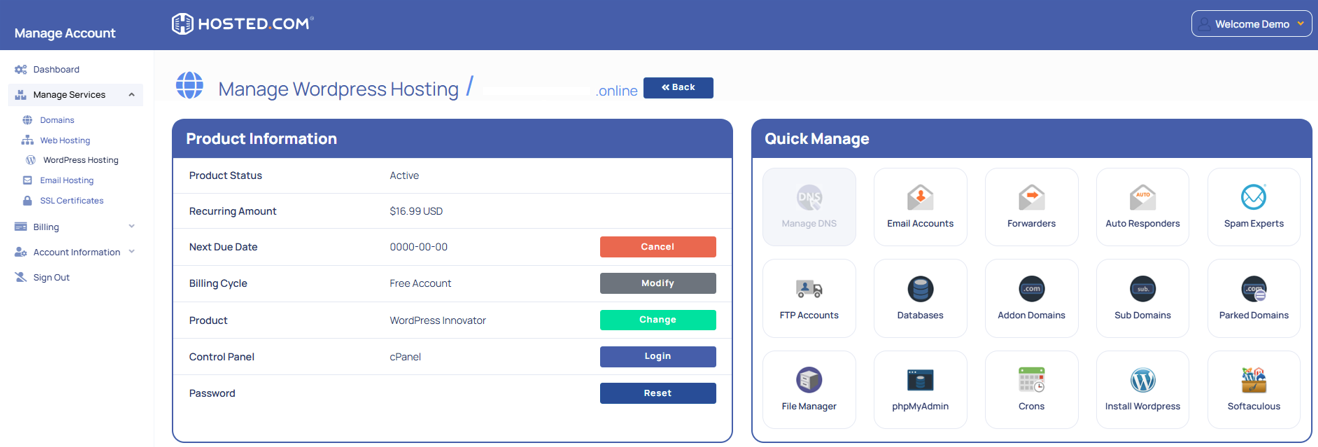
3. Click Manage next to the hosting plan associated with your domain.
4. Select Login next to Control Panel to open cPanel.
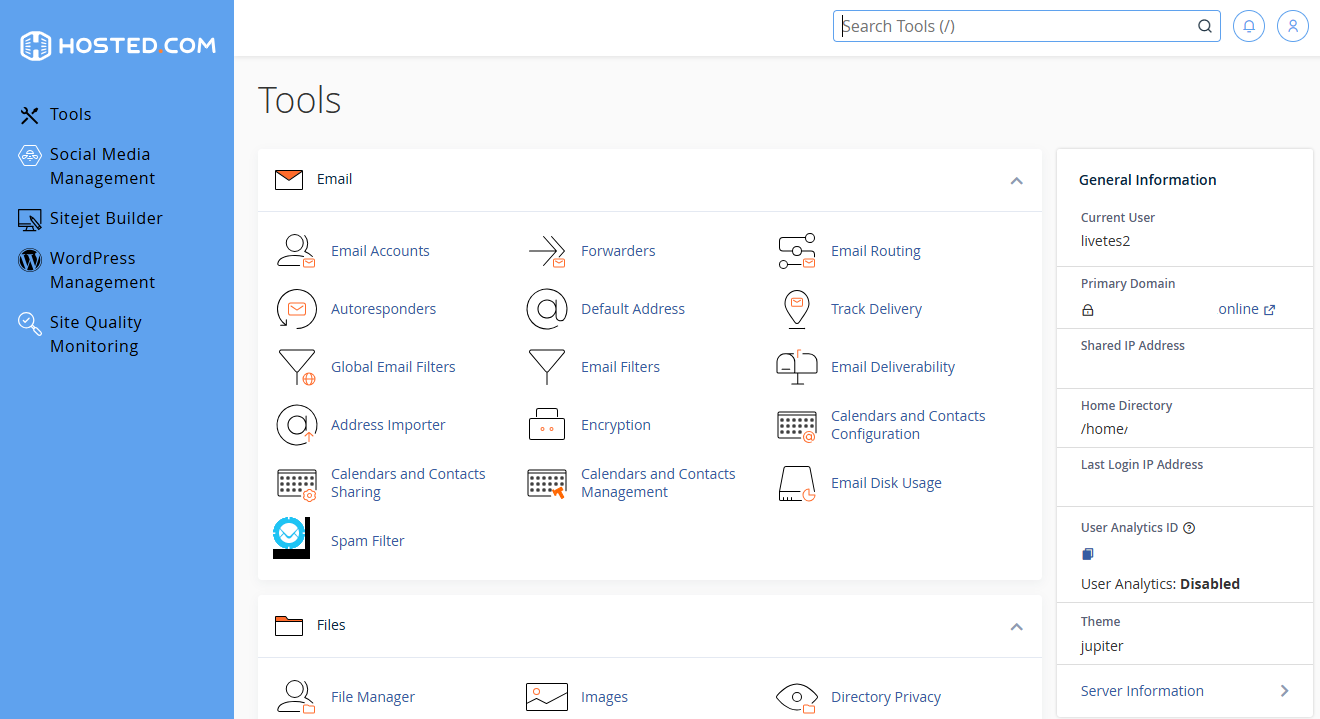
5. Scroll to Software and select the WordPress Manager by Softaculous (If this is not available, look for Softaculous Apps Installer, and click the WP logo in the top right).
6. To the far right is the domain you want to copy from. Click the drop-down arrow.
7. At the bottom, click the blue Clone button.
8. Next to Choose Installation URL, select the correct domain to copy to.
9. Leave the rest as is and click Clone Installation at the bottom.
10. Wait for the progress bar to reach 100% when the copy is completed.
11. The below DNS records MUST be updated at your previous host for the services to be active through our servers.
Recommendation
If you’re planning a domain change for a business website, test the migration on a staging environment first. Once everything works smoothly, point your live domain to the new setup. The Hosted.com® support team is also available to assist with migrations or domain-related issues, especially if both domains are hosted on our servers.
Additional Information
- Hosted.com® includes free SSL Certificates on all hosting plans, so your new domain will remain secure once it’s live.
- You can use Softaculous in cPanel to clone or move your WordPress site with just a few clicks.
- Always clear your WordPress cache (and any CDN cache) after moving your site to ensure updates appear correctly.
- If your site uses custom email addresses, remember to update DNS records for the new domain.
- Keep the old domain active for at least 30 days to allow search engines to reindex your new URLs.



