Contact Support
 Sign In
Any WordPress website must have a Privacy Policy Page in accordance with the Data Privacy laws. This page covers the details of what visitor information your website will be collecting and how. It also says what you will use that data for, example setting up customer accounts with your business, or with 3rd party applications if that is the case.
In this article, we will discuss how to create a Privacy Policy Page for your WordPress website.
TABLE OF CONTENTS
Create a Privacy Policy Page
To create a Privacy Policy page for your site, you can either create your own or use the template provided by WordPress:
Sign in to your Hosted.com® Account and access the Client Portal.
- Open the WordPress Dashboard and click “Settings” in the menu on the left side, followed by “Privacy”.
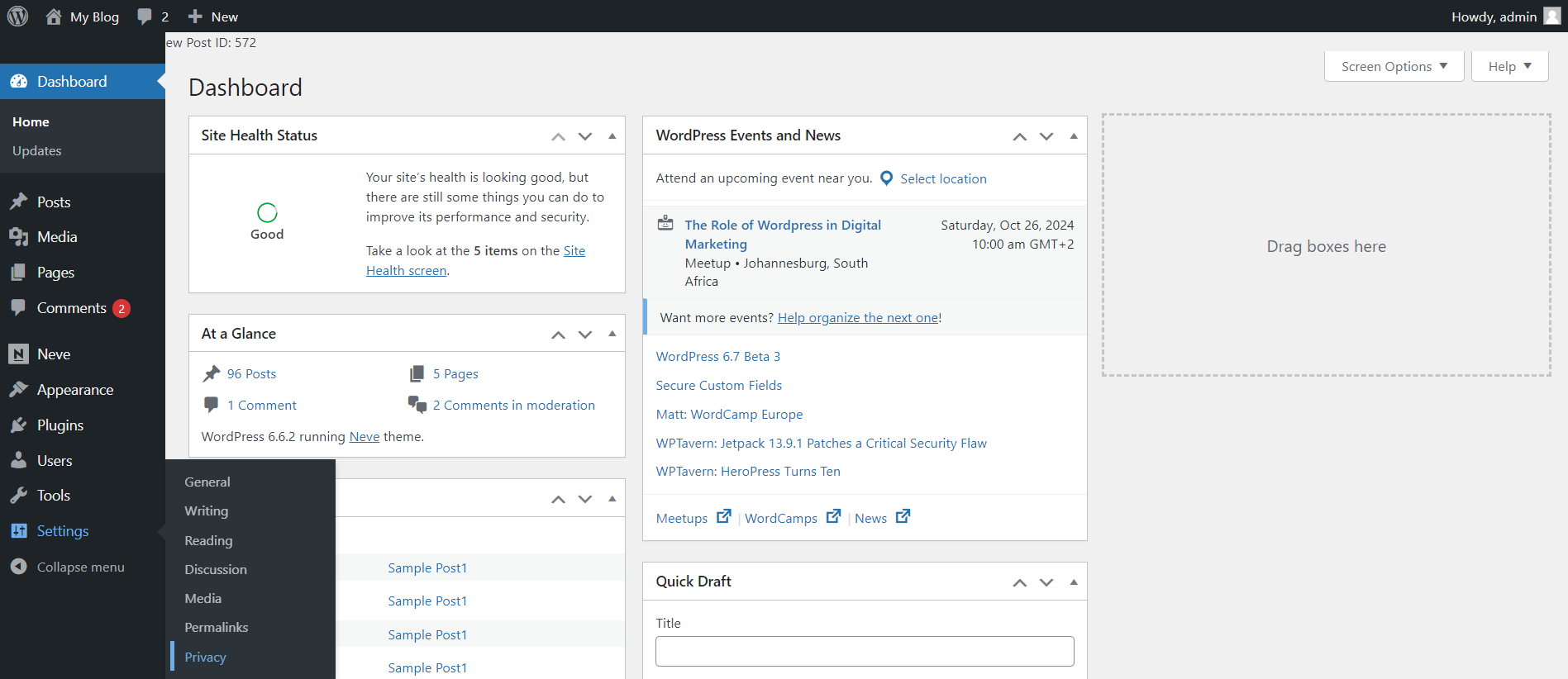
- A Standard Privacy Policy template with the words “Create a new Privacy Policy Page” will be displayed.
- Click “Create” if you haven’t already had a Policy drawn up.
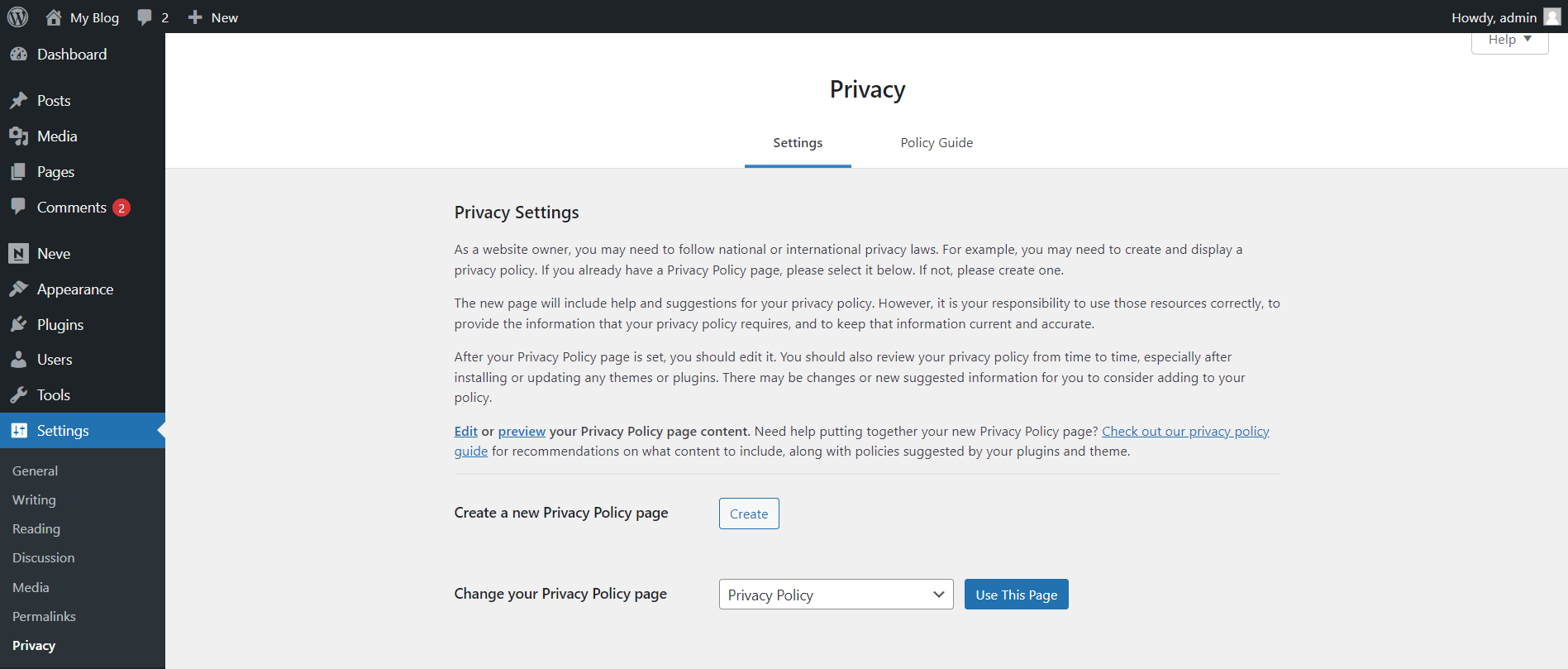
- Alternatively, upload a Policy from the drop-down menu next to “Change Your Privacy Policy Page”. Now click “Use This Page”.
- WordPress will generate and add a Privacy Policy Page to your site with your details.
Additional Information:
Why Your Webpage Needs a Privacy Policy
A Privacy Policy Page tells your site visitors what information you are collecting from them, how you are collecting it, why you are collecting it, and what you will do with your user’s data. Data privacy laws require you to have these pages in place. Having one helps you avoid fines for noncompliance or potentially having legal action taken against you in the case of a data breach.
Here are some of the types of user information websites collect:
- Names and email addresses in comments and contact forms.
- Date of Birth, Age, Sex, and Location
- Comment form cookies, which remember a user’s name or email address.
- Information visitors submit when signing up for email lists and databases.
- Information that is collected when users register on a website.
- Google Analytics and online ad targeting programs that track user preferences.
- Social Media page plugins and “Like” button cookies.
When you are adding a Privacy Policy, it also needs to explain how you will be keeping user data secure, especially as users will be giving you sensitive personal and financial information. Beyond the legal requirements, these Policies help build and maintain user trust.
They show that you take the privacy and security of users’ data seriously while respecting their rights. Privacy Policies ensure transparency and respect users’ rights. They also provide recourse for people if they feel their privacy has been infringed upon.
What to Include in Your Privacy Policy Page
A well-structured Privacy Policy should be thorough and clear. The essential information you need to include is as follows:
- Collection of Data: Be specific as to what personal data your site is collecting. This can include names, contact details like email addresses, and data like IP addresses.
- How Information is Collected: Clearly explain how information is collected. For example, is it collected directly from users using sign-up forms or indirectly using cookies?
- Data Storage: Disclose how and where the collected information will be stored.
- How Data is Used: Clearly state why you collect user data, for example, for providing additional services, improving user experience, or marketing.
- Sharing with Third Parties: If you are sharing user data with third parties such as advertisers, use Google AdSense, or participate in other advertising programs, you will need to disclose this, and the type of data you are sharing.
- User’s Rights: Inform your visitors of their rights regarding collecting and using their personal information, including how they can access, update, or request the deletion of their data.
If you are unsure how to draft a Privacy Policy, WordPress will create a generic one for your page. Alternatively, you can use a plugin to generate one or use a template.
Login to Hosted.com® Account
1. Go to the Hosted.com® Login website page.
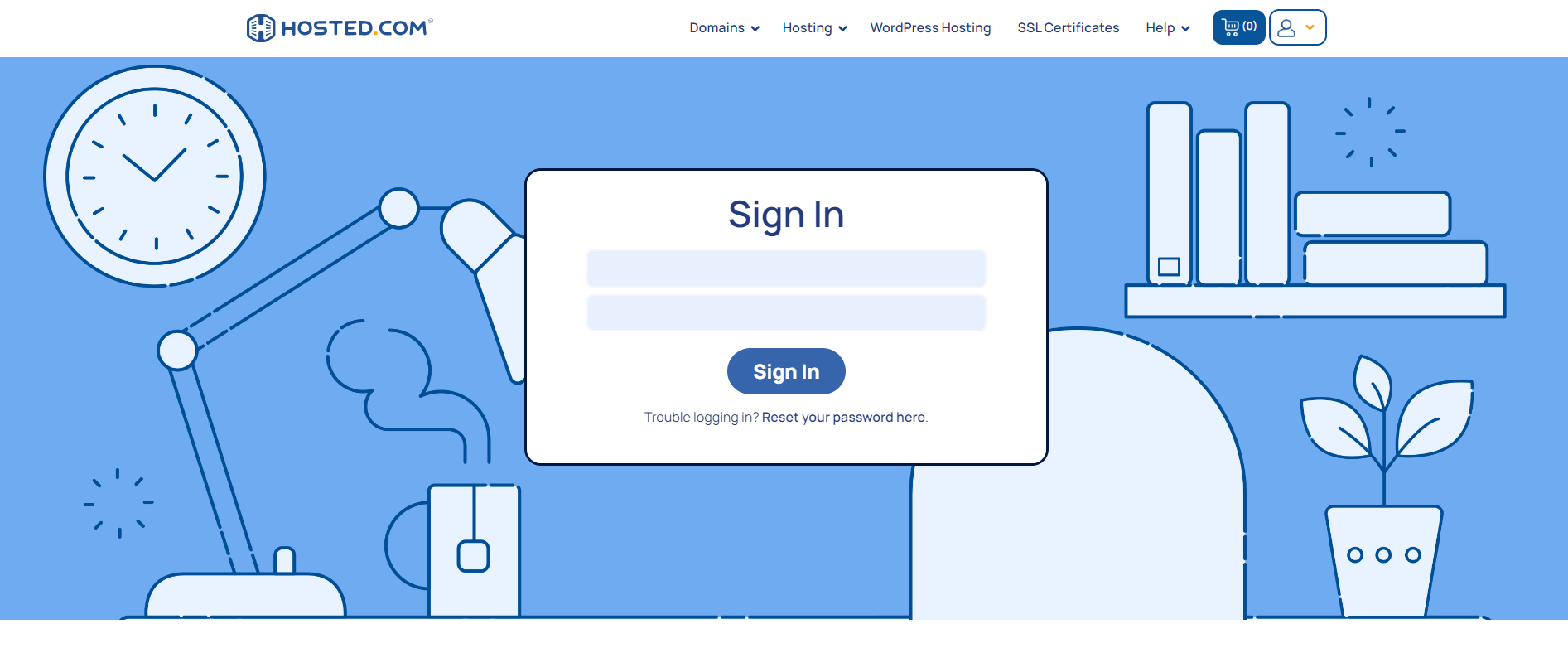
2. Enter your Email and Password and click the “Sign In” button.
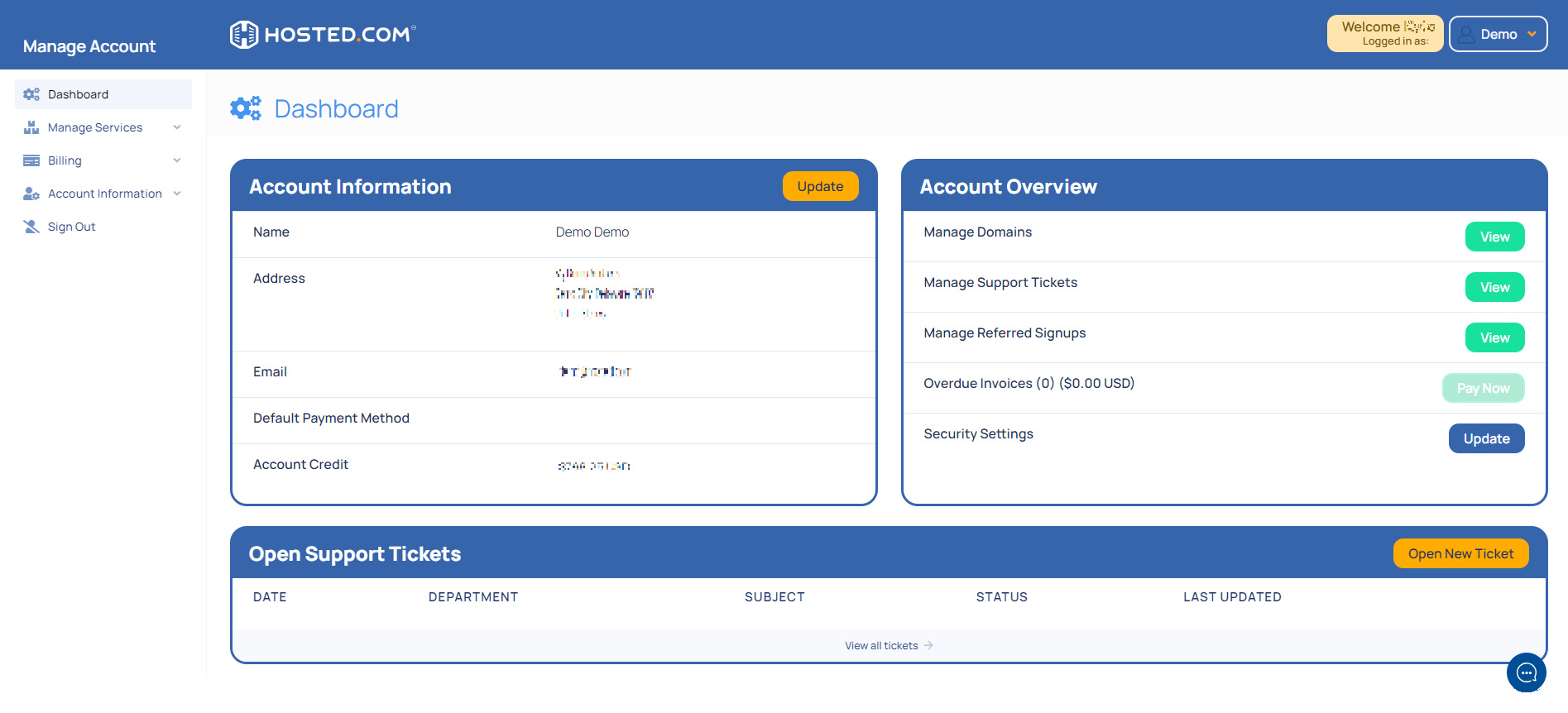
3. You will see the Hosted.com® Dashboard, displaying the Manage Account menu on the left and your Account Information, Account Overview and Open Support Tickets on the right.
Login in to WordPress via cPanel
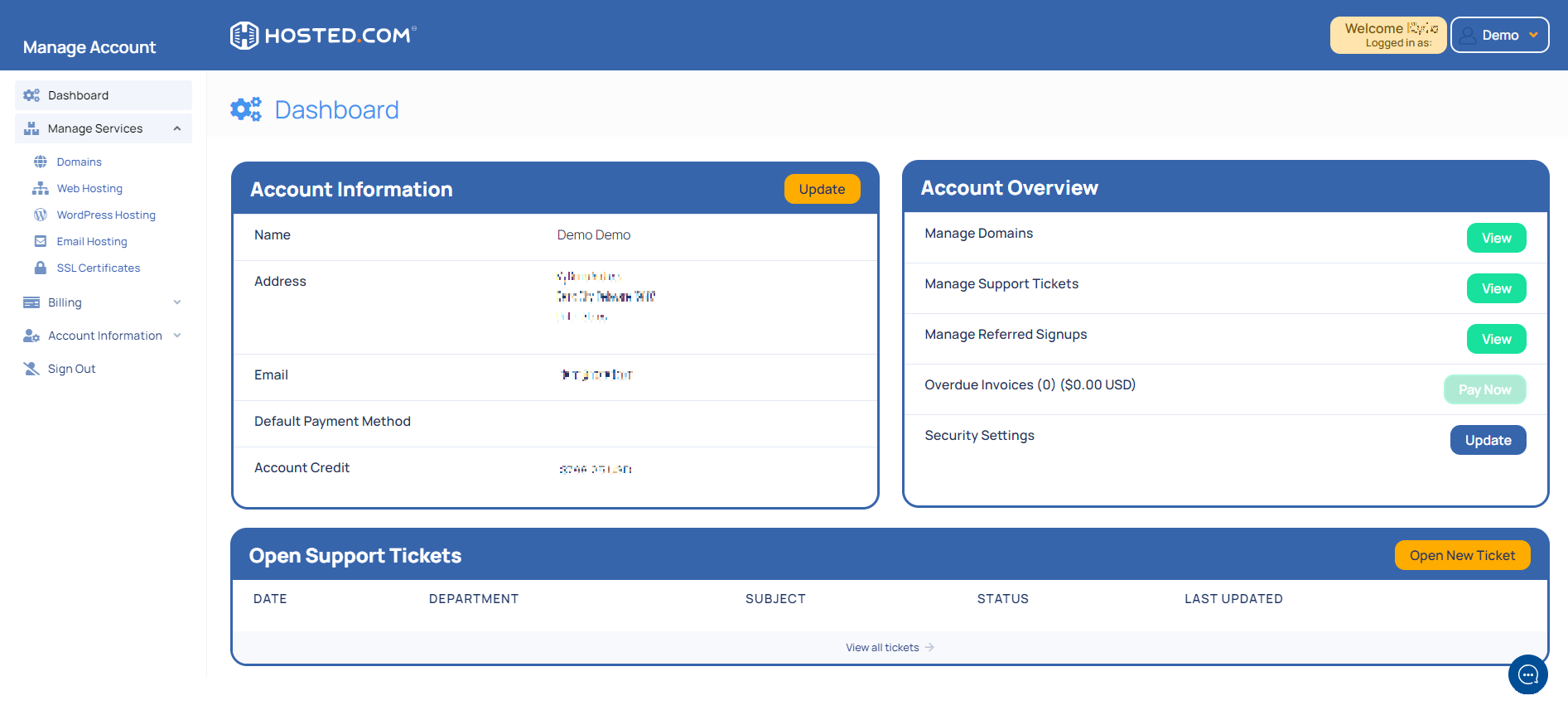
4. Click on “Manage Services” to view the sub-dropdown menu and select the hosting package for the domain you want to work with – in our example we are using WordPress Hosting.
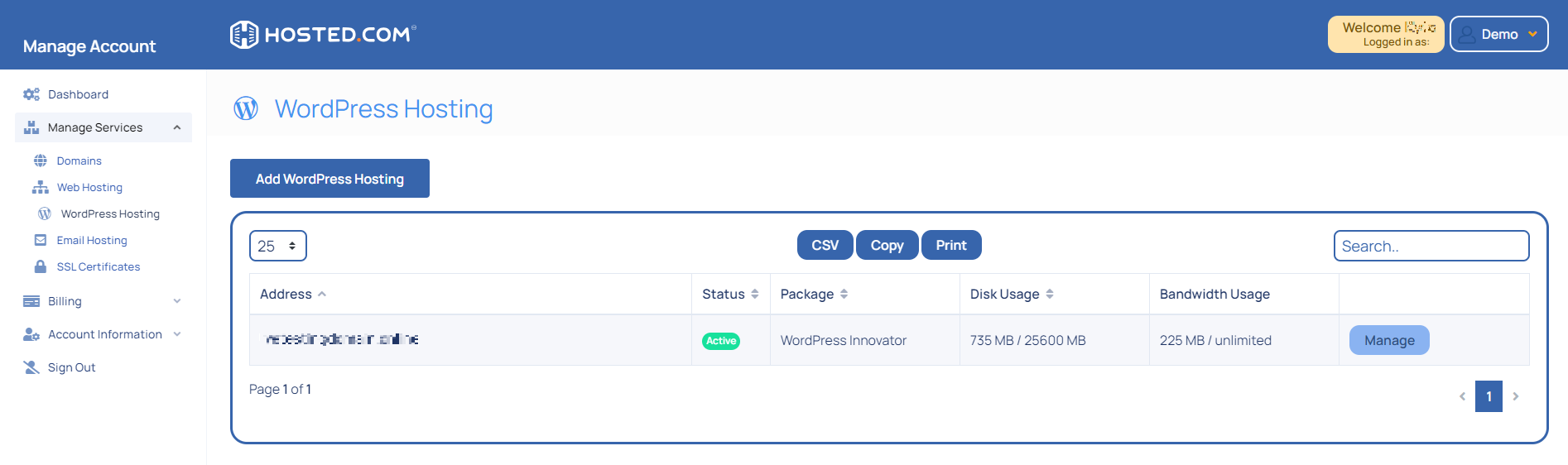
5. Click the “Manage” button to the right of the domain name you want to access.
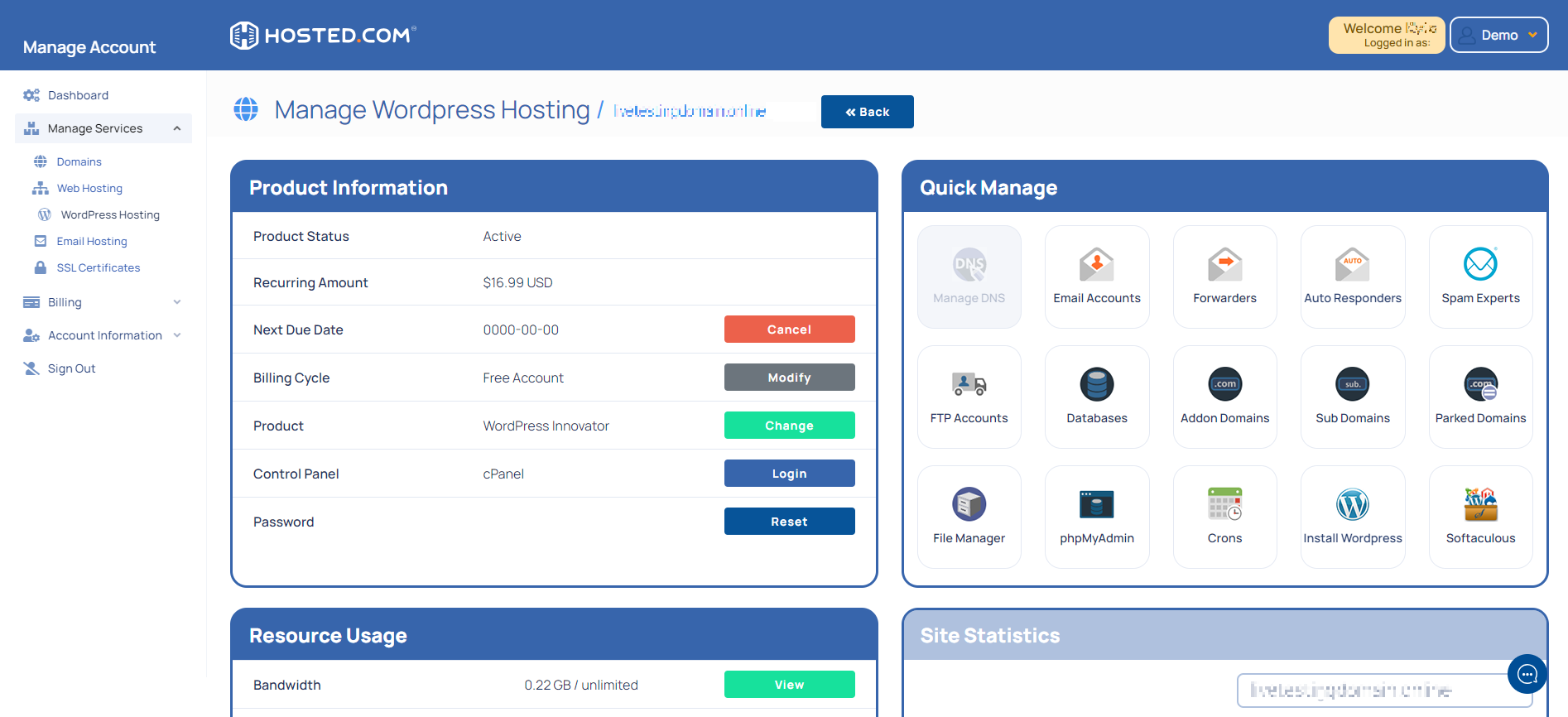
6. The display will now show Product Information, Quick Manage, Resource Usage and Site Statistics for that domain name.
7. Under “Product Information”, scroll down to “Control Panel”, which will display cPanel to the right, and click on the “Login” button.
8. The cPanel Dashboard will now be displayed.
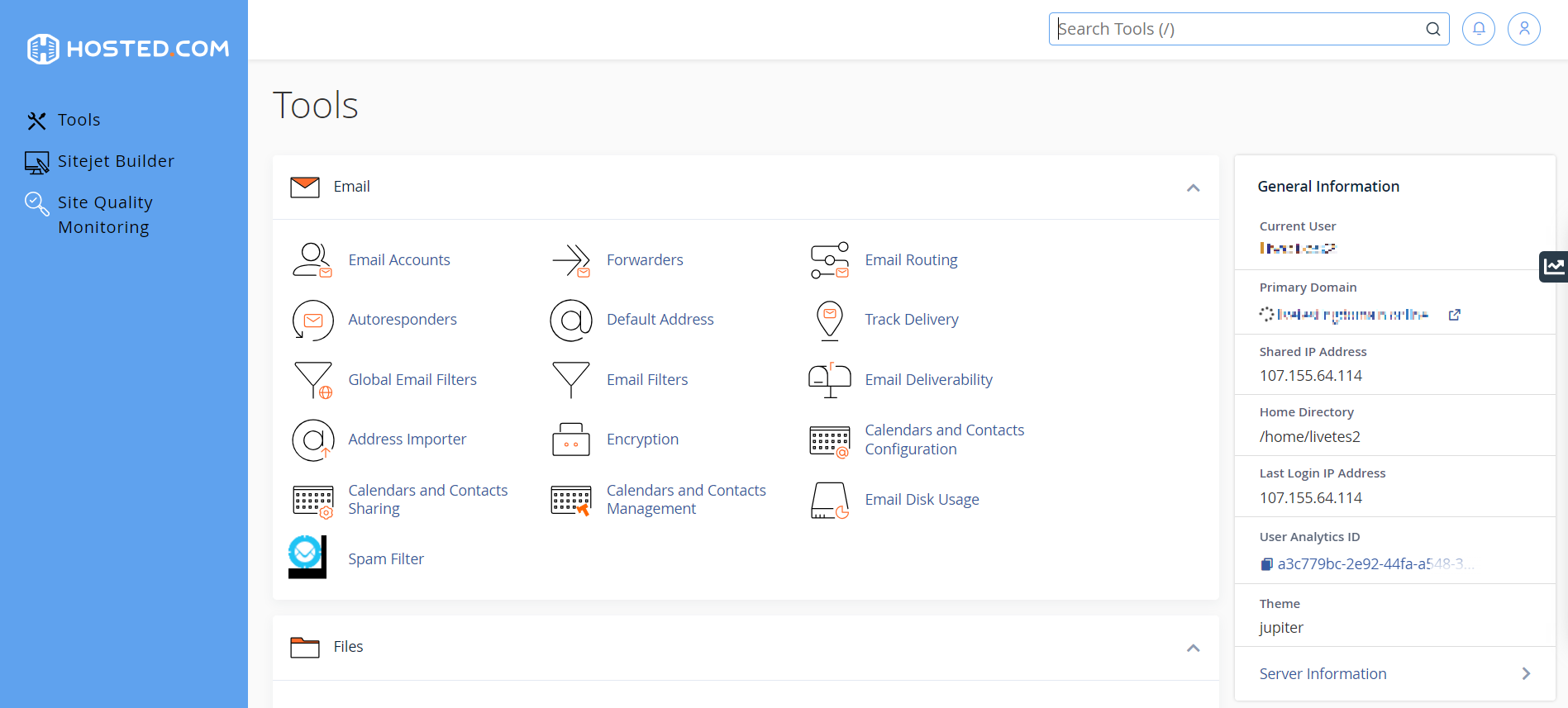
9. Scroll down until you get to “Popular Applications”, click on the WordPress icon,

10. The WordPress Dashboard will now be displayed.