


 Contact Support
 Sign In
If you find you can browse the Internet but cannot get email, it may be an issue with your settings. Properly configuring your email settings ensures you can send and receive messages without interruptions, maintain security, and optimize performance. To help maintain seamless communication and when setting up your email accounts with Hosted.com®, stick to the right configurations. This guide will help you with effectively managing your email settings, covering everything from initial setup to troubleshooting common issues.
TABLE OF CONTENTS
Ensure Correct Email Configuration
Since you can browse the Internet but cannot get email, this suggests the reason is likely your configuration or the email service itself, rather than connectivity.
First, try accessing your email through a web browser like Gmail, or your Hosted.com® webmail interface. If you can access your email via the web, but cannot get email through your client, here is how you can troubleshoot the issue:
Verify Email Account Settings
Properly managing your email settings is vital for maintaining effective communication and ensuring your email functions smoothly. Double-check the following in your client when you can browse the Internet but cannot get email:
1. Account Type: Confirm whether you’re using POP3 or IMAP. IMAP is generally recommended as it synchronizes emails across multiple devices.
2. Incoming and Outgoing Mail Server: Ensure the hostname (mail.yourdomain.com) for both servers, is correct. Your email provider should provide this information.
3. Username and Password: Confirm your full email address is entered correctly as your username. Double-check your password for typos or if you are using the wrong one.
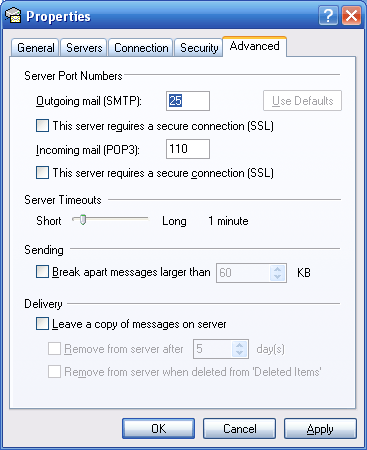
4. SSL/TLS Settings: Ensure SSL/TLS is enabled for both incoming and outgoing mail servers. This encrypts and keeps your email communication safe. Use the following secure ports:
- IMAP with SSL/TLS: Port 993
- POP3 with SSL/TLS: Port 995
- SMTP with SSL/TLS: Port 465 or 587
Note: Port 587 is generally preferred and is recommended for new setups.
Incoming Mail Issues
If you cannot get email access through your client inbox, this could be due to one of the following reasons:
- Your hosting account has been suspended, preventing you from receiving emails.
- The email server is overloaded or not functioning properly. See if your provider has posted any service interruptions or outages.
If you cannot get email, it can also be an issue with your firewall or antivirus software. Temporarily disable them to see if they are blocking your email client. If this fixes the issue, configure them to allow incoming email traffic.
If the problem persists but you can browse the internet but cannot get email, contact the Hosted.com® Support Team for assistance.
Additional Information
Managing Email Settings
Properly managing your email settings is vital for maintaining effective communication and ensuring your email functions smoothly. Here are some additional tips just in case you find you can browse the Internet but cannot get email:
- Regularly Monitor Your Email Quota: To prevent disruptions in receiving new emails, monitor your storage capacity. If available, set up alerts through your email provider to notify you when you are nearing your limit.
- Minimize Inbox Clutter: Delete spam and unnecessary emails frequently. Archive older correspondence to access important messages and organize your inbox.
- Consider Email Forwarding: If you handle multiple email accounts, forward messages from one account to the others to ensure you don’t overlook any important communications.
- Implement Email Filters: Establish filters to automatically categorize incoming emails into designated folders based on criteria like sender, subject, or keywords. This will save time and improve the organization.
- Update Recovery Information: Regularly verify and refresh your recovery email address and phone number to ensure you can regain access to your account if necessary.
- Activate Spam and Virus Protection: Enable your provider’s spam filtering and antivirus scanning features to reduce the risk of phishing attacks and malware-infected emails.
- Schedule Regular Email Backups: To safeguard against data loss due to server issues or accidental deletions, consistently back up your emails locally or through a cloud service.
- Synchronize Across Devices: Ensure your email settings are uniform across all devices to prevent conflicts and ensure no missed messages.
- Keep Your Email Client Current: To benefit from enhanced security, features, and compatibility, always use the latest version of your email client.
- Review Account Activity: Regularly examine your account for any unusual login attempts or unfamiliar activities and act promptly if anything appears suspicious.
- Choose a Professional Email Address: For business or professional correspondence, choose an email address that conveys credibility and aligns with your brand identity.
- Set up an Out-of-Office Reply: If you will be away, activate an automatic response to inform senders of your absence and provide an estimated timeframe for when they can expect a reply.



