


 Contact Support
 Sign In
Adding an email signature on Samsung devices can enhance communication and project a professional image. Whether using the built-in email app or another client, setting up your signature is simple. This guide will take you through the steps to create or update your email account signature.
TABLE OF CONTENTS
Setting Up Your Email Signature On Samsung Devices: Step-by-Step
Before you get started with creating an email signature on Samsung devices make sure that you have access to the Samsung Email app. This app usually comes pre-installed, but if it’s not available, you can download it from the Galaxy Store or Google Play Store.
1. Launch the Samsung Email application on your device. Look for More, which is usually represented by three dots or lines.
2. Once in the app, tap on the More icon and select Settings from the dropdown menu.
3. Scroll through the settings menu until you find Signature which is typically found under Outgoing Settings.
4. In the Signature window, type out your desired signature. This is where you can include essential details such as your name, job title, company name, contact information, and any other relevant details you want recipients to see.
5. Once you’re satisfied with your signature, tap OK to save your changes.
6. To confirm that your new email signature is working correctly, send a test mail to yourself. Check that it displays as intended and that you are happy with its appearance.
Additional Information
Best Practices and Tips
Creating an email signature on Samsung devices helps elevate your professional image and promotes more interaction with your recipients. Here are some best practices and tips to keep in mind:
- Include Essential Information: Ensure your signature contains important details such as your full name, job title, company name, and contact information (including phone number and website). This allows recipients to reach you easily.
- Keep It Brief: A good signature should be both informative and concise. Try and avoid cluttering it with excessive details to keep it clear and legible.
- Consider HTML Signatures: For a more visually appealing signature with images or logos, consider creating an HTML signature using a web-based email client like Outlook or Gmail, then transferring it to your Samsung Email application.
- Adjust as Necessary: Should you need to update your signature in the future –whether due to a change in your role or contact information – follow the same steps above to change it.
- Ensure Professionalism: Your signature should reflect professionalism through a clean layout and readable font. Avoid overly decorative elements that could distract from the main message.
- Include Social Media Links: If applicable, consider adding links to your professional social media profiles (such as LinkedIn) to foster further engagement.
- Regularly Assess Your Signature: Regularly review and update your signature to ensure it accurately represents your current position and contact details.
Synching Email on Samsung Devices
Synching email on Samsung helps keep your inbox up-to-date across all your devices. When you enable it, your Samsung device connects to your email server for example Google Mail or Outlook, and downloads new messages, contacts, and email signatures.
Any changes you make on one device (phone, tablet, or computer) such as deleting or marking an email as read will automatically be reflected on the others connected to that account. To turn on and manage email syncing on your Samsung device:
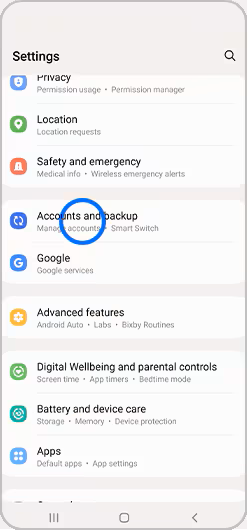
- Go to your Settings.
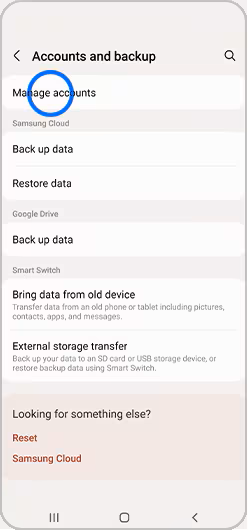
- Tap on Accounts and Backup.
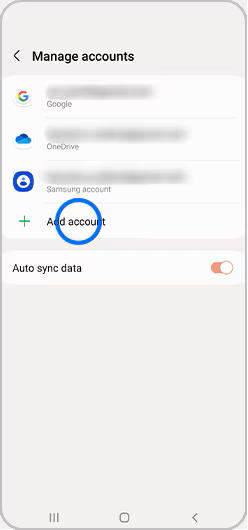
- Select Manage Accounts.
- Choose the relevant email account.
- Turn on Sync Account. You have options for email, contacts, calendars, etc.



