


 Contact Support
 Sign In
Updating your iPhone email password is a simple procedure that plays a vital role in maintaining the safety of your account and sensitive communications and attachments. Regularly changing your password can help protect your personal information from unauthorized access and potential breaches. If you suspect your email account may have been compromised or simply want to enhance your security, it’s time to change your password. This guide will take you through the steps to change your iPhone email password.
TABLE OF CONTENTS
How To Change An iPhone Email Password
1. Locate and tap Settings on your iPhone. This may be on your home screen or in the app library.
2. Scroll down and select Mail. Depending on your iOS version, you may need to tap Mail, Contacts, Calendars.
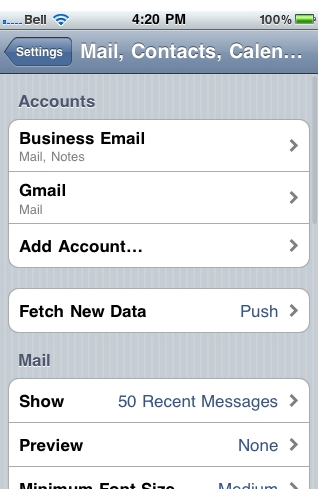
3. Find and tap on the email account you want to update the password for.
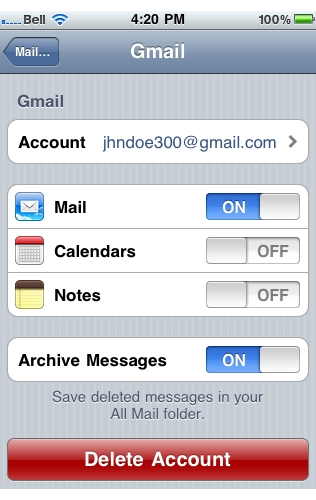
4. Enter your new password in the designated field. Note: You should only need to do this if your email password has changed.
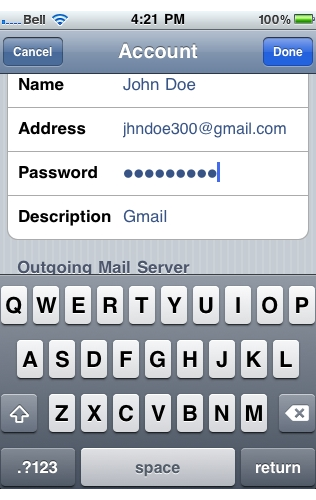
5. After entering the new password, tap Done in the upper right corner of the screen.
That’s it! Your email password has now been updated on your iPhone. You can now use the new password to access your email account through any email client or webmail service associated with that account.
Additional Information
Email Password Best Practices
- Create a Strong Password: A strong password should include a mix of uppercase and lowercase letters, numbers, and special characters. Avoid using easily identifiable information such as names or birthdays.
- Sync Across Devices: If you access your email on multiple devices (like a tablet or computer), remember to update your password on those devices too, to avoid connectivity issues.
- Enable Two-Factor Authentication (2FA): If your email provider offers two-factor authentication, consider enabling it for added security. This will require a second type of verification (like a numerical code sent to your phone) for you to log in.
- Monitor Your Account Activity: After changing your password, monitor your account for suspicious activity. If you notice anything unusual, contact your email provider immediately.
- Back-Up Important Emails: Before making significant changes to your email settings, consider backing up important emails or data to prevent accidental loss.
- Check Email Client Settings: After updating your password, ensure email clients (like Outlook or Thunderbird) are updated with the new password, so you can maintain access without interruptions.
Why Change an iPhone Email Password
Changing your iPhone email password is a simple yet effective way of keeping your accounts secure and protecting your personal information. Here’s why:
If a hacker manages to get your password either via phishing scams, brute force attacks, or keylogging, the sooner you change it, the less damage can be done.
Changing it regularly limits the time available to get access to your account and makes it harder for these attacks to be successful.
Similarly, if one of your accounts linked to your email experiences a data breach, your password could be used to access your inbox and sensitive information. If you notice suspicious activity, Immediately changing your password minimizes the risk of unauthorized access from the compromised login credentials.



