


 Contact Support
 Sign In

WordPress is a powerful content management system for building websites, providing a wide range of customization options to make your site unique. From fonts and colors to widgets and layouts, WordPress makes it easy for everyone, whether you are a beginner or a pro, to create a WordPress site that stands out.
One of the most important parts of website design is typography; this includes the font style, size, and color. The colors you select for your text can make a huge difference. They help set the tone of your site, improve readability, and even highlight important information to grab your visitors’ attention.
In this tutorial, we show you how to change font color in WordPress using 5 simple methods. Whether you prefer using WordPress’s built-in tools or adding special custom touches with CSS, this tutorial will take you through each step. By the end, you’ll know how to make your WordPress website text look exactly how you want.
KEY TAKEAWAYS
- Change font color in WordPress to improve your website’s design and readability.
- The WordPress Block Editor allows you to change the font color for individual blocks, such as paragraphs and headings, in just a few clicks.
- Using the Full Site Editor, you can change the font color of a specific component (e.g., Text) throughout the site.
- The Theme Customizer offers a simple way to change font colors site-wide, but available options depend on your theme.
- Using CSS code gives you more control, letting you customize font colors for specific elements like headings, links, and paragraphs.
- With tools like Elementor Page Builder, you can change font colors visually without any code.
- Always ensure your font color contrasts well with the background for better readability.
- Use your website’s branding colors for a cohesive and professional look.
- Experiment with the provided methods to find the one that fits your needs and skill level.
TABLE OF CONTENTS
Change Font Color Using WordPress Editor
Changing font colors in WordPress is easy with its built-in editors. Whether using the modern Block Editor (Gutenberg) or the Classic Editor, they provide simple tools to customize text colors. Let’s explore how to do this step by step.
Use WordPress Block Editor (Gutenberg)
The Block Editor, also called Gutenberg, is the default WordPress editor for creating and editing content. It offers straightforward options for changing font colors. Here’s how:
Login to your WordPress Dashboard, go to Posts or Pages, and click Edit on the one you wish to modify.

Click on the text block (such as a paragraph or heading) where you want to change font color in WordPress. Then, look at the right-hand sidebar under Block. Navigate to Color. Click Text. Now, you can choose a color from theme-specific and default colors.

Alternatively, you can use Custom Color Selector or enter a specific color code (RGB, HSL, or Hex) for a more precise choice.

Once you’ve picked your desired color, click Save in the top-right to save your changes.
Use WordPress Classic Editor
If you prefer to use the Classic Editor, install the plugin, as this is no longer the default editor. Here’s how to change font color in WordPress Classic Editor:
Go to your dashboard, click Plugins, then Add New Plugin. Search for Classic Editor, click Install Now, and activate it.

After activation, go to Posts or Pages, and click Edit on your desired post or page. Next, click Toolbar Toggle to see the formatting options. After that, highlight the text you wish to modify. In the toolbar, click Text Color (this is a small letter A with a color bar beneath it).
Pick a color from the dropdown menu or click Custom… to open a color picker. If you need a specific shade, you can enter a Hex color code, or RGB value, or adjust the picker to find the exact tone.

Once you’ve updated the color, click Update or Publish.
Change Font Color with WordPress Theme Customizer (Classic Themes Only)
The WordPress Theme Customizer is a powerful tool that lets you change your WordPress website’s look without using any code. It allows you to control the overall styling of your site, including fonts, colors, and layouts. One of its key features is letting you quickly and easily change font colors across your website.
Before we discuss how to change text color in WordPress, remember: the available options in the Theme Customizer depend on which active theme you’re using.
Some themes, especially premium ones, offer more advanced customization tools, while others may have limited options. If you don’t see the settings you need, consider switching to a theme with more styling flexibility or using additional tools like custom CSS (we will discuss this later).
For this section, we use the Astra theme. To access the Theme Customizer in Astra, follow these steps:
Login to your WordPress Dashboard. Go to Appearance in the left menu and click Customize. The Theme Customizer will open, showing a live preview of your website on the right and customization options on the left.

In the Customizer, click Global, then Colors.

Here, you can change the font colors for different elements on your WordPress site, such as headings, buttons, links, or body text. For example, you can make your headings stand out with bold colors or use subtle shades for the body text to improve readability.

If you’re also using Astra, you can change the surface color (site and content backgrounds) and global palette color here. With the Theme Customizer, you can instantly see how your changes affect the site, making it a user-friendly way to experiment with colors and find the perfect look for your WordPress site.
Change Font Color in WordPress Full Site Editor (Block Themes Only)
The Full Site Editor (FSE) in WordPress is a powerful tool that gives you more control over your website design, including the ability to change font colors. This method is ideal for users working with a block-based theme, such as Twenty Twenty-Two or other FSE-compatible themes, who want to make site-wide changes visually.
Use this method when you want complete control over your WordPress site’s design, especially for areas like texts, buttons, or other template parts, and when you prefer to work within WordPress rather than using custom CSS or plugins.
To start login to your WordPress Admin Dashboard and navigate to Appearance → Editor. This will open the Full Site Editor, where you can customize your site’s layout. If you don’t see Editor, your theme may not support the Full Site Editor. If you wish to use this method, you will need a block-based theme compatible with FSE.
Once you’re in the Full Site Editor, click Styles.

Take full control of your WordPress site’s design and functionality with Hosted®’s WordPress Hosting, supported by a team of experts ready to assist whenever needed.
From layout adjustments to advanced customizations, we’re here to help you succeed.
Next, click Edit styles (the pencil icon) to change font color in WordPress.

Click Colors.

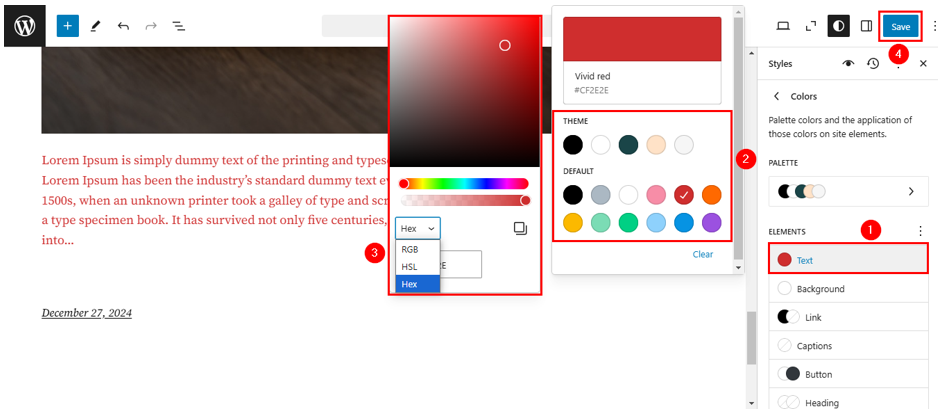
After that, click Text and choose your desired font color from the palette. You can also input a custom color using a Hex code, HSL, or RGB value for a specific color.
After selecting your font color, preview the changes by visiting the front end of your WordPress site or using the preview feature in the Full Site Editor. Ensure everything looks as expected. Then, click Save in the top-right corner of the Full Site Editor to apply the changes.
Use CSS Code to Change Font Color in WordPress
If you want full control over how your website looks, using custom CSS is a great option. Cascading Style Sheets (CSS) lets you style your WordPress website exactly how you want. With CSS, you can change the font colors for specific parts of your site, like headings, paragraphs, or links, giving you more precision than the default WordPress tools.
Here’s how to access the Additional CSS section:
Go to your WordPress website’s admin area. Navigate to Appearance → Customize. In the Customizer, scroll down and click Additional CSS. This is where you can safely add your custom CSS code.

Type or paste your CSS in the box provided. You’ll see a live preview of your changes on the right. Here are some CSS examples to help you get started. You can copy these snippets and tweak them to fit your design:
/*Change the Color of All Paragraph Text*/
p {
    color: #A020F0;
}
/*Change the Color of H1 Heading*/
h1 {
    color: red;
}
/*Change the Color of H1 Heading*/
h2 {
    color: (255, 165, 0);
}
Once you’re satisfied with the changes, click Publish to save them.

Target specific parts of your website with CSS with the CSS selectors. Here’s how to find them:
First, right-click anywhere on the website and select Inspect. This will open the browser’s developer tools, where you can see the HTML and CSS for the selected element.

Then, in the developer tools, click Select Element. Hover over your website’s desired element. The highlighted section on your site shows the element you’re targeting. Note the class name (it starts with a . ), ID (it begins with a #), or tag name to use in your CSS.

Now, use those CSS selectors to add your code to the Additional CSS section to see a live preview. Adjust until it looks right, then save your changes.
Change Font Color in Elementor Page Builder
Elementor is a widespread WordPress page builder that simplifies customizing your website without coding. Changing the font color in Elementor is simple and can be done directly within its visual editor. However, you first must install the Elementor plugin, then follow these steps:
Login to your WordPress Dashboard. Navigate to Pages or Posts and open the one you wish to update. Next, click Edit with Elementor to open it in the Elementor editor.

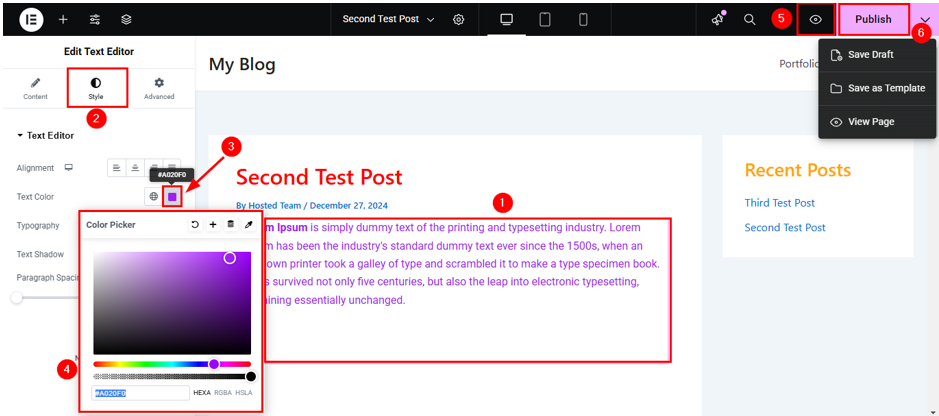
In the Elementor editor, click on the text or heading widget you wish to change. A settings panel will show on the left side of the screen. In the settings panel, click Style. Then, locate Text Color. Click the color picker to choose a custom color by adjusting the slider or entering a Hex, RGB, or HSL color code.
Once you’re happy with the new font color, click the Eye button to preview your modifications. Then, click Publish to make it live. Alternatively, you can save it as a draft for later use.
Optionally, you can change font color in WordPress globally. To do this, navigate to Site Settings → Global Colors in the Elementor editor.

This option ensures a consistent look and saves time by setting font colors globally.
![Strip Banner Text - Personalize every aspect of your website with Hosted®’s WordPress Hosting. [More Info]](https://www.hosted.com/articles/wp-content/uploads/2025/02/change-font-color-in-wordpress-2-1024x229.webp "Personalize every aspect of your website with Hosted®’s WordPress Hosting")
FAQS
Will changing font colors affect my site’s performance?
No, changing font colors does not affect your site’s performance. However, using many unnecessary plugins or adding too much CSS could slow down your website. After making changes, always test your site speed to ensure smooth performance.
Can I set different font colors for desktop and mobile views?
Yes, but you’ll need to use a page builder plugin like Elementor or custom CSS. These tools let you create responsive designs by setting font colors based on screen size.
Can I reset font colors to default in WordPress?
Yes, you can reset font colors to default in WordPress by clicking the Clear or Reset button in the color picker when using the Block Editor or Theme Customizer. If you’ve added custom CSS, simply remove or edit the code.
Can WordPress change font color for WooCommerce product pages?
Yes, you can adjust the font color on WooCommerce product pages using the WordPress Block Editor or custom CSS. If your WooCommerce theme supports advanced styling, you can modify font colors for product titles, descriptions, and prices in the Theme Customizer.
Do font color changes affect site caching?
Font color changes in WordPress may not immediately appear if your site uses caching plugins. Clear the cache from your plugin or hosting panel to see the updates.
Other Related Tutorials
– How To Add WordPress Custom Fonts To A Website
– How To Add Expires Headers In WordPress: 2 Easy Methods
– Add JavaScript To WordPress Pages & Posts: 4 Easy Ways
– How To Enable GZIP Compression For WordPress Sites
– How To Use WordPress Robots.txt & Optimize For Search Engines
- About the Author
- Latest Posts

Rhett isn’t just a writer at Hosted.com – he’s our resident WordPress content guru. With over 6 years of experience as a content writer, with a background in copywriting, journalism, research, and SEO, and a passion for websites.
Rhett authors informative blogs, articles, and Knowledgebase guides that simplify the complexities of WordPress, website builders, domains, and cPanel hosting. Rhett’s clear explanations and practical tips provide valuable resources for anyone wanting to own and build a website. Just don’t ask him about coding before he’s had coffee.