


 Contact Support
 Sign In
When you visit a website, you often see stylish, eye-catching text. Designers use different effects to make text stand out, and one of these effects is a text outline. A text outline helps make words clearer, bolder, and more readable, especially when placed over images or colorful backgrounds.
Text styling is significant in how a website looks and feels. When building a website, using the right colors, fonts, and effects can improve readability and make content more attractive. Outlining text is a simple but effective way to highlight important words, add contrast, and create a unique design. It also helps make text readable even when the background color is like the text color.
This guide explores easy methods to add text outline with CSS. We’ll discuss how different CSS properties, like text-shadow and -webkit-text-stroke, create this effect. We will also cover when to use each method and provide practical code examples.
KEY TAKEAWAYS
- Adding a text outline with CSS helps improve readability and makes text stand out.
- The -webkit-text-stroke property creates a sharp outline but works only in WebKit-based browsers.
- The text-shadow property uses multiple shadows to create an outline effect and works in almost all browsers, including Firefox and Internet Explorer.
- Combine text-stroke and text-shadow to get better results by adding a sharp outline and a subtle shadow effect.
- Use multiple shadows in text-shadow to create a bold outline without relying on text-stroke.
- Always provide fallback styles to ensure the text remains visible in browsers that don’t support -webkit-text-stroke.
- Use the @supports rule to applytext-strokeonly in supported browsers while keeping a fallback for others.
- Choosing betweentext-stroke and text-shadow, or combining both depends on browser support, design needs, and performance considerations.
TABLE OF CONTENTS
Understand Web Texts
When you visit a website (whether a WordPress site or custom website), most of the text you read is web text. This includes headings, paragraphs, buttons, and even menus. Web text is not just about words; it plays a role in how a website looks. Well-styled text makes a website easy to read, visually appealing, and user-friendly.
Web text is scalable and adjustable, unlike printed text, which comprises fixed ink on paper. So it can change color, size, and style depending on the device or screen resolution. Web text looks smooth at any size because the fonts are vector-based graphics.
Vector graphics are images created using mathematical shapes instead of tiny dots (pixels). Because of this, they can be scaled up or down without losing quality. Fonts in web design work the same way. It will be sharp and clear whether you zoom in or shrink the text.
Since web fonts behave like vector graphics, we can apply strokes (outlines) to individual characters, much like in graphic design software. CSS allows us to add text outlines to improve readability and create special effects. Properties like text-stroke or text-shadow make text stand out and look more stylish.
With these tools, designers can enhance the look of web text outline with CSS while keeping it readable on different screens and devices. The following section discusses the best CSS methods to add text outlines to your website.
How to Outline Text in CSS
There are 2 main ways to add a text outline with CSS:
- Use text-stroke Property: This method provides a clean and precise outline around the text. However, it is only supported in WebKit-based browsers like Chrome and Safari.
- Use text-shadow Property: This approach creates an outline by adding multiple shadows around the text. It is more widely supported and works across almost all browsers, including Internet Explorer.
In this section, we start by discussing text-stroke, followed by text-shadow, and learn how to use both effectively. We’ll also compare their advantages and disadvantages to help you understand why combining both methods can be a powerful solution for achieving the best text outline effects.
Use text-stroke Property
The text-stroke property in CSS allows you to add an outline around letters without affecting the text’s fill color. It helps make text more readable and stylish, especially on colorful or busy backgrounds. As text-stroke is not fully supported by all browsers, use the -webkit- prefix to make it work in browsers like Chrome, Safari, and Edge.
Here’s how you can use the -webkit-text-stroke property to add text outline with CSS:
h1 {
  -webkit-text-stroke-width: 2px;
  -webkit-text-stroke-color: black;
}
The given CSS code applies an outline effect to all <h1> elements using -webkit-text-stroke.
The first line -webkit-text-stroke-width: 2px;, sets the stroke thickness to 2 pixels. This means the text will have an outline of 2 pixels wide around each letter. A larger value will create a thicker outline, while a smaller value will make the stroke thinner.
The second line, -webkit-text-stroke-color: black;, defines the color of the text outline. In this case, the outline will appear black. You can change this color to red, blue, or even a gradient, to match the design of your WordPress website.
By default, the actual text color remains visible when using -webkit-text-stroke. However, if you want only the outlined text without any fill color, you can set color: transparent; inside the CSS rule. This will make the inside of the text invisible while keeping only the stroke visible. See the following two screenshots to understand this:


Instead of writing separate lines for stroke width and color, you can combine them into one line using shorthand as follows:
h1 {
  -webkit-text-stroke: 2px black;
}
This gives the same results.

According to Caniuse, the text-stroke property is not supported in Internet Explorer and may not work in some older versions of other browsers. If a user visits a website with an unsupported browser, text with only a text-stroke may become invisible if it blends into the background. This can lead to accessibility issues and a poor user experience.
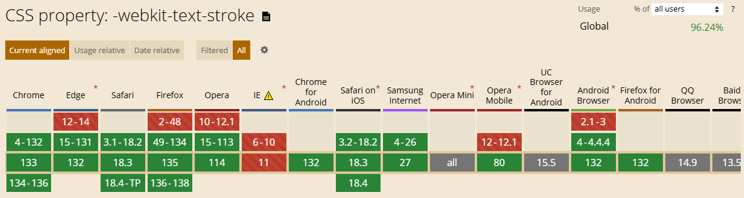
To prevent text from disappearing on unsupported browsers, use -webkit-text-fill-color, which allows you to define a text color separately from the outline color, ensuring the text remains visible even when the text-stroke is unsupported.
Here’s an example CSS snippet:
h1 {
  color: black;
 -webkit-text-stroke: 2px black; /* This adds the outline */
  -webkit-text-fill-color: red; /* This sets the text color */
}
In this example, the color property sets a fallback color (black), while -webkit-text-fill-color forces the text to appear red, ensuring it remains visible even if text-stroke is not supported.
To ensure styles are only applied when the browser supports -webkit-text-stroke, you can use the @supports rule. This CSS feature detection method helps apply styling conditionally. Here’s an example:
@supports (-webkit-text-stroke: 2px orange) {
    h1 {
        -webkit-text-fill-color: lightskyblue;
        -webkit-text-stroke: 2px orange;
   }
}
This way, the code checks if the browser supports -webkit-text-stroke. If it does, the outlined text effect is applied. If not, the browser ignores these styles and returns to the default color property.
Note: Always provide fallback styles outside the @supports block to ensure your text remains readable in browsers that do not support -webkit-text-stroke. Without a fallback, unsupported browsers can ignore the styles, leaving your text unstyled or invisible.
Use text-shadow Property
Another way to create a text outline with CSS is using the text-shadow property. This method is more widely supported across various browsers, making it a reliable choice for adding outlines. Instead of applying an actual stroke, text-shadow works by placing shadows around the text, which can be adjusted to look like an outline.
This property allows you to add shadows to text by defining the shadow’s horizontal offset, vertical offset, blur radius, and color. By using multiple shadows in different directions, we can create the effect of an outline around the text.
Apply a Single text-shadow Value
A basic shadow can make text look more attractive but doesn’t create a complete outline. Here’s an example:
h1 {
    text-shadow: 2px 2px 8px black;
}
In this code, the first 2px moves the shadow right and the second 2px moves the shadow down. 8px adds blur to soften the shadow. And black sets the shadow color. This creates a shadow effect but not a complete outline (we’ll learn about this in the next section).
Create a Defined Outline with Multiple Shadows
To make a full outline with CSS text-shadow, we must add multiple shadows around the text in all directions. Here’s an example:
h1 {
  color: white;
  text-shadow:
    -2px -2px 2px black,
     2px -2px 2px black,
    -2px  2px 2px black,
     2px  2px 2px black;
}
This code creates 4 shadows in different directions (top-left, top-right, bottom-left, and bottom-right) around the text, all in black with a slight blur (2px). This makes the text appear as if it has a solid black outline, enhancing visibility and readability. Together, these shadows create an outline effect around the text, as shown in the screenshot above.
Hosted®’s all-in-one Website Builder empowers you to create beautiful, responsive websites using an easy drag-and-drop interface that requires no technical skills.
From Ecommerce integration to SEO optimization, every tool you need to build, manage, and grow your site is right at your fingertips.
Pros & Cons of Using text-stroke/text-shadow
Both -webkit-text-stroke and text-shadow can be used to create text outlines, but they have different strengths and weaknesses. Let’s have a quick look at the following table:
| Text Outline CSS Property | Pros | Cons |
| -webkit-text-stroke | Simple Text. Creates a clean and precise outline. Better for thick outlines. | Limited browser support. Might cause visibility issues. No blur effect. |
| text-shadow | Works in almost all browsers More flexible No need for vendor prefixes | Not as precise as text-stroke. More complex to apply. Having too many shadows may slow down rendering for large or dynamic text. |
So, which one should you use? If browser support is crucial and you want glowing or soft text effects, use text-shadow, as it works everywhere. However, if you need a clean and sharp text outline with CSS, -webkit-text-stroke is the better choice (but add fallbacks for unsupported browsers). Additionally, use both to ensure compatibility and best design (we explain how in the following section).
Combine text-stroke & text-shadow in CSS
As discussed, -webkit-text-stroke property creates a sharp outline, while text-shadow adds a blurred effect or extra depth. By using both, you get a clear and visually appealing text effect. Below is an example of how you can combine these properties:
h1 {
 -webkit-text-stroke: 1px black;
  color: white;
  text-shadow:
     3px 3px 0 red,
    -1px -1px 0 red,
     1px -1px 0 red,
    -1px 1px 0 red,
     1px 1px 0 red;
}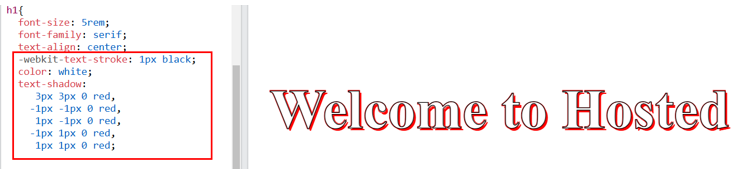
The CSS code styles the <h1> element by combining the -webkit-text-stroke and text-shadow properties. This combination creates a well-defined outline effect with an additional shadow layer, making the text stand out effectively. The first property, -webkit-text-stroke: 1px black;, applies a thin black outline around each letter.
However, -webkit-text-stroke is only supported in WebKit-based browsers, so it may not work in others like Internet Explorer.
To handle that situation, use the color: white; to set the text color to white. This means the text fill will be white unless overridden by another CSS property.
The text-shadow property is then used to create a red outline effect by adding multiple shadows around the text. Each shadow is positioned in different directions:
- 3px 3px 0 red; → Moves the shadow 3px right and 3px down, creating a lower-right red outline.
- -1px -1px 0 red; → Moves the shadow 1px left and 1px up, outlining the top-left.
- 1px -1px 0 red; → Moves the shadow 1px right and 1px up, outlining the top-right.
- -1px 1px 0 red; → Moves the shadow 1px left and 1px down, outlining the bottom-left.
- 1px 1px 0 red; → Moves the shadow 1px right and 1px down, outlining the bottom-right.
As all these shadows are red, they combine to form a bold red outline around the text while keeping the black stroke for added contrast. This technique is great for headlines, banners, or any text that needs emphasis while maintaining readability and a modern look.
If you want to simplify the CSS by applying one shadow with slight blurring, you can do the following:
h1{
  color: white;
  -webkit-text-stroke: 1px #EbE6E6;
  text-shadow: 0px 1px 4px #E61224;
}
This method reduces the complexity of defining multiple shadows and achieves a subtly outlined look.
Complete Code to Experiment Text Outline with CSS
Here is the sample HTML code with the internal CSS we used for this tutorial. You can use that to play around with text-stroke and text-shadow properties:
<!DOCTYPE html>
<html>
    <head>
        <style>
	body {
                   padding: 0 24px;
	     margin: 0;
	     height: 100vh;
	     display: flex;
	     justify-content: center;
	     align-items: center;
	}
	h1{
	    font-size: 5rem;
	    font-family: serif;
	    text-align: center;
	    color: white;
	    -webkit-text-stroke: 1px #EbE6E6;
	     text-shadow: 0px 1px 4px #E61224;
	}
        </style>
    </head>
    <body>
         <h1>Welcome to Hosted</h1>
    </body>
</html>
IMPORTANT:
You can refer to the FAQs section to learn more about text outline with CSS.
![Strip Banner Text - Build a responsive site with Hosted®’s drag-and-drop Website Builder. [More Info]](https://www.hosted.com/articles/wp-content/uploads/2025/03/text-outline-with-css-2-1024x229.webp "Build a responsive site with Hosted®’s drag-and-drop Website Builder.")
FAQS
Can I animate a text outline with CSS?
To change the outline color, size, or glow effect, use CSS animations. Here’s a simple example where the text outline color gradually changes:u003cbru003e@keyframes outlineAnimation {u003cbru003e 0% { -webkit-text-stroke: 2px red; }u003cbru003e 50% { -webkit-text-stroke: 2px blue; }u003cbru003e 100% { -webkit-text-stroke: 2px red; }u003cbru003e}u003cbru003eh1 {u003cbru003e color: white;u003cbru003e -webkit-text-stroke: 2px red;u003cbru003e animation: outlineAnimation 3s infinite;u003cbru003e}
Can I use text outlines with Google Fonts?
Yes. CSS text outlines work with Google Fonts or any other web fonts. However, some fonts may have thin strokes, making the outline less visible. If the outline doesn’t look right, try to increase the stroke width, choose a bolder font weight, and adjust the text-shadow offsets for better visibility. You can also mix these techniques for different font styles.
Can I use multiple colors for the text outline?
Yes. You can create a multi-colored text outline with CSS by using multiple text-shadow layers. Here’s an example:u003cbru003eh1 {u003cbru003e font-size: 50px;u003cbru003e color: white;u003cbru003e text-shadow: u003cbru003e -2px -2px 0 red, u003cbru003e 2px -2px 0 blue, u003cbru003e -2px 2px 0 green, u003cbru003e 2px 2px 0 yellow;u003cbru003e}u003cbru003eThis method creates a colorful outlined effect, giving the text a fun and unique look. This is best for creative websites, gaming pages, and children’s websites.
Can I add a gradient or image to the text outline?
CSS does not directly support gradient outlines, but you can simulate the effect using text-shadow and background-clip. Here’s an example of text with a gradient outline effect:u003cbru003eh1 {u003cbru003e font-size: 50px;u003cbru003e font-weight: bold;u003cbru003e color: white;u003cbru003e text-shadow: u003cbru003e -2px -2px 0 red, u003cbru003e 2px -2px 0 blue, u003cbru003e -2px 2px 0 green, u003cbru003e 2px 2px 0 yellow;u003cbru003e background: linear-gradient(to right, red, blue);u003cbru003e -webkit-background-clip: text;u003cbru003e color: transparent;u003cbru003e}u003cbru003eYou can use this text outline for websites with bold typography, branding, and creative designs.
How can I add a blurry or glowing text outline with CSS?
Add a soft glow effect by increasing the blur radius in text-shadow:u003cbru003eh1 {u003cbru003e font-size: 50px;u003cbru003e color: white;u003cbru003e text-shadow: 0 0 5px cyan, 0 0 10px blue, 0 0 15px blue;u003cbru003e}
Other Related Tutorials
– How to Change Fonts in WordPress: 6 Easy Ways
– How to Install WordPress Themes: A Beginner’s Guide
– How To Edit Header In WordPress With Site Editor & Customizer
– How to Create a WordPress Landing Page: A Step-by-Step Guide
– WordPress Blocks Features and Site Customization Options
- About the Author
- Latest Posts

Rhett isn’t just a writer at Hosted.com – he’s our resident WordPress content guru. With over 6 years of experience as a content writer, with a background in copywriting, journalism, research, and SEO, and a passion for websites.
Rhett authors informative blogs, articles, and Knowledgebase guides that simplify the complexities of WordPress, website builders, domains, and cPanel hosting. Rhett’s clear explanations and practical tips provide valuable resources for anyone wanting to own and build a website. Just don’t ask him about coding before he’s had coffee.