


 Contact Support
 Sign In

When you browse the internet, websites use Secure Sockets Layer (SSL) certificate to keep your connection safe. SSL ensures your data stays private and protected from hackers. But sometimes, things don’t work as they should, and your browser may show an error instead of loading the page.
One error in Firefox is SSL_ERROR_RX_RECORD_TOO_LONG. This happens when Firefox tries to set up a secure connection, but something is wrong with the website’s SSL settings.
It usually means the SSL certificate isn’t set up correctly on your website, or the server uses the wrong port for secure connections. Sometimes, the problem comes from your browser settings or network configuration.
The good news? This error can be fixed. In this tutorial, we discuss 7 easy methods to solve the problem. Whether the issue is with the website, browser, or your network, these steps will help you return to browsing safely.
KEY TAKEAWAYS
- The SSL_ERROR_RX_RECORD_TOO_LONG error in Firefox happens when the browser fails to establish a secure connection due to SSL or server misconfigurations.
- Incorrect SSL certificate settings, wrong port configurations, outdated TLS versions, or interference from browser extensions usually cause this error.
- Clear your browser cache and history to remove outdated data and help establish a fresh connection.
- Keep Firefox updated to support the latest security protocols and prevent SSL-related errors.
- Some browser extensions, like VPNs or ad blockers, can interfere with SSL connections, so disabling them temporarily can help fix the issue.
- Switching to HTTP instead of HTTPS can be a temporary workaround but is not recommended for security reasons.
- Incorrect proxy settings may block secure connections, so update them or disable proxies in Firefox to resolve SSL errors.
- Modify TLS settings in Firefox to allow newer versions (TLS 1.2 or TLS 1.3) to fix compatibility issues with secure websites.
- If the error persists, checking with the website owner or web hosting provider may be necessary to fix SSL configuration problems on the server.
TABLE OF CONTENTS
What is SSL_ERROR_RX_RECORD_TOO_LONG Error?
The SSL_ERROR_RX_RECORD_TOO_LONG error is something you may see when trying to visit a website in Mozilla Firefox. As discussed above, it happens when the browser can’t set up a secure connection with the website. This usually means the website’s SSL certificate isn’t working correctly. Here’s how it appears in Firefox:

This error occurs quite often in Firefox, but there are several reliable ways to fix it. However, before you start troubleshooting, you must understand the possible reasons behind the issue.
Common Causes of SSL_ERROR_RX_RECORD_TOO_LONG
Several things can trigger this error. Here are the most common reasons:
- Misconfigured SSL Certificate: Websites need a properly installed SSL certificate to create secure connections. If the certificate is missing, expired, or set up incorrectly, Firefox may block access and show this error.
- Incorrect Port Configuration: Secure websites use port 443 for SSL connections. If the server is using the wrong port or isn’t listening for secure traffic on the port, Firefox won’t be able to establish a connection.
- Browser’s TLS Version Incompatibility: Transport Layer Security (TLS) is the modern version of SSL, and different websites use different TLS versions. The connection can fail if Firefox uses an outdated version, or the website forces an incompatible version.
- Issues with Browser Extensions or Settings: Some browser extensions, like security tools or VPN add-ons, can interfere with SSL connections. Also, if your Firefox settings have been changed manually, they may block secure connections to some websites.
Since this error can come from multiple sources, check your browser settings and the website’s SSL configuration. In the next section, we discuss seven easy ways to fix the problem and help you return to browsing safely.
7 Ways to Resolve SSL_ERROR_RX_RECORD_TOO_LONG Error
Now that you understand the Error code: SSL_ERROR_RX_RECORD_TOO_LONG and its causes, let’s go through the different ways to fix it. Before we begin, please note that this tutorial is based on Firefox 136.0.
Clear Browser History & Cache
Your web browser stores cache and history to load websites faster. This stored data includes cookies, images, and site settings. While this helps speed things up, sometimes old or corrupt cache files can cause SSL errors. In this case, clearing them can help Firefox load a fresh site version without issues.
Here’s how to clear history and cache in Firefox:
First, open Firefox and click on the ☰ (this is called the burger menu button) in the top-right corner. From the dropdown menu, select Settings.

Next, click Privacy & Security from the left-side menu. Scroll down to the section Cookies and Site Data. Here, click Clear Data.

Choose Everything on the dropdown next to When option. Ensure you check the following options:
- Browsing & download history
- Cookies and site data
- Temporary cached files and pages
Then, click Clear to remove them.

Once you’ve done this, close Firefox and reopen it. Revisit your website to see if the error is gone. If the error persists, don’t worry; there are still 6 more methods to try. Let’s move on to the next one.
Update & Reset Firefox
Keeping your browser updated is crucial for security and performance. Firefox releases updates to fix bugs, improve speed, and enhance security features. If you’re using an old version, it may not support the latest SSL settings, which can cause errors like SSL ERROR RX RECORD TOO LONG.
When that happens, update Firefox to ensure your browser can handle secure connections properly. Here’s how:
Open Firefox and navigate to ☰ (in the top-right corner) → Help → About Firefox. A new window will open where Firefox will automatically check for updates and install them.

After the Firefox web browser update is complete, restart Firefox, and re-access the web page.
If the error persists, consider resetting Firefox. Sometimes, changes in settings, whether accidental or caused by an extension, can lead to SSL issues. Here, resetting Firefox restores default settings while keeping your data intact; this can help resolve the issue if updating doesn’t work.
Follow these steps to reset Firefox:
Open Firefox browser and navigate to ☰ → Help → More troubleshooting information. A new tab will open. Look for Give Firefox a tune-up, click Refresh Firefox, then confirm by clicking Refresh Firefox once more.

Firefox will restart and remove unnecessary settings, extensions, and cache files.
Once the reset is complete, try reloading the website. This method helps fix many browser-related SSL errors by removing settings that may be blocking secure connections.
If updating or resetting Firefox doesn’t solve the problem, don’t worry; there are more ways to fix this error. Let’s move on to the next solution.
Protect your website and build trust with your visitors by implementing a Domain Validated SSL Certificate, which not only encrypts sensitive data but also assures potential customers that your site is secure and reliable.
Strengthen your online credibility, improve search engine rankings, and keep your site safe from potential threats by securing it with a trusted SSL certificate.
Disable Browser Extensions
Browser extensions can add features to Firefox that sometimes cause problems. Several security extensions, VPNs, or ad blockers can interfere with how Firefox connects to secure websites. If an extension blocks or modifies SSL settings, this can trigger the SSL_ERROR_RX_RECORD_TOO_LONG Firefox error.
To check if an extension causes the issue, disable all extensions temporarily. If the error disappears, you’ll know that one of them is the problem. Here’s how to disable extensions in Firefox:
Open Firefox and go to ☰ → Add-ons and themes from the dropdown menu.

Click Extensions in the left-hand menu. You’ll see a list of installed extensions. Now click the toggle switch next to each extension to disable them.

After that, restart Firefox and refresh the web page you were trying to access.
If the error disappears, one of the extensions likely caused the problem. To find the exact one, enable your extensions one by one and test the website each time. Once you identify the problematic extension, you can remove it permanently by clicking ⋯ and select Remove next to it.

Use the HTTP Protocol
Websites that use HyperText Transfer Protocol Secure (HTTPS) are more secure because they encrypt the data sent between your browser and the website. HTTPS protects sensitive data like passwords and payment details. However, if there’s a problem with a site’s SSL certificate, Firefox may block access and show the SSL_ERROR_RX_RECORD_TOO_LONG error.
So, as a temporary workaround, you can access the website using HTTP instead of HTTPS. This bypasses the SSL issue, but also means the connection is not secure. You should only do this if you’re visiting a trusted website and not entering personal information.
Here’s how to access a website using HTTP:
Open Firefox and go to the address bar. Look at the website URL. If it starts with https://, remove the s so it becomes http:// instead. Then, click Enter to reload the page.

If the website loads without the SSL error, it confirms that the problem is with the site’s SSL setup. But remember – HTTP connections are not encrypted, so avoid entering login details, credit card numbers or sensitive information.
IMPORTANT:
Using HTTP is only a temporary fix. If the error is on your website, fix the SSL certificate or contact your web hosting provider. If you’re trying to visit a site, you can wait for the website owner to resolve the issue or use another method to fix the error in your browser.
Update Firefox Proxy Settings
Firefox uses proxy settings to connect to the internet. A proxy acts like a middleman between your browser and websites, filtering traffic before it reaches your device. If these proxy settings are incorrect or misconfigured, Firefox may fail to establish a secure SSL connection, leading to the SSL_ERROR_RX_RECORD_TOO_LONG error.
Also, some network administrators or VPN services apply custom proxy settings, which can sometimes interfere with secure website connections. Checking and updating your proxy settings may help if you face SSL errors. Here’s to do this:
Open Firefox and go to ☰ → Settings. Page down to Network Settings and click Settings.

In Connection Settings, check which option is selected. If Manual proxy configuration is enabled, Firefox uses a custom proxy. If Use system proxy settings is selected, Firefox follows your computer’s default settings. And, if No proxy is selected, Firefox connects directly to the internet without a proxy. To troubleshoot, select No proxy and click OK to save the changes.

Now, restart Firefox and reload your website. If the SSL error disappears after disabling the proxy, the issue was caused by incorrect proxy settings.
Change Your TLS Preferences
As discussed, incorrect or outdated TLS settings can trigger the error code: SSL_ERROR_RX_RECORD_TOO_LONG in Firefox. If your browser cannot establish a secure connection due to these settings, resolve the issue by updating your TLS preferences.
Here are the steps to update TLS settings in Firefox:
Open Firefox, type about:config in the address bar, and click Enter. A warning message will appear. Click Accept the Risk and Continue.
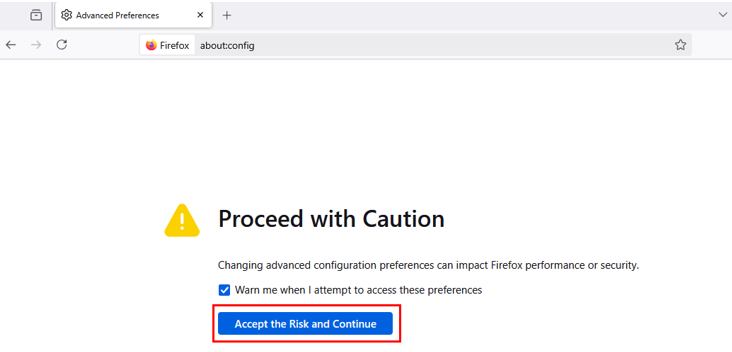
In the search bar, type tls. You’ll notice various entries displayed. Look for security.tls.version.max on the list. Double-click on it and change the value from 4 to 3. By lowering the TLS version, Firefox may allow secure connections with sites that do not yet support TLS 1.3.

Then, restart Firefox and check if the error is resolved.
Add Website to Your Trusted Sites List
If changing TLS settings doesn’t work, add the website to your Trusted Sites list. This will let Firefox bypass certain security restrictions for the selected site.
Below are the steps to add a website to Trusted Sites (Windows):
Press Win + R from your keyboard to open the Run dialog. Type inetcpl.cpl and click Enter. The Internet Properties window will open instantly.

In the Internet Properties window, go to Security, select Trusted Sites, and click Sites.

In the new window, enter the URL of the site that gives the error. Click Add, then Close. Now click Apply, then OK to save changes.

Once done, all browsers on your device, including Firefox, will recognize the site as safe and attempt a secure connection without SSL conflicts.
![Strip Banner Text - Upgrade your website's security with an SSL Certificate. [Buy Now]](https://www.hosted.com/articles/wp-content/uploads/2025/03/ssl-error-rx-record-too-long-2-1024x229.webp "Upgrade your website's security with an SSL Certificate")
FAQS
How do I check if the problem is with the website or my browser?
To find out whether the issue is with the website or your browser, try opening the website on a different browser like Chrome or Edge. If the site works there but not in Firefox, the issue is likely with Firefox settings. You can also try accessing the site from another device or network. If that doesn’t work, the problem could be with the website’s SSL certificate or server settings.
Is this error caused by my browser or the website?
It can be either. The server’s SSL settings are incorrect if the issue is on the website’s side. You won’t be able to fix this unless the website owner updates their configuration. However, if the problem is on your browser’s side, it could be from outdated settings, cached data, proxy configurations, or extensions. In that case, you can fix it by following the troubleshooting steps in this guide.
Is it safe to bypass this error by using HTTP instead of HTTPS?
Using HTTP instead of HTTPS is not recommended because HTTP connections aren’t secure. This means hackers could intercept your data, especially if you enter sensitive information like passwords or payment details. Switching to HTTP should only be a temporary solution to check if the issue is related to SSL, but you should avoid using it for secure browsing.
What tools can I use to check if a website’s SSL certificate is valid?
Several free tools are available to check if a website’s SSL certificate is correctly configured. Some of the best ones include:u003cbru003e- SSL Labs’ SSL Test (ssllabs.com/ssltest): Provides a detailed analysis of the SSL certificate.u003cbru003e- Why No Padlock? (whynopadlock.com): Checks for mixed content and SSL issues.u003cbru003e- SSL Checker (sslshopper.com): Helps verify if the certificate is installed correctly.u003cbru003eIf a website’s SSL certificate has expired or isn’t installed correctly, these tools will help identify the problem so the site owner can fix it.
What is the role of port 443 in SSL connections?
Port 443 is a standard port for all HTTPS traffic, which means secure websites must use this port to establish SSL connections. If a website’s server isn’t configured to listen on port 443, Firefox won’t be able to establish a secure connection, leading to the SSL_ERROR_RX_RECORD_TOO_LONG error. This is a server-side issue that the website owner needs to fix.
Other Related Tutorials & Blogs:
– How To Fix ERR_SSL_VERSION_INTERFERENCE Error
– How To Fix Temporary Failure In Name Resolution Error
– How To Fix 400 Bad Request: Request Header Or Cookie Too Large
– WordPress SSL Certificates and Hosting: Importance for Security
– The Importance of WordPress SSL Certificate for Your Website
- About the Author
- Latest Posts

Rhett isn’t just a writer at Hosted.com – he’s our resident WordPress content guru. With over 6 years of experience as a content writer, with a background in copywriting, journalism, research, and SEO, and a passion for websites.
Rhett authors informative blogs, articles, and Knowledgebase guides that simplify the complexities of WordPress, website builders, domains, and cPanel hosting. Rhett’s clear explanations and practical tips provide valuable resources for anyone wanting to own and build a website. Just don’t ask him about coding before he’s had coffee.