


 Contact Support
 Sign In

Sometimes, you want to reset your WordPress website and start fresh. Maybe your site has too much old content, unwanted plugins, or broken settings that are hard to fix. In this case, resetting your WordPress site gives you a clean slate to rebuild without carrying over old problems.
When you reset your site, all your pages, posts, media files, themes, plugins, and custom settings will be removed from the database. However, the core WordPress installation will remain intact, so you don’t need to reinstall WordPress from scratch. This saves you time and makes the process much simpler.
It’s also important to note that some reset methods may also clean up leftover files (e.g., unused media), but this depends on the tool or method used to build the site. Ensure you back up your site before resetting, as this action cannot be undone.
This tutorial explains 3 different ways to reset WordPress site step-by-step. Whether you wish to use built-in tools, trusted plugins, or do it manually, you’ll find simple, clear methods here.
KEY TAKEAWAYS
- Always back up your site before resetting and keep database details, login info, and a checklist ready for setup.
- Reset using a trusted plugin, SSH, or manual method.
- Manual reset means deleting the database, removing files, and reinstalling WordPress.
- After resetting, reinstall your theme, plugins, and update basic settings.
- Restore important content from your backup if needed.
- Reset each subsite manually if you use WordPress Multisite.
- If you can’t delete a database, check the user permissions or contact support.
- If a reset plugin gets stuck, try updating it, clearing the cache, or disabling other plugins.
TABLE OF CONTENTS
Risks & Considerations Before Resetting
Before you reset WordPress site, it’s essential to understand what will happen. Resetting your site clears almost everything, so you could lose important content if you’re not cautious. Let’s go over what you should know first.
General Risks for All WordPress Sites: As we discussed, when you reset your site, all your pages, blog posts, media files, and templates will be deleted. Any custom CSS you added or changes you made through the Customizer will also be lost. Even the small adjustments you made to your theme design will be removed. After a reset, your site will look like a new WordPress installation.
Additional Risks for Plugin-Enabled Sites: If your site uses plugins, there are a few extra risks to consider. Resetting will delete all installed plugins along with their settings. It’ll also remove any themes you uploaded that aren’t part of the default WordPress setup. Also, your WordPress database and file system will be reset to their default state. This means any saved information added by plugins will be erased.
What Stays Unchanged After Reset: Not everything will be removed. Your site title and some basic WordPress settings will stay the same. However, connected domain names or custom DNS settings won’t be affected. Also, if you have bought a WordPress Hosting plan, Email Hosting services, or any other upgrades, you will not lose these after the WordPress reset.
It’s always a good idea to back up your site before resetting. Some plugin-enabled sites may already have automatic website backups available through the hosting provider. Even if you think you won’t need it, export your content manually.
You can use WordPress’s built-in Export tool to save your posts, pages, and media. Remember, if your site doesn’t use backup plugins or services, you won’t be able to undo the action once you reset.
IMPORTANT:
If you’re working with a staging site on Hosted®, consider that you can’t reset it the same way. Staging sites must be deleted and then recreated from scratch. Always double-check before making changes to staging environments to avoid problems later.
After you understand the risks and considerations, you’re ready to reset your WordPress site.
How to Reset WordPress Site
In this section, we show you 3 ways to reset WordPress to the default:
- Use WP Reset Plugin.
- Reset WordPress Website Manually.
- Use Secure Shell (SSH).
Let’s begin with the easiest approach.
Use WP Reset Plugin
If you want to reset WordPress site quickly and safely, use the WP Reset plugin. While you can reset WordPress manually (we’ll discuss this later), the WP Reset plugin makes the process faster and gives you more control over what you delete.
One big advantage of using this plugin is that it keeps the administrator’s username and password even after you have reset. So, you don’t have to create new login credentials. You can also reactivate the themes and plugins you had installed earlier, which makes setting up your site again much faster. If you took a snapshot, it is even easier to repeat your customizations.
However, it’s important to note that the free version of WP Reset doesn’t work with WordPress Multisite. If you’re running a Multisite network, you will need other options.
Below are the step-by-step instructions on how to reset WordPress site:
Go to WordPress Dashboard → Plugins → Add New. Search for WP Reset. Once the plugin appears, click Install Now.

Once it’s installed, click Activate.

Then, head to Tools → WP Reset in your WordPress dashboard. This is where you’ll find all the reset options.

Before you reset WordPress site, we recommend creating a snapshot. Snapshots are a backup of your site’s current setup. They will help you reinstall your customizations, plugins, or themes later. To create a snapshot:
Switch to Snapshots. Navigate to User Created Snapshots and click Create Snapshot.

A pop-up window will appear, specify the name of your snapshot. Click Create snapshot.
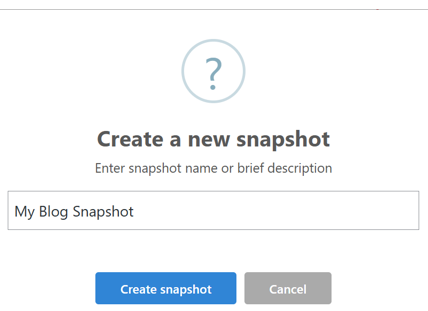
Wait for the snapshot to finish before continuing. Once it’s done, switch to Reset. Scroll down to Site Reset. Type reset into the confirmation box. Then, click Reset Site to start the reset process.

A pop-up will ask if you’re sure you want to reset WordPress. Click Reset WordPress to confirm.

You’ll be redirected to the WordPress Dashboard once the reset is complete. You’ll also see a message confirming that your WordPress site has been successfully reset to default settings.

After the Reset, if you wish to clean up a few more things, go to Tools, where you can delete themes, plugins, widgets, local content, purge the cache, and more.

Just expand the corresponding section and click Delete. In our below example, we clicked on Purge cache to clear the cache.

Reset WordPress Site Manually
If you wish to completely reset your WordPress site without using a plugin, do it manually. This method lets you delete everything and start fresh. It takes a few steps but gives you full control over the reset process.
Here’s how to do it using the Hosted® hosting account:
First, login to cPanel. Navigate to Databases → Manage My Databases. This is where all your website databases are listed.

Find the database that’s linked to your WordPress site. If you’re unsure which database belongs to your site, go to File Manager and open the public_html/wp-config.php file. You’ll see the database name listed there.
WordPress Hosting from Hosted® gives you everything you need to launch, manage, and grow your website.
Enjoy fast performance, robust security, automatic updates, and expert support included in every plan.
Once you’ve found the right database, return to Manage My Databases. Scroll to Current Databases and click Delete next to the website database. This will erase all the site’s data.

After deleting the old database, it’s time to create a new one. On the Manage My Databases page, go to Create New Database, type in a new database name, and click Create Database.

Next, locate Add User to Database on the same page. Choose the existing database and database user (the one your old site used). Then, click Add to connect it to the new database.

When you click Add, you’ll be taken to the following page, shown below. Check ALL PRIVILEGES and click Make Changes to ensure the user has full access.

Now, return to cPanel again and click File Manager under Files.

Head to your website’s root directory – the public_html. Click Select All to select all the WordPress files. Then, click Delete to remove them. However, if you wish to save specific files, such as custom themes, plugins, or images, first open the wp-content folder. Compress and download any files you want to keep before deleting everything.

Next, go to WordPress.org’s download page and click Download WordPress 6.8 to get the latest version of WordPress.
NOTE: The version of WordPress as mentioned above was correct at time of publishing.

Once downloaded, use File Manager to upload the WordPress zip file to your public_html folder.

After the upload finishes, right-click the file and choose Extract.

Ensure you extract the files into the public_html directory. Then, click Extract Files.

A folder named wordpress will appear. Open it, select all the files inside, right-click on them, and choose Move.

When asked for the file path, remove /wordpress to show only /public_html. This ensures the files are placed directly in the right location.

After moving the files, delete the leftover WordPress zip file and the empty wordpress folder to keep everything clean.

Now, you must tell WordPress how to connect to the database. To do that, right-click the wp-config-sample.php file and choose Rename to change its name to:
wp-config.php
Now, right-click the wp-config.php file and choose Edit to open it in the editor. Locate the lines containing:
1. database_name_here
2. username_here
3. password_here
Replace each placeholder with your actual database name, username, and password. After making the updates, click Save Changes in the top-right corner to apply them.

Now, open a browser and go to this link:
https://yourwebsite.com/wp-admin/setup-config.phpReplace yourwebsite with your actual domain name.
You’ll see the WordPress setup page. Choose your preferred language and click Continue.

Then, click Let’s go!

Fill in the form with:
- The new database name.
- The same username and password you used with the old site.
Then, click Submit.

On the next page, hit Run the installation.

Now, fill in the basic details:
- Site title.
- New admin username and password.
- Your email address.
- Option to discourage search engines if you want.
Once you’re done, click Install WordPress to complete the installation.

After that, click Login, enter your new credentials, and you’ll land on your fresh WordPress dashboard.

Use Secure Shell (SSH)
Another option to reset WordPress site is to use SSH, a secure way to connect to a remote computer or web server over the internet using a command-line interface. Here’s how you can follow along with this method:
Open the Windows command prompt or PowerShell (or terminal if you’re using a Linux machine). Type the following command:
ssh username@server-ip -p port-numberEnter your SSH password.
Once connected, run the following command to navigate to WordPress’ installation directory, which is public_html in our case.
cd public_htmlThen, execute this command:
wp site emptyNext, type y and hit Enter when you’re prompted to confirm.

Running wp site empty will clear the posts, comments, and terms tables, effectively removing all site content without impacting site settings or user accounts. For more details and available options, refer to the official documentation.
How to Reset WordPress Multisite
Yes, you can reset a WordPress Multisite, but the process isn’t as quick as resetting a single WordPress site. Since a Multisite setup has many connected sites (called ‘subsites’), you can’t reset everything immediately with a single click.
You’ll need to reset each subsite individually. That means logging into each subsite’s dashboard, clearing its content and restoring its settings manually or using a reset plugin, if your setup allows it.
This process can feel repetitive and time-consuming, especially if you have many subsites. However, taking your time ensures each part of your Multisite network gets a fresh start without missing important details.
What to Do After Resetting Your WordPress Site
Once you’ve reset WordPress site, it’s time to start building it again. First, set up a fresh theme that matches the look you want for your website. You can install a free theme from the WordPress library or upload a premium one you’ve already purchased.
Next, reinstall all the essential plugins you need. Focus on the important ones:
- SEO plugins
- Security plugins
- Backups plugins
- And any other plugins required for your website’s special features.
After that, update your basic site settings. Go to WordPress Dashboard → Settings → General, set your new site title and tagline, scroll down and click Save Changes to apply your changes.

Then, go to Settings → Permalinks and choose the Post name URL structure that is good for SEO.

Also, if you backed up your old content before the reset, now’s the time to restore anything you want to keep, such as blog posts, pages, or media files.
TIP: You may refer to the tutorial, How to Restore WordPress from a Backup: Best Practices to learn how to restore your site smoothly.
Reset WordPress Site: Best Practices
Before you reset a WordPress site, always back it up first. First, test the reset process on a staging site; this is a copy of your live site where you can practice without breaking anything important.
Also, make a checklist of settings you wish to reconfigure after the reset. This can include your preferred permalink structure, media settings, reading settings, and user roles.
Finally, keep your login information handy. You’ll need it to access your new WordPress site once you have completed the reset. Having it written down or saved safely will save you time and stress in the future.
Common Issues You Might Face & How to Fix Them
Sometimes, you may run into problems while resetting your WordPress site. One common issue is being unable to delete database tables. This usually happens due to permission issues. To fix it, ensure that the user for your hosting account has full access to manage databases in cPanel, or contact your hosting support team.
Another problem could be a reset plugin getting stuck or failing to complete the reset. If this happens, check if the plugin is updated using the latest version. Also, clear your site’s cache or try deactivating other plugins that may be causing conflicts.
You may also encounter errors when trying to install WordPress. If you get stuck during installation, double-check that your database connection details (name, username, password) are correct. Fix any mistakes and try the setup again.
![Strip Banner Text - Launch your WordPress site with speed, security, and expert support. [Learn More]](https://www.hosted.com/articles/wp-content/uploads/2025/05/reset-wordpress-site-2-1024x229.webp "Launch your WordPress site with speed, security, and expert support")
FAQS
What happens to my login information after resetting WordPress?
If you manually reset WordPress site, you’ll create new login credentials during setup. If you use a plugin like WP Reset, your existing admin username and password usually stay the same unless you choose to change them.
Can I choose what to delete when resetting my WordPress site?
Yes, some reset plugins, such as WP Reset, let you delete only certain parts, like posts, media, or plugins, while keeping others, depending on which settings you select.
Is it better to reset or reinstall WordPress?
If you want a clean start but wish to keep your WordPress setup, a reset is faster. If you want to remove and rebuild everything completely, a full reinstall gives a deeper clean but takes longer.
Do I need technical knowledge to reset WordPress site manually?
A little technical knowledge helps when resetting manually, especially when working with databases and file managers, but clear step-by-step guides can make it easier for beginners, too.
What’s the difference between resetting and restoring a WordPress site?
Resetting wipes everything and gives you a fresh start. Restoring means returning a backup version of your site, usually to fix a problem or undo changes.
Other Related Tutorials
– How to Reinstall WordPress: Troubleshooting Guide
– WordPress Recovery Mode: Everything You Need to Know
– How to Export A WordPress Site: A Step-By-Step Guide
– How To Fix ERR_CACHE_MISS in Google Chrome
– 403 Forbidden Error Explained: Easy Fixes for Your Website
- About the Author
- Latest Posts

Rhett isn’t just a writer at Hosted.com – he’s our resident WordPress content guru. With over 6 years of experience as a content writer, with a background in copywriting, journalism, research, and SEO, and a passion for websites.
Rhett authors informative blogs, articles, and Knowledgebase guides that simplify the complexities of WordPress, website builders, domains, and cPanel hosting. Rhett’s clear explanations and practical tips provide valuable resources for anyone wanting to own and build a website. Just don’t ask him about coding before he’s had coffee.