


 Contact Support
 Sign In

This tutorial focuses on four easy and effective ways to add JavaScript to WordPress. First, we explore using plugins to simplify the process, even if you’re not a developer. Then, we dive into WordPress hooks, which give you more control if you’re comfortable working with some code.
JavaScript makes your websites interactive and fun to use. It’s a powerful tool that helps you add dynamic features, such as sliders, pop-ups, and animations, making your site modern and user-friendly. Whether you want to improve functionality or create a better experience for your audience, JavaScript is an essential part of web development.
Third, we show you how to load multiple JavaScript files efficiently, and lastly, how to create a custom plugin to keep your JavaScript files separate from the WordPress theme files.
KEY TAKEAWAYS
- Add JavaScript to WordPress site to improve its functionality and make it more interactive.
- Use the WPCode plugin to easily insert JavaScript without editing theme files.
- For more control, use WordPress hooks like wp_head and wp_footer to manually add JavaScript.
- The wp_enqueue_script function is the best way to load JavaScript files and avoid conflicts.
- You can target specific pages or posts using conditional tags like is_page() or is_single().
- Always test your JavaScript code on a staging site before applying it to your live site.
- Minify your JavaScript files to speed up your website and improve user experience.
- Create a custom plugin to manage JavaScript separately from your theme.
- Follow best practices, like writing clean code and using version control; this ensures smooth performance and easy maintenance.
TABLE OF CONTENTS
Precautions Before Adding JavaScript to WordPress
Before you add JavaScript to your WordPress site, you should take some precautions to keep your website safe and working properly. Making changes without preparation can sometimes cause issues, but these straightforward steps will help you avoid problems.
- Create Website Backup:
Always create a complete backup of your WordPress site before making any changes. A backup helps restore your site to its original state if something goes wrong. Many hosting providers offer one-click backups, or you can use a plugin (like UpdraftPlus) to save your files and database.
- Test Changes on a Staging Site:
Instead of making modifications directly on your live site, use a staging site to test your JavaScript code. A staging site is a copy of your website where you can safely make updates without affecting visitors.
Many hosting providers offer a staging environment, or you can create one using a plugin like WP Staging. Once you’ve tested and confirmed everything works, you can apply the changes to your live site.
- Use a Child Theme if Editing Theme Files:
If you plan to add JavaScript by editing your theme files, always use a child theme. This separate layer inherits the main theme’s features while allowing you to make changes. It ensures your custom code won’t be overwritten when you update your theme.
Follow these precautions to safely add JavaScript to WordPress site without disrupting its performance or user experience. Use these steps to save time and effort if something doesn’t go as planned.
4 Ways to Add JavaScript to WordPress Pages
There are multiple ways to add JavaScript to your WordPress site, each suited to different needs and levels of technical skill. Whether you’re a beginner looking for simple options or a developer wanting more control, WordPress provides flexible methods that including JavaScript. Below are 4 options that you can explore to choose the best one for your website:
- Use WPCode Plugin
- Use WordPress Hooks
- Enqueuing JavaScript Properly
- Create Custom Plugin.
Each method has its benefits, and the right choice depends on your technical skills and the complexity of your needs. In the next sections, we’ll discuss these methods in detail, providing step-by-step instructions to help you implement JavaScript on your WordPress site smoothly and effectively.
Use WPCode to Add JavaScript to WordPress
A plugin is one of the easiest and safest ways to add JavaScript to a WordPress site. It’s a beginner-friendly option that allows you to manage scripts without the risk of breaking your website.
WordPress plugins simplify the process, making it easy to insert, edit, or remove JavaScript code directly from your WordPress dashboard. They also help ensure your custom code remains intact even after theme updates, a common issue when editing theme files manually.
One of the best plugins for adding JavaScript is WPCode. This tool is designed to help you add custom code, including JavaScript, with minimal effort.
It comes with a user-friendly interface and flexible options for inserting scripts into your site. Whether you want to run your code site-wide or only on specific pages, WPCode makes it easy to control where and how your JavaScript is executed.
To get started, install and activate the WPCode plugin from your WordPress dashboard. To do this, navigate to Plugins → Add New Plugin, search for WPCode, then click Install Now followed by Activate.

Once the plugin is active, go to Code Snippets → + Add Snippet and click + Add Custom Snippet to create a new JavaScript snippet.

Choose your snippet’s code type, which is JavaScript in this example.

Next, give your snippet a meaningful name, like Add JavaScript to WordPress, and paste your JavaScript code into Code Preview. For example, you may add a simple script like:
alert('Hello, WordPress!');
WPCode offers two main methods for inserting your script: Auto Insert and Shortcode. With Auto Insert, you set the script to load automatically in specific locations, such as the header or footer. This is ideal for scripts that need to run throughout the site.
On the other hand, the Shortcode option allows you to place the script in specific posts, pages, or WordPress widgets by copying and pasting a shortcode generated by WPCode.
For example, if you choose Auto Insert, select Site Wide Header or Site Wide Footer as the location. Then, activate and save the snippet.

However, if you prefer to use the shortcode, copy the provided shortcode (e.g., [wpcode id=”1926″]) and paste it where you want the script to run. Both methods are easy to use and offer flexibility to control your JavaScript implementation.

Important:
Whether you use the Auto Insert or Shortcode insertion method, ensure you activate and save your code snippet.
Manually Add JavaScript Using WordPress Hooks
If you’re comfortable working with code, manually adding JavaScript using WordPress hooks gives you more control over where and how your scripts are loaded. WordPress hooks allow you to add custom functionality to your site without directly editing theme files. Let’s explore the meaning of hooks and how to use them to add JavaScript to WordPress website.
In WordPress, hooks are specific points in the code where you can hook your custom functions. They let you add or modify functionality without changing WordPress core files. Action hooks are a type of hook that allows you to execute code at specific times, like when a page is loading.
For example, you can use the wp_head and wp_footer action hooks to include JavaScript in the footer or header of your site. These hooks are essential because they help you load scripts in the correct place and avoid conflicts with other plugins or themes.
Use these hooks by adding code to your active theme’s functions.php file. You can access this PHP file using an FTP client, your hosting provider’s File Manager feature, or by navigating to WordPress Dashboard → Appearance → Theme File Editor → functions.php.
We recommend using a child theme rather than modifying the theme files directly. If you’re a Hosted® user, you can edit and upload files to your child theme directory using the Hosted® File Manager.

Once you access the functions.php file, you can add JavaScript to WordPress site as follows:
Add JavaScript to WordPress Header with wp_head
The wp_head hook runs in your website’s <head> section. You can use it to include JavaScript; this needs to load before the page content, like analytics tracking scripts.
Here’s an example of adding JavaScript using the wp_head hook:
function add_custom_js_to_header() {
echo '<script>console.log("JavaScript in Header");</script>';
}
add_action('wp_head', 'add_custom_js_to_header');
By default, the snippet will be loaded in the <head> section of every page and applied across all posts and pages on the site.
Add JavaScript to WordPress Footer with wp_footer
The wp_footer hook runs just before the closing </body> tag. It’s ideal for scripts that don’t need to load immediately, like chat widgets or performance monitoring tools.
Here’s how to add JavaScript to the footer:
function add_custom_js_to_footer() {
echo '<script>console.log("JavaScript in Footer");</script>';
}
add_action('wp_footer', 'add_custom_js_to_footer');
This script will load in all the footers of every page of your site, improving page load times by delaying non-essential scripts.
Target Specific Pages or Posts
Sometimes, you only want to load JavaScript on certain pages or posts. WordPress makes this possible with conditional tags like is_page and is_single. For example, to load a script on a specific page, you can use is_page as follows:
function add_js_to_specific_page() {
if (is_page('about')) {
echo '<script>console.log("JavaScript for About Page");</script>';
}
}
add_action('wp_head', 'add_js_to_specific_page');
In this case, the script will only run on the page with the slug about. You can replace about with the ID or title of the page you want.
However, to target a specific WordPress post, use is_single:
function add_js_to_specific_post() {
if (is_single('123')) {
echo '<script>console.log("JavaScript for Post 123");</script>';
}
}
add_action('wp_head', 'add_js_to_specific_post');
Here, the script will only load on the post with the ID 123.
TIP: You can also use the block called Custom HTML to insert code directly into a specific WordPress page.
Enqueuing JavaScript Properly in WordPress
So far, we’ve explored how WordPress effectively adds JavaScript to specific page setups, individual posts, or even the entire website. What if you have multiple scripts? Remember, adding multiple JavaScript snippets directly to the theme file can lead to conflicts and may impact site performance.
This is where enqueuing comes into the picture. Enqueuing JavaScript is the proper way to add scripts to your WordPress site. It ensures your scripts load at the right time and don’t conflict with other plugins or themes.
WordPress provides a built-in function called wp_enqueue_script to organize this process efficiently. Instead of directly embedding JavaScript into your theme files, this function helps you manage your scripts better.
Here’s how to enqueue JavaScript scripts in WordPress:
Navigate to the following directory and create a new folder named js. It will help you manage if you have multiple scripts.
public_html/wp-content/themes/your-theme-name
Inside the js folder, create a dedicated JavaScript file for your custom code (in the example, we named it custom.js). Keeping your scripts in a separate file helps organize your site and makes future updates easier.

Write your JavaScript code in the file, such as:
console.log('Custom JavaScript is working!');Then, save your file.

Next, register and enqueue the script in your theme’s functions.php file. To do this, open the file and add the following code if you want your script to be registered for conditional use and wish to specify dependencies or a specific version:
function enqueue_custom_script() {
wp_register_script(
'custom-script',
get_stylesheet_directory_uri() . '/js/custom.js',
array('jquery'),
'1.0',
true
);
wp_enqueue_script('custom-script');
}
add_action('wp_enqueue_scripts', 'enqueue_custom_script');
In the above code snippet, the wp_register_script() function registers the JavaScript file (custom.js) with WordPress, associating it with the handle ‘custom-script’. It specifies:
- ‘custom-script’ is the unique name for your script, helping WordPress identify it.
- get_stylesheet_directory_uri() . ‘/js/custom.js’ specifies the location of your JavaScript file in the child theme folder.
- array() lists any dependencies, like jQuery. Leave it empty if there are none.
- 1.0 is the version number, which ensures browsers always load the latest version. However, if you want to avoid caching issues, specify null here.
- true ensures the script loads in the footer, which is recommended for faster page loads.
Work smarter with Hosted®’s WordPress Hosting that integrates essential features such as WP-CLI, GIT support, and SFTP access.
This platform is specifically tailored to simplify your workflow and provide the support you need to build and maintain high-quality websites.
The wp_enqueue_script() function tells WordPress to include the registered script (custom-script) on the site. Lastly, the add_action() hooks the enqueue_custom_script function to WordPress’ wp_enqueue_scripts action. This ensures the function runs at the right time to load scripts and styles properly on the site.

However, you can use the following code if the script is always needed without special conditions and no dependencies or versioning is required.
function enqueue_custom_script() {
wp_enqueue_script(
'custom-script',
get_stylesheet_directory_uri() . '/js/custom.js',
array(),
null,
true
);
}
add_action('wp_enqueue_scripts', 'enqueue_custom_script');
This code is like the previous example except for one difference – not registering the JavaScript script with WordPress.
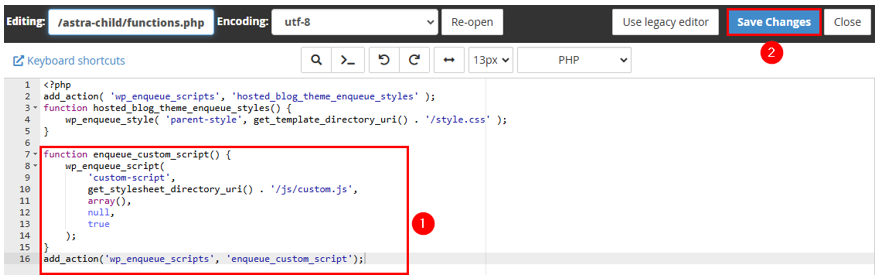
Important: The above code snippets will work perfectly if you’re editing the functions.php file of your child theme. But if you’re working on the parent theme’s functions.php file, you should replace get_stylesheet_directory_uri() with get_template_directory_uri(). Remember, get_template_directory_uri() points to the parent theme’s folder. However, get_stylesheet_directory_uri() points to the child theme’s folder. Use the correct function based on whether you’re working with the parent or child theme.
After saving your functions.php file, visit your site to confirm the script works. To do this, open your browser’s Developer Console (by pressing F12) and look for the message from your JavaScript file. If you see Custom JavaScript is working! in the console, your script has been successfully loaded.
Here are the outputs based on the code given above:

Create a Custom Plugin to Add JavaScript to WordPress
Create a plugin to keep your JavaScript files organized and separate from your WordPress theme files. This will make managing your code easier and ensure your changes won’t be lost when you update your theme. Let’s walk through the steps to create your plugin for adding JavaScript to your WordPress site.
Create a Plugin Directory
Navigate to the following directory in your WordPress installation:
wp-content/plugins: This is where all your plugins are stored. Inside this folder, create a new directory and name it something meaningful, such as a custom-javascript-plugin. The folder name should describe the purpose of your plugin for easy identification later.

Create a Plugin File
Inside your newly created folder, create a PHP file and name it my-custom-javascript-plugin.php, which will contain the main code for your plugin.

Open the file in a text editor or code editor and add the following header to describe your plugin:
<?php
/*
Plugin Name: My WordPress JavaScript Plugin
Plugin URI: http://example.com/
Description: This WordPress plugin contains my JavaScript code.
Version: 1.0
Author: Your Name
Author URI: http://example.com/
*/
?>
Replace the placeholder text (e.g., Plugin Name, Plugin URI, Plugin Name, Description, Author, and Author URI) with details about your plugin and yourself. The header tells WordPress about the plugin and needs to appear in the admin panel.

Add Your JavaScript Code
Now it’s time to add your JavaScript. Place the following code below the header but before the closing PHP tag in your file:
function add_custom_js() {
echo '<script>console.log("Hello, WordPress!");</script>';
}
add_action('wp_footer', 'add_custom_js');
This code defines a function add_custom_js() that outputs JavaScript to your site’s footer. The add_action function tells WordPress to run this code when the wp_footer hook is triggered. You can replace the sample JavaScript (console.log) with your specific code.
Next, save your my-custom-javascript-plugin.php file and ensure it is stored inside the custom-javascript-plugin folder you created earlier. However, if you are working locally, upload the entire plugin folder to your WordPress server using an FTP client or your hosting’s File Manager. Ensure the plugin is in the wp-content/plugins directory.

Activate Plugin
Now sign in to your WordPress Admin Dashboard and go to Plugins. You should see your new plugin listed. Click Activate to enable it. Once activated, the JavaScript code from your plugin will be added to your site.

To confirm that your plugin works, visit your website and check functionality. For example, if you used the console.log JavaScript code, open your browser’s Developer Console (press F12 or use Ctrl + Shift + I hotkey combination on Windows) and look for the message. If it appears, your plugin is successfully adding JavaScript to your site.

Best Practices & Helpful Tips
When adding JavaScript to your WordPress site, following best practices ensures your website runs smoothly and efficiently. These tips will assist you in writing better code, optimizing performance, and managing your scripts effectively.
Write Clean & Efficient JavaScript
Writing clean, organized JavaScript is important to avoid errors and make your code easier to understand and update later. Always use meaningful variable and function names to describe what your code does. For example, instead of naming a function x(), name it show_alert_message().
Break your code into smaller, reusable functions so it’s easier to debug if something goes wrong. Use comments to explain complex parts of your code. This way, if you or someone else needs to edit it later, it’ll be clear what each part does.
TIP: To learn about the debug mode, refer to the tutorial WordPress Debug Mode: How to Enable It & Fix Errors.
Always Test JavaScript Code
As we discussed, always test JavaScript code in a staging environment before adding it to your live WordPress site. Here, you can safely test changes without affecting visitors. If you use Hosted®’s WordPress Hosting, you’ll get this feature on all plans.
Remember, testing your code ensures it works as expected and doesn’t cause problems with other parts of your site. After testing, double-check everything (especially interactive elements like forms or buttons) to ensure they function properly.
Minify JavaScript Files
Minifying your scripts is especially helpful when using the WordPress add JavaScript to specific page functionality; it reduces file size and speeds up page load times. This removes unnecessary spaces, comments, and extra characters from your code. Smaller file sizes mean quicker downloads for users, improving website performance and user experience.
You can use tools like UglifyJS, Terser, or online services like Minifier to minify your scripts. If you prefer plugins, try Autoptimize or WP Rocket, which can automatically minify JavaScript files on your WordPress site.
Use Version Control
Version control is a system that tracks changes in your code over time, making it easier to collaborate with others and roll back to earlier versions if something breaks. A popular version control system is Git, which lets you create a repository to store and manage your code.
Using Git, you can experiment with new features or fix bugs without worrying about losing your previous work. It’s useful for teams working on the same project, as everyone can see changes, add comments, and merge their updates seamlessly.
Follow these best practices to keep your JavaScript clean, efficient, and easy to manage. These tips improve your workflow and create a smoother, faster user experience.
![Strip Banner Text - Developer-friendly WordPress Hosting with WP-CLI, SFTP, Shell Access, and GIT. [Get started]](https://www.hosted.com/articles/wp-content/uploads/2025/02/add-javascript-to-wordpress-2-1-1024x229.webp "Developer-friendly WordPress Hosting with WP-CLI, SFTP, Shell Access, and GIT")
FAQS
Can I use JavaScript with WordPress Block Editor (Gutenberg)?
Yes, you can add JavaScript directly to pages or posts created with the WordPress Block Editor (Gutenberg). Use the Custom HTML block to insert small JavaScript snippets. For more complex scripts, consider enqueuing your JavaScript files or using plugins that integrate well with Gutenberg, ensuring they work seamlessly with your content.
Can I add external JavaScript libraries to WordPress?
Yes, you can easily add external JavaScript libraries to WordPress. The best way is to use the wp_enqueue_script function in your theme’s functions.php file. This allows you to include libraries like jQuery, Bootstrap, or custom third-party scripts while ensuring compatibility with other parts of your site.
Does WordPress support JavaScript?
Yes, WordPress fully supports JavaScript. You can add JavaScript to your site in various ways, such as through plugins, the theme’s functions.php file, or by directly embedding code in pages or posts using the Block Editor. WordPress also supports popular JavaScript libraries like jQuery, which is included by default.
What is the best way to add JavaScript in WordPress?
The best method depends on your needs and technical skills. Plugins like WPCode or the Custom HTML block work well for one-time scripts. For larger or recurring scripts, use wp_enqueue_script in your theme’s functions.php file, as it organizes your code and prevents conflicts.
Does adding JavaScript slow down my WordPress site?
JavaScript can slow down your website if it’s not implemented properly. Scripts that block page rendering, load unnecessarily on all pages, or aren’t optimized can impact performance. To minimize the impact, load scripts in the footer, use minified files, and only add JavaScript to the pages where it’s needed.
Other Related Tutorial
– How To Embed A Google Form In WordPress
– How To Add Expires Headers In WordPress: 2 Easy Methods
– How To Use WordPress Robots.txt & Optimize For Search Engines
– How To Enable GZIP Compression For WordPress Sites
– How To Convert Figma To WordPress: A Step-by-Step Guide
- About the Author
- Latest Posts

Rhett isn’t just a writer at Hosted.com – he’s our resident WordPress content guru. With over 6 years of experience as a content writer, with a background in copywriting, journalism, research, and SEO, and a passion for websites.
Rhett authors informative blogs, articles, and Knowledgebase guides that simplify the complexities of WordPress, website builders, domains, and cPanel hosting. Rhett’s clear explanations and practical tips provide valuable resources for anyone wanting to own and build a website. Just don’t ask him about coding before he’s had coffee.