


 Contact Support
 Sign In

Menus are an important part of any website. They help visitors find what they need quickly. In WordPress, menus make it easy to organize your pages, posts, and links in one place. A well-structured menu improves navigation, making your site user-friendly.
In this tutorial, we explain what a WordPress dropdown menu is and what benefits it provides. Then, we show you how to create a dropdown menu in WordPress using 3 different methods.
Whether you use the built-in menu editor, a Navigation block, or a plugin, we’ll walk you through each method step by step, guiding you through the best practices for structuring it. By the end, you’ll know how to set up a menu that improves navigation and enhances the user experience on your WordPress website.
KEY TAKEAWAYS
- A WordPress dropdown menu helps organize your website’s navigation, making it easier for visitors to find content.
- You can create a dropdown menu without coding using the WordPress menu editor, a Navigation block, and a plugin.
- When you drag a WordPress menu item a little to the right under another item, you create a submenu, forming a dropdown structure.
- Use CSS to change the look of your dropdown menu, spacing, and animations.
- Always test your dropdown menu on mobile devices to ensure it works well on different screen sizes.
- Avoid too many submenu levels to keep navigation simple and user-friendly.
- A well-structured dropdown menu improves user experience and SEO, helping visitors and search engines navigate your site easily.
TABLE OF CONTENTS
What is a WordPress Dropdown Menu?
A dropdown menu in WordPress is a navigation menu where sub-items appear when you hover over or click on a main menu item. Instead of displaying all the links simultaneously, a dropdown organizes them in layers. This keeps the menu neat and easy to use.
For example, if you have an About menu item, you can add sub-items like Our Team and Our Story. These links stay hidden until the user clicks or hovers over About. This helps visitors find the right information without cluttering the main menu. This also makes your site look neat and professional.
Now, you may wonder when you should create a WordPress dropdown list. This is useful for websites with many pages. For instance,
A company website may use a dropdown under Domains to list various offerings like Register Domain, Transfer Domain, AI Domain Name Generator, etc.

Online shops can organize product categories under main menu items like SCHOOL SUPPLIES into Stationery and Bags, where they can also have further WordPress submenu dropdowns. See the following screenshot:

Similarly, educational institutions or online courses can group lessons or subjects under categories like Math, Science, and History. Portfolio websites, such as those for photographers or designers, can help them categorize their work under sections like Portraits, Landscapes, and Illustrations. Remember, a main menu item must have a relevant WordPress dropdown list.
Benefits of Using WordPress Dropdown Menus
A dropdown menu helps keep your site organized, especially if you have many pages. Instead of displaying all links in one place, you can group related pages under one main menu item. This makes navigation simpler because users can easily locate what they need without being overwhelmed by too many options.
Another advantage is that it improves the user experience. A well-structured menu allows visitors to move around your site effortlessly. They don’t have to scroll through long lists of links to locate a specific page. Instead, they can hover over a main menu item and quickly access the content they are searching for.
Dropdown menus also save space. Listing every page in the main menu can look sloppy, especially on smaller screens. A dropdown helps keep your website design clean and professional by showing sub-items only when needed. This makes the menu more visually appealing and easier to navigate.
Additionally, a well-organized dropdown menu can enhance your website’s SEO. Search engines can better understand your website’s structure when pages are properly linked within the menu. This can improve your rankings in search results, helping more people find your content online.
Overall, dropdown menus make navigation smoother and improve your website’s appearance. By using them accurately, you can create a better experience for visitors while keeping your site easy to explore.
How to Setup A WordPress Dropdown Menu
WordPress offers multiple ways to create dropdown menus, depending on your needs and level of customization. In this section, we explore 3 methods:
- Using Built-in Menu Editor
- Adding a WordPress Block
- Using a Plugin.
The first method is the simplest and most used. It allows you to create a dropdown menu directly from the WordPress dashboard, which is best for those who prefer an easy-to-use, built-in solution without extra plugins.
The WordPress block method lets you add a dropdown menu within pages or posts using the Navigation block in the Block Editor. This method is useful for placing menus in specific areas rather than using a global navigation bar.
Finally, you can use a WordPress plugin like Max Mega Menu for more customization options. This approach provides extra features such as multi-column layouts, animations, and styling controls.
Let’s start with the first method to learn how to create a dropdown menu in WordPress’s built-in menu editor.
Use Built-in Menu Editor
WordPress has a built-in menu editor that allows you to create a dropdown menu in just a few steps. You can add pages, posts, or custom links and arrange them easily. Follow the steps below to set up your WordPress dropdown menu:
First, log in to your WordPress site by going to yourwebsite.com/wp-admin and entering your login details. Once inside, you’ll see the WordPress dashboard. In the left-hand menu, go to Appearance → Menus. This is where you can create and manage your website’s navigation menus.
If you don’t have a menu yet, write a name for your menu (e.g., Main Menu), choose the menu’s Display location, and click Create Menu.

Now, if you want to create a second menu, click create a new menu or choose your menu and click Select to edit the existing WordPress dropdown menu.

Next, on the left-hand side, you’ll see options to add Pages, Posts, Categories, Tags, or Custom Links to your menu. To add a page, check the box next to it and click Add to Menu. Similarly, you can add Posts, Categories, and Tags.

However, to add a custom link, enter the URL and Link Text, then click Add to Menu.

After adding your menu items, you can arrange them by dragging and dropping them into your desired order. In our example, we moved the Home menu item to the top.

Then, to make a WordPress dropdown menu, drag a menu item slightly to the right under another main item. This makes it a submenu of the parent item. You can add multiple sub-items under one parent to create a structured dropdown list.
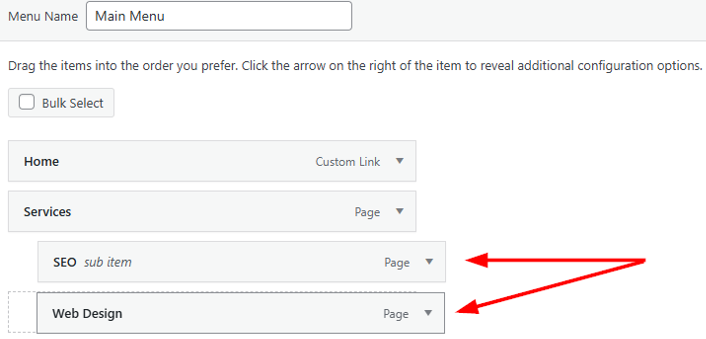
Finally, click Save Menu to apply the changes.

Now, your WordPress site has a dropdown menu. Visit your site and click or hover over the parent menu item to see the submenu appear. This method is beginner-friendly and works with most WordPress themes.
IMPORTANT:
To see a live preview while adjusting menu locations, click Manage with Live Preview at the top of the Menus page. This feature is particularly useful when designing multi-level dropdown menus. In preview mode, any changes made in the WordPress Customizer will be updated instantly, allowing you to fine-tune the menu before publishing it directly from this view.
Style Your WordPress Dropdown Menu
Once your WordPress dropdown menu is created and placed in the required location, it’s time to customize it using CSS. This lets you change the font, colors, spacing, and animations to match your website’s design. Here’s how:
First, enable CSS classes for menu items in WordPress. This feature allows you to assign unique styles to different parts of your menu, making it easier to apply custom designs. Without enabling CSS classes, WordPress will not provide an option to add custom class names to individual menu items.
To enable CSS classes for menu items, follow these steps:
Go to your Appearance → Menus. Locate Screen Options at the top right and click on it. Check the box labeled CSS Classes to enable custom styling for menu items.

After enabling CSS customization, the next step is to assign custom class names to your menu items. This step is essential because it allows you to target specific items in your menu and apply different styles to them. Without custom class names, all menu items would have the same appearance, making it harder to create a unique design.
To assign a custom CSS class to a menu item:
Navigate to Appearance → Menus in your WordPress admin dashboard. Expand the menu item you want to customize by clicking the small arrow next to it. Locate CSS Classes and enter a class name (e.g., custom-dropdown). Then, click Save Menu to apply the changes.

Once custom class names have been assigned, you can start applying CSS rules to style the WordPress dropdown menu. These styles can be added in Appearance → Customize → Additional CSS or directly in your theme’s style.css (you can access this file by navigating to Appearance → Theme File Editor, using your hosting’s File Manager or FTP client).
The goal is to make the dropdown menu visually appealing while ensuring it remains functional and accessible. Below is an example of how you can style a dropdown menu using CSS:
/* Style the main menu */
.custom-dropdown {
background-color: #333;
color: #fff;
padding: 10px;
display: inline-block;
position: relative;
}

/* Style the dropdown container */
.custom-dropdown ul {
display: none;
position: absolute;
background-color: #444;
padding: 10px;
list-style: none;
top: 100%;
left: 0;
min-width: 150px;
}

/* Show the dropdown on hover */
.custom-dropdown:hover ul {
display: block;
}

/* Style dropdown links */
.custom-dropdown ul li {
padding: 8px 12px;
}
.custom-dropdown ul li a {
color: white;
text-decoration: none;
display: block;
padding: 5px;
}

/* Add hover effect */
.custom-dropdown ul li a:hover {
background-color: #555;
}
This CSS code improves the dropdown menu’s appearance and functionality. The .custom-dropdown class defines the main menu item, while the ul inside it is hidden by default.
When a user hovers over the menu item, the dropdown appears, creating a seamless navigation experience. Also, padding, background colors, and hover effects enhance usability and readability.
Use Block Editor’s Navigation Block
If you use a block-based WordPress theme, you can create a dropdown menu directly in the editor. This method is useful when designing custom pages or WordPress templates.
The Navigation block allows you to add and arrange menu items just like the built-in menu editor but with more design flexibility. Here’s how to create a WordPress dropdown menu using the Navigation block:
First, log into your WordPress dashboard and go to Pages → All Pages (or Posts → All Posts). Click Edit on the post or page where you want to add the dropdown menu. If you’re working on a Full Site Editing (FSE) theme, go to Appearance → Editor and edit the page or template where you want to add a dropdown menu.

Then, click + to insert a new WordPress block. In the search bar, type Navigation and select Navigation. This block allows you to create a menu directly inside the editor.

This will create two menu items by default (Blog and Home). Click + inside Navigation to add more menu items. You can add existing pages, posts, WordPress categories, or custom links.

Next, select your main menu item and click Add Submenu.

This shows a list of pages that you can choose from as a submenu item, or you can insert custom links.

Then, select your Navigation block. Switch to Block. Here under Menus, you can drag a menu item to change order or drag slightly to the right under another menu item. This action nests the sub-item under the parent item, creating a dropdown. You can add multiple levels of submenus if necessary.

The good thing about Navigation is that the block comes with styling options. You can adjust menu alignment (left, center, right), change text size and colors, add spacing between menu items, and enable mobile-friendly settings. You can do this all by navigating to Settings and Styles under Block.

Once you’re happy with the WordPress dropdown menu design, click Save to apply the changes.
Use WordPress Plugin
Another method to create a WordPress dropdown menu is to use a plugin. Plugins allow you to customize your dropdown menu with extra features like icons, animations, multi-column layouts, and advanced styling options. This method is useful if your theme does not have built-in menu customization or if you need a mega menu with multiple levels.
To get started, you need to install a menu plugin. For this tutorial example, we use the Max Mega Menu. To use it, you first need to install and activate this plugin. Once activated, the plugin will add a new Mega Menu section to your WordPress dashboard.
Navigate to Mega Menu → Menu Locations. Find your Primary Menu and expand to check the box Enable Max Mega Menu for this menu location. Also, choose how the WordPress dropdown menu should work. You can select Hover, Hove Intent, or Click.
Then, pick an animation style for the dropdown menu on both desktop and mobile. Lastly, click Save Changes to apply your settings.

Now, the Max Mega Menu is active for your primary menu, and you can start customizing it to ensure it blends well with your website’s design and branding.
By default, the plugin uses your theme’s existing menu style. However, you can change the look of the menu using Menu Themes. Here’s how:
Navigate to Mega Menu → Menu Themes. Ensure the Select theme to edit option points to your Primary Menu. Now, you can hop from one tab to another to customize the menu by adjusting colors and backgrounds to match your website style. You can also change font size and spacing for better readability.
You can also revise the dropdown animation to make the menu more interactive. After making changes, click Save Changes to update the menu design.

Now that the menu is enabled and customized, it’s time to add menu items. To do this, head over to Appearance → Menus in your WordPress dashboard. Select your Primary Menu (or create a new menu if needed). Add pages, posts, categories, or custom links to the menu. Use drag-and-drop to arrange the items in the order you want.
And, to create a WordPress dropdown menu, drag a submenu item slightly to the right under a parent item. Lastly, click Save Menu to finalize the step (we’ve already covered this in detail above, in the first solution).
Best Practices to Structure Dropdown Menu
A well-structured dropdown menu improves user experience by making navigation smooth and intuitive. If your menu is too cluttered or poorly organized, visitors may struggle to find the right pages and leave your site. To prevent this, follow these best practices when designing your menu layout, structuring submenus, and ensuring accessibility.
Plan Menu Layout
Before adding menu items, it’s important to plan the structure carefully. Organizing your content logically ensures that users can easily find what they need. A well-planned menu groups similar pages under relevant categories. For example, a Services menu could include options like Web Design, SEO, and Content Writing.
You also need to choose parent menu items wisely. A parent menu should represent a broad category, while its dropdown items should provide more specific details. This keeps the main navigation bar clean.
Maintain a Clear Hierarchy
A good menu should have a clear and simple hierarchy. If there are too many dropdown levels, users may find it difficult to browse, especially on mobile devices. Keeping dropdown menus limited to one or two levels makes navigation easier.
Another important aspect is using clear and descriptive labels for menu items. Instead of generic terms like Info or More, use labels like Pricing, Support, or Testimonials. This helps users immediately understand what each menu option represents. A well-organized hierarchy makes your menu intuitive and improves user engagement.
Ensure Accessibility & Responsiveness
Your dropdown menu should be accessible to all users, including those using screen readers or keyboard navigation. Some visitors use the Tab key instead of a mouse to browse websites. To improve usability, ensure menu items can be selected and expanded with keyboard controls.
Moreover, responsive design is essential for mobile users. A menu that works well on desktops but is hard to use on smaller screens can frustrate visitors. Testing your menu on different screen sizes ensures a smooth experience across all devices. Also, clickable areas should be large enough to tap easily on mobile screens, preventing mis-clicks.
Don’t Hardcode WordPress Dropdown Menus
In most cases, if you use WordPress, adding a dropdown menu using PHP code is not the best approach. WordPress provides a built-in menu management system that is user-friendly and flexible, allowing you to create dropdown menus without any code.
However, if you need complete control over the HTML structure, styling, or performance optimization, manually coding a dropdown menu using PHP can be an option.
Remember, hardcoding menus may be useful for static websites where the menu structure rarely changes, as it eliminates database queries, potentially making the site load faster. But this comes at the cost of flexibility; every menu update would require editing theme files, which is time-consuming and error-prone.
From the best practices standpoint, relying on WordPress functions like wp_nav_menu() is the recommended approach. This method ensures your menu remains dynamic, SEO-friendly, and compatible with WordPress updates and plugins.
Additionally, WordPress automatically applies the necessary CSS classes (.menu-item-has-children, .current-menu-item, etc.), making it easier to style dropdown menus using CSS without extra coding.
So, unless you have a specific reason to hardcode your dropdown menu, such as a highly customized layout that standard menus can’t achieve, it is better to use the built-in WordPress menu system.
This will save time, reduce maintenance effort, and ensure compatibility with future updates. If customization is required, you can always apply custom CSS or JavaScript to enhance the default menu behavior rather than rewriting the entire menu system in PHP.
![Strip Banner Text - Run your website with the best WordPress Hosting from Hosted®. [Get started]](https://www.hosted.com/articles/wp-content/uploads/2025/02/wordpress-dropdown-menu-2.webp "Run your website with the best WordPress Hosting from Hosted®.")
FAQS
What’s the difference between a hover dropdown and a click dropdown?
A hover dropdown shows submenu items when users move their mouse over a menu item, while a click dropdown requires a click to expand. Hover menus are faster but don’t work well on touchscreens. Click menus offer better control, especially for mobile users. A click-based dropdown is the better choice if your site gets a lot of mobile traffic.
Can I use images or icons in my dropdown menu?
Yes! You can add icons or images to make your dropdown menu more engaging. Some themes support menu icons by default, while others require a plugin like Menu Image.
Do dropdown menus affect website speed?
Dropdown menus don’t significantly affect website speed unless they rely on heavy JavaScript or large images. Poorly coded menu plugins can slow down performance, so choosing a lightweight, well-optimized theme or plugin is important. Using CSS-based dropdowns instead of JavaScript-heavy menus can help maintain fast page loading times and improve user experience.
Why is my WordPress dropdown menu overlapping with other content?
If your dropdown menu overlaps with text or images, incorrect CSS positioning may be the issue. Check your theme settings for dropdown adjustments. Ensure the menu uses absolute positioning to prevent interference. If using a plugin, tweak its display settings. Test on different screen sizes to spot and fix layout problems effectively.
How many levels of dropdown menus can I create in WordPress?
WordPress allows you to create multiple levels of dropdown menus. You can add submenus under a main menu item and even create nested submenus (third-level menus). However, adding too many levels can make navigation confusing for users. For the best user experience, try to keep dropdown menus 2 to 3 levels deep. Organize content logically so users don’t get lost. Also, ensure the menu works well on mobile devices, as deep menus can be difficult to tap.
Other Tutorials of Interest
– How to Create a WordPress Landing Page: A Step-by-Step Guide
– How To Edit Header In WordPress With Site Editor & Customizer
– WordPress Blocks Features and Site Customization Options
– How to Change Your WordPress Homepage: 3 Methods
– How to Add WordPress Custom CSS: 5 Easy Methods
- About the Author
- Latest Posts

Rhett isn’t just a writer at Hosted.com – he’s our resident WordPress content guru. With over 6 years of experience as a content writer, with a background in copywriting, journalism, research, and SEO, and a passion for websites.
Rhett authors informative blogs, articles, and Knowledgebase guides that simplify the complexities of WordPress, website builders, domains, and cPanel hosting. Rhett’s clear explanations and practical tips provide valuable resources for anyone wanting to own and build a website. Just don’t ask him about coding before he’s had coffee.